
eVidyalaya User Manual
eVidyalaya ব্যৱহাৰকাৰী নিৰ্দেশিকা
How to use eVidyalaya, the school management system for schools in Assam: signing in, students, attendance, mid-day meal and cash books, Edu Finance, exams and marks, reports, roles and backups. Each topic is in English followed by Assamese.
eVidyalaya কেনেকৈ ব্যৱহাৰ কৰিব: লগ-ইন, ছাত্ৰ-ছাত্ৰী, হাজিৰা, মধ্যাহ্ন ভোজন আৰু কেছ বুক, এডু ফাইনান্স, পৰীক্ষা আৰু নম্বৰ, ৰিপৰ্ট, ভূমিকা আৰু বেকআপ। প্ৰতিটো বিষয় ইংৰাজীৰ পিছত অসমীয়াত দিয়া হৈছে।
Pilot edition 1.1 · 23 October 2026 · Upasana Digital Technologies, Manikpur, Bongaigaon, Assam · evidyalaya.digital
Preface / মুখবন্ধ
Every school in Assam keeps a large number of registers by hand. Head Teachers spend many hours each month copying the same attendance figures into the mid-day meal register, balancing cash books and preparing reports for the block office. eVidyalaya was built by Upasana Digital Technologies to take this burden off schools, so that every fact is written once and every register and report is prepared from it correctly.
This manual explains how to use eVidyalaya, step by step. It is written for Head Teachers and Assistant Teachers who enter the school's records, for officers of the Education Department who inspect them, and for the team of Upasana Digital Technologies who run the platform. It describes the pilot edition used in Borobazar Block, Chirang district, from October 2026, in which every record is kept securely on the eVidyalaya online server and each person signs in with their own account.
Each topic is written first in English and then in Assamese, so that every reader can follow it in the language they prefer. The names of buttons and menus are kept in English, exactly as they appear on the screen. All pictures were taken from the pilot version, using a sample school with fictional students and example amounts.
The pilot itself was tested on the live server before this manual was written; the results are recorded in the separate eVidyalaya Pilot — Test Report. We thank the teachers and officers of Borobazar Block for their time and advice. Suggestions to improve eVidyalaya or this manual are always welcome and can be sent from inside the app (Chapter 14).
অসমৰ প্ৰতিখন বিদ্যালয়ে বহুতো পঞ্জী হাতেৰে লিখি ৰাখিব লগা হয়। প্ৰধান শিক্ষকসকলে প্ৰতি মাহে একেটা হাজিৰাৰ সংখ্যা মধ্যাহ্ন ভোজনৰ পঞ্জীলৈ কপি কৰোঁতে, কেছ বুকৰ জেৰ মিলাওঁতে আৰু খণ্ড কাৰ্যালয়ৰ বাবে ৰিপৰ্ট বনাওঁতে বহু সময় খৰচ কৰে। বিদ্যালয়সমূহৰ এই বোজা লাঘৱ কৰিবলৈ উপাসনা ডিজিটেল টেকন'লজিজে eVidyalaya প্ৰস্তুত কৰিছে, যাতে প্ৰতিটো তথ্য এবাৰহে লিখিব লাগে আৰু তাৰ পৰাই প্ৰতিখন পঞ্জী আৰু ৰিপৰ্ট শুদ্ধকৈ তৈয়াৰ হয়।
এই নিৰ্দেশিকাত eVidyalaya কেনেকৈ ব্যৱহাৰ কৰিব, সেয়া খোজে খোজে বুজাই দিয়া হৈছে। বিদ্যালয়ৰ তথ্য লিখা প্ৰধান শিক্ষক আৰু সহকাৰী শিক্ষক, সেই তথ্য পৰিদৰ্শন কৰা শিক্ষা বিভাগৰ বিষয়া, আৰু প্লেটফৰ্মটো চলোৱা উপাসনা ডিজিটেল টেকন'লজিজৰ দলৰ বাবে ইয়াক লিখা হৈছে। ইয়াত ২০২৬ চনৰ অক্টোবৰৰ পৰা চিৰাং জিলাৰ বৰবজাৰ খণ্ডত ব্যৱহাৰ হোৱা পাইলট সংস্কৰণৰ বৰ্ণনা আছে, য'ত প্ৰতিটো তথ্য eVidyalaya-ৰ অনলাইন চাৰ্ভাৰত সুৰক্ষিতকৈ থাকে আৰু প্ৰতিজনে নিজৰ একাউণ্টেৰে লগ-ইন কৰে।
প্ৰতিটো বিষয় প্ৰথমে ইংৰাজীত আৰু তাৰ পিছত অসমীয়াত লিখা হৈছে, যাতে প্ৰতিজন পাঠকে নিজৰ পছন্দৰ ভাষাত পঢ়িব পাৰে। বুটাম আৰু মেনুৰ নাম পৰ্দাত যেনেকৈ দেখা যায় ঠিক তেনেকৈ ইংৰাজীতে ৰখা হৈছে। সকলো ছবি পাইলট সংস্কৰণৰ পৰা, কাল্পনিক ছাত্ৰ-ছাত্ৰী আৰু উদাহৰণৰ পৰিমাণসহ এখন নমুনা বিদ্যালয় ব্যৱহাৰ কৰি লোৱা হৈছে।
এই নিৰ্দেশিকা লিখাৰ আগতে পাইলটটো চলিত চাৰ্ভাৰত পৰীক্ষা কৰা হৈছিল; তাৰ ফলাফল সুকীয়া eVidyalaya Pilot — Test Report-ত লিপিবদ্ধ কৰা আছে। বৰবজাৰ খণ্ডৰ শিক্ষক আৰু বিষয়াসকলক তেওঁলোকৰ সময় আৰু পৰামৰ্শৰ বাবে আমি ধন্যবাদ জনাইছোঁ। eVidyalaya বা এই নিৰ্দেশিকা উন্নত কৰাৰ পৰামৰ্শ সদায় আদৰণীয়, আৰু এপৰ ভিতৰৰ পৰাই পঠাব পাৰি (অধ্যায় ১৪)।
Kandarpa Kumar Ray
Upasana Digital Technologies
Manikpur, Bongaigaon, Assam
23 October 2026
How to use this manual / এই নিৰ্দেশিকা কেনেকৈ ব্যৱহাৰ কৰিব
Who should read what. Everyone: Chapters 2 and 3. Head Teachers: the whole manual. Assistant Teachers: Chapters 6, 7, 10 and 11. Officers of the Education Department: the Summary for officials, Chapters 4 and 11. Upasana Digital Technologies: Chapter 13.
Words in bold such as Save attendance are buttons, menus or labels exactly as they appear on the screen.
An arrow, as in Administration → Users & Roles, means "open Administration, then Users & Roles".
Each topic is given first in English, followed by the same text in Assamese in a shaded box.
What you see depends on your role. If a menu or button described here is missing, your role does not include it (Chapter 4 and Appendix A).
The same guide is available inside the app under Help, with search in English and Assamese.
কোনে কি পঢ়িব। সকলোৱে: অধ্যায় ২ আৰু ৩। প্ৰধান শিক্ষকে: গোটেই নিৰ্দেশিকা। সহকাৰী শিক্ষকে: অধ্যায় ৬, ৭, ১০ আৰু ১১। শিক্ষা বিভাগৰ বিষয়াসকলে: কৰ্মকৰ্তাসকলৰ বাবে সাৰাংশ, অধ্যায় ৪ আৰু ১১। উপাসনা ডিজিটেল টেকন'লজিজে: অধ্যায় ১৩।
Save attendance-ৰ দৰে ডাঠ আখৰৰ শব্দবোৰ পৰ্দাত দেখা বুটাম, মেনু বা লেবেলৰ হুবহু নাম।
Administration → Users & Roles-ৰ দৰে কাঁড়চিহ্নৰ অৰ্থ "Administration খোলক, তাৰ পিছত Users & Roles"।
প্ৰতিটো বিষয় প্ৰথমে ইংৰাজীত দিয়া হৈছে, তাৰ পিছত একেটা কথা অসমীয়াত ছাঁ দিয়া বাকচত।
আপুনি কি দেখিব, সেয়া আপোনাৰ ভূমিকাৰ ওপৰত নিৰ্ভৰ কৰে। ইয়াত বৰ্ণনা কৰা কোনো মেনু বা বুটাম নাথাকিলে বুজিব যে আপোনাৰ ভূমিকাত সেয়া নাই (অধ্যায় ৪ আৰু পৰিশিষ্ট A)।
একেখন নিৰ্দেশিকা এপৰ ভিতৰত Help-ত ইংৰাজী আৰু অসমীয়াত সন্ধান কৰিব পৰাকৈ উপলব্ধ।
Summary for officials / কৰ্মকৰ্তাসকলৰ বাবে সাৰাংশ
eVidyalaya is a school management application that keeps a school's registers, mid-day meal (MDM) accounts, cash books, exam marks and reports in one place. It opens in an ordinary web browser on a computer or an Android phone, and every entry is saved on the eVidyalaya online server.
eVidyalaya এটা বিদ্যালয় পৰিচালনা এপ্লিকেশ্বন। ইয়াত বিদ্যালয়ৰ পঞ্জী, মধ্যাহ্ন ভোজন (MDM)-ৰ হিচাপ, কেছ বুক, পৰীক্ষাৰ নম্বৰ আৰু ৰিপৰ্ট একেটা ঠাইতে থাকে। ই কম্পিউটাৰ বা এণ্ড্ৰইড ফোনৰ সাধাৰণ ৱেব ব্ৰাউজাৰতে খোল খায়, আৰু প্ৰতিটো তথ্য eVidyalaya-ৰ অনলাইন চাৰ্ভাৰত ছেভ হয়।
What it replaces. Paper admission registers, attendance registers, the MDM daily register, the MDM and Government cash books, the rice stock register and hand-made mark sheets. Totals, balances and monthly reports are calculated automatically, so the same figure is never written twice.
কি সলনি কৰে। কাগজৰ ভৰ্তি পঞ্জী, হাজিৰা বহী, MDM দৈনিক পঞ্জী, MDM আৰু চৰকাৰী কেছ বুক, চাউলৰ মজুত পঞ্জী আৰু হাতে লিখা মাৰ্কছিট। মুঠ, জেৰ আৰু মাহেকীয়া ৰিপৰ্ট নিজে নিজে হিচাপ হয়, সেয়ে একেটা সংখ্যা দুবাৰ লিখিব নালাগে।
Who uses it. The Head Teacher manages the school and enters its records. Assistant Teachers enter attendance and marks for the classes given to them. Officers of the Education Department can be given an Office Viewer account, which can look at records and reports but can never change them. Upasana Digital Technologies, as Platform Owner, creates schools and accounts but does not see student or financial records.
কোনে ব্যৱহাৰ কৰে। প্ৰধান শিক্ষকে বিদ্যালয় চলায় আৰু তথ্য লিখে। সহকাৰী শিক্ষকে তেওঁলোকক দিয়া শ্ৰেণীৰ হাজিৰা আৰু নম্বৰ লিখে। শিক্ষা বিভাগৰ বিষয়াসকলক Office Viewer একাউণ্ট দিব পাৰি; এই একাউণ্টে তথ্য আৰু ৰিপৰ্ট চাব পাৰে, কিন্তু কেতিয়াও সলনি কৰিব নোৱাৰে। উপাসনা ডিজিটেল টেকন'লজিজে Platform Owner হিচাপে বিদ্যালয় আৰু একাউণ্ট সৃষ্টি কৰে, কিন্তু ছাত্ৰ-ছাত্ৰী বা ধনৰ তথ্য নাচায়।
How records are protected.
Each person signs in with their own email and password. There is no public sign-up; accounts are created only by Upasana Digital Technologies.
The server checks every read and every save. A person sees only their own school, and only what their role allows.
Aadhaar, PAN and bank details of students are hidden from every role except the Head Teacher.
Cash books can be shown to an Office Viewer only when the Head Teacher switches on Allow Financial Inspection and gives that officer access for chosen months and a limited time.
Every change, sign-in, grant of access and print of a cash book is recorded in an audit log that cannot be edited.
তথ্য কেনেকৈ সুৰক্ষিত থাকে।
প্ৰতিজনে নিজৰ ইমেইল আৰু পাছৱৰ্ডেৰে লগ-ইন কৰে। ৰাজহুৱা চাইন-আপ নাই; একাউণ্ট কেৱল উপাসনা ডিজিটেল টেকন'লজিজে সৃষ্টি কৰে।
চাৰ্ভাৰে প্ৰতিবাৰ তথ্য চোৱা আৰু ছেভ কৰাৰ সময়ত পৰীক্ষা কৰে। প্ৰতিজনে কেৱল নিজৰ বিদ্যালয় আৰু নিজৰ ভূমিকাই অনুমতি দিয়া অংশহে দেখে।
ছাত্ৰ-ছাত্ৰীৰ আধাৰ, PAN আৰু বেংকৰ তথ্য প্ৰধান শিক্ষকৰ বাহিৰে আন সকলো ভূমিকাৰ পৰা লুকুৱাই ৰখা হয়।
প্ৰধান শিক্ষকে Allow Financial Inspection অন কৰি নিৰ্দিষ্ট মাহ আৰু সীমিত সময়ৰ বাবে অনুমতি দিলেহে Office Viewer-এ কেছ বুক চাব পাৰে।
প্ৰতিটো সলনি, লগ-ইন, অনুমতি প্ৰদান আৰু কেছ বুকৰ প্ৰিণ্ট অডিট লগত লিপিবদ্ধ হয়; এই লগ সলনি কৰিব নোৱাৰি।
Current status. This is the pilot edition for Borobazar Block, Chirang. It was tested on the live server between 19 and 21 October 2026 with test schools and test data only; the test report is available separately. The app works online: if the internet connection drops, entries are kept on the device and saved when the connection returns, but the app cannot be used fully offline.
বৰ্তমান অৱস্থা। এইটো চিৰাং জিলাৰ বৰবজাৰ খণ্ডৰ বাবে পাইলট সংস্কৰণ। ২০২৬ চনৰ ১৯ৰ পৰা ২১ অক্টোবৰলৈ কেৱল পৰীক্ষামূলক বিদ্যালয় আৰু পৰীক্ষামূলক তথ্যৰে চলিত চাৰ্ভাৰত ইয়াক পৰীক্ষা কৰা হৈছে; পৰীক্ষাৰ প্ৰতিবেদন সুকীয়াকৈ উপলব্ধ। এপটো অনলাইনত চলে: ইণ্টাৰনেট সংযোগ বিচ্ছিন্ন হ'লে তথ্য ডিভাইচত ৰখা হয় আৰু সংযোগ ঘূৰি অহাৰ পিছত ছেভ হয়, কিন্তু সম্পূৰ্ণ অফলাইনত ইয়াক ব্যৱহাৰ কৰিব নোৱাৰি।
1. Introduction / পৰিচয়
Purpose. A school keeps many registers by hand: admission, attendance, mid-day meal, rice stock, cash books and marks. The same numbers are copied from one register to another, and monthly reports take hours. eVidyalaya keeps all of them in one application. Each fact is entered once, and every register and report that needs it is filled in automatically.
উদ্দেশ্য। বিদ্যালয়ত বহুতো পঞ্জী হাতেৰে ৰাখিব লাগে: ভৰ্তি, হাজিৰা, মধ্যাহ্ন ভোজন, চাউলৰ মজুত, কেছ বুক আৰু নম্বৰ। একেটা সংখ্যা এখন পঞ্জীৰ পৰা আন এখনলৈ বাৰে বাৰে লিখিব লগা হয়, আৰু মাহেকীয়া ৰিপৰ্ট বনাওঁতে বহু সময় লাগে। eVidyalaya-ত এই সকলোবোৰ একেটা এপতে থাকে। প্ৰতিটো তথ্য এবাৰহে লিখিব লাগে, আৰু যিবোৰ পঞ্জী আৰু ৰিপৰ্টত সেই তথ্য লাগে, সেইবোৰ নিজে নিজে পূৰণ হয়।
How the parts connect. Students are admitted once. Their daily attendance gives the number present, which the mid-day meal record uses. Meals confirmed each day give the cooking-cost entitlement and rice used. Cash books record the real money received and spent. Marks entered for each exam give results, grades and mark sheets. Reports simply read these records; nothing is typed twice.
অংশবোৰ কেনেকৈ সংযুক্ত। ছাত্ৰ-ছাত্ৰীক এবাৰ ভৰ্তি কৰা হয়। দৈনিক হাজিৰাৰ পৰা উপস্থিতৰ সংখ্যা পোৱা যায়, যিটো মধ্যাহ্ন ভোজনৰ হিচাপত ব্যৱহাৰ হয়। প্ৰতিদিনে নিশ্চিত কৰা আহাৰৰ সংখ্যাৰ পৰা ৰন্ধন খৰচৰ প্ৰাপ্য ধন আৰু ব্যৱহৃত চাউল হিচাপ হয়। কেছ বুকত প্ৰকৃত জমা আৰু খৰচ লিখা হয়। প্ৰতিটো পৰীক্ষাৰ নম্বৰৰ পৰা ফলাফল, গ্ৰেড আৰু মাৰ্কছিট তৈয়াৰ হয়। ৰিপৰ্টবোৰে কেৱল এই তথ্যবোৰ পঢ়ে; একো দুবাৰ লিখিব নালাগে।
Main areas of the application. The menu on the left opens each area. A person sees only the areas their role allows.
| Menu | What it is for |
|---|---|
| Dashboard | Today's attendance, totals and record checks at a glance |
| Students | Admission, student list, class-wise list, promotion, transfer, import and export |
| Attendance | School calendar, daily student attendance, monthly summary, staff attendance |
| Edu Finance | Grants, expenditure, bank accounts and the financial-year overview |
| Cash Books & MDM | MDM rates, daily meal records, Government and MDM cash books, rice stock, MDM reports |
| Marks Entry | Exam setup, marks entry, result sheet, certificate cum marksheet, photographs |
| Reports | Ready reports for officers: students, attendance, finance, MDM and marks |
| Administration | School profile, classes, people and permissions, audit log, settings, backup |
| Help | This user guide, with search in English and Assamese |
| Profile / Settings | Your name, phone, password, your schools and messages to Upasana Digital Technologies |
এপৰ মূল অংশসমূহ। বাওঁফালৰ মেনুৰ পৰা প্ৰতিটো অংশ খোলে। প্ৰতিজনে কেৱল নিজৰ ভূমিকাই অনুমতি দিয়া অংশবোৰহে দেখে।
Dashboard: আজিৰ হাজিৰা, মুঠ সংখ্যা আৰু তথ্য মিলাই চোৱা এক নজৰত।
Students: ভৰ্তি, ছাত্ৰ-ছাত্ৰীৰ তালিকা, শ্ৰেণী অনুসৰি তালিকা, উত্তীৰ্ণ কৰা, স্থানান্তৰ, আমদানি আৰু ৰপ্তানি।
Attendance: বিদ্যালয়ৰ কেলেণ্ডাৰ, ছাত্ৰ-ছাত্ৰীৰ দৈনিক হাজিৰা, মাহেকীয়া সাৰাংশ, কৰ্মচাৰীৰ হাজিৰা।
Edu Finance: অনুদান, খৰচ, বেংক একাউণ্ট আৰু বিত্তীয় বৰ্ষৰ সাৰাংশ।
Cash Books & MDM: MDM হাৰ, দৈনিক আহাৰৰ হিচাপ, চৰকাৰী আৰু MDM কেছ বুক, চাউলৰ মজুত, MDM ৰিপৰ্ট।
Marks Entry: পৰীক্ষাৰ ছেটআপ, নম্বৰ লিখা, ফলাফলৰ তালিকা, প্ৰমাণপত্ৰ-সহ মাৰ্কছিট, ফটো।
Reports: বিষয়াসকলৰ বাবে সাজু ৰিপৰ্ট: ছাত্ৰ-ছাত্ৰী, হাজিৰা, বিত্ত, MDM আৰু নম্বৰ।
Administration: বিদ্যালয়ৰ প্ৰ'ফাইল, শ্ৰেণী, ব্যক্তি আৰু অনুমতি, অডিট লগ, ছেটিংছ, বেকআপ।
Help: এই নিৰ্দেশিকা, ইংৰাজী আৰু অসমীয়াত সন্ধান কৰিব পৰাকৈ।
Profile / Settings: আপোনাৰ নাম, ফোন নম্বৰ, পাছৱৰ্ড, আপোনাৰ বিদ্যালয় আৰু উপাসনা ডিজিটেল টেকন'লজিজলৈ বাৰ্তা।
2. Getting started / আৰম্ভণি
What you need / কি কি লাগিব
A computer or an Android phone with an up-to-date browser (Google Chrome, Microsoft Edge or Firefox).
An internet connection (Wi-Fi or mobile data).
Your own eVidyalaya account. Accounts are created only by Upasana Digital Technologies. An Assistant Teacher or Office Viewer who needs an account asks the Head Teacher, who asks Upasana Digital Technologies.
The eVidyalaya web address: https://evidyalaya.digital. Save it as a bookmark, or on an Android phone use Chrome's menu → Add to Home screen.
নতুন সংস্কৰণৰ ব্ৰাউজাৰ (Google Chrome, Microsoft Edge বা Firefox) থকা এটা কম্পিউটাৰ বা এণ্ড্ৰইড ফোন।
ইণ্টাৰনেট সংযোগ (ৱাই-ফাই বা ম'বাইল ডেটা)।
আপোনাৰ নিজৰ eVidyalaya একাউণ্ট। একাউণ্ট কেৱল উপাসনা ডিজিটেল টেকন'লজিজে সৃষ্টি কৰে। একাউণ্ট লাগিলে সহকাৰী শিক্ষক বা Office Viewer-এ প্ৰধান শিক্ষকক ক'ব, আৰু প্ৰধান শিক্ষকে উপাসনা ডিজিটেল টেকন'লজিজক জনাব।
eVidyalaya-ৰ ৱেব ঠিকনা: https://evidyalaya.digital। ইয়াক বুকমাৰ্ক হিচাপে ছেভ কৰি ৰাখক, বা এণ্ড্ৰইড ফোনত Chrome-ৰ মেনুৰ পৰা Add to Home screen বাছক।
Your first sign-in / প্ৰথমবাৰ লগ-ইন
When your account is created you receive an invitation email from eVidyalaya. Open the link in it, type a new password twice (at least 8 characters, one you do not use anywhere else) and press Save password. From then on, sign in with your email and this password.
আপোনাৰ একাউণ্ট সৃষ্টি হ'লে eVidyalaya-ৰ পৰা এখন আমন্ত্ৰণ ইমেইল আহিব। তাৰ লিংকটো খোলক, দুবাৰ নতুন পাছৱৰ্ড লিখক (অন্ততঃ ৮টা আখৰ, যিটো আপুনি আন ক'তো ব্যৱহাৰ কৰা নাই) আৰু Save password টিপক। তাৰ পিছত সদায় নিজৰ ইমেইল আৰু এই পাছৱৰ্ডেৰে লগ-ইন কৰক।
Signing in / লগ-ইন
Open https://evidyalaya.digital in the browser.
Type your email in Email / User ID and your password in Password.
Tick Remember me on this device only on your own computer or phone (see below).
Press Sign in. Your school opens at the Dashboard.
ব্ৰাউজাৰত https://evidyalaya.digital খোলক।
Email / User ID-ত আপোনাৰ ইমেইল আৰু Password-ত পাছৱৰ্ড লিখক।
কেৱল নিজৰ কম্পিউটাৰ বা ফোনতহে Remember me on this device-ত চিহ্ন দিয়ক (তলত চাওক)।
Sign in টিপক। আপোনাৰ বিদ্যালয় ডেশ্বব'ৰ্ডত খোল খাব।
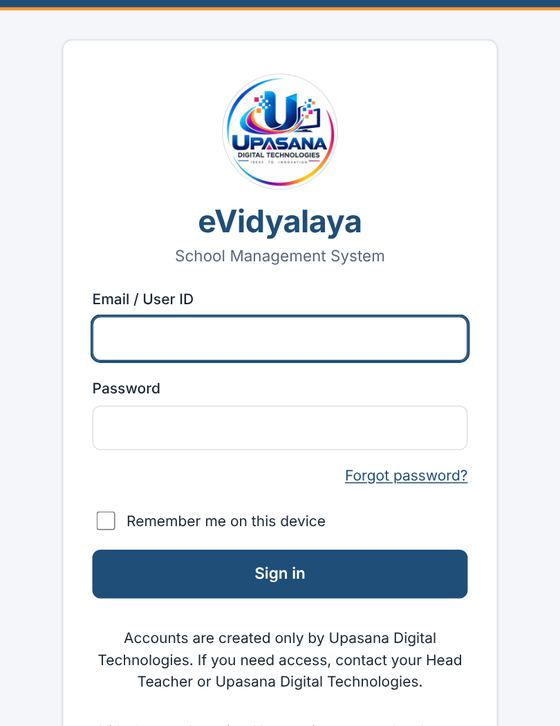
If the message "The email or password is not correct" appears, check the spelling of the email and the password (capital and small letters are different). After several wrong attempts, wait a few minutes before trying again.
"The email or password is not correct" বাৰ্তা ওলালে ইমেইল আৰু পাছৱৰ্ডৰ বানান পৰীক্ষা কৰক (ডাঙৰ আৰু সৰু আখৰ বেলেগ)। কেইবাবাৰো ভুল হ'লে কেইমিনিটমান অপেক্ষা কৰি আকৌ চেষ্টা কৰক।
Remember me / মোক মনত ৰাখক
When Remember me on this device is ticked, eVidyalaya keeps you signed in on that browser until you press Logout, so you do not need to type the password each time. When it is not ticked, you are signed out when the browser is closed.
Never tick it on a shared, office or cyber-café computer.
Some browsers are set to clear site data when they close (in Microsoft Edge: Settings → Privacy, search and services → Choose what to clear every time you close the browser → Cookies and other site data). With that setting on, you will be asked to sign in again each time, even with Remember me ticked.
If the saved sign-in can no longer be used (for example after a password change), eVidyalaya shows "Your saved sign-in (Remember me) could not be used, so please sign in again." Simply sign in again.
Remember me on this device-ত চিহ্ন দিলে আপুনি Logout নিটিপালৈকে eVidyalaya-এ সেই ব্ৰাউজাৰত আপোনাক লগ-ইন কৰি ৰাখে, সেয়ে প্ৰতিবাৰ পাছৱৰ্ড লিখিব নালাগে। চিহ্ন নিদিলে ব্ৰাউজাৰ বন্ধ কৰাৰ লগে লগে আপুনি লগ-আউট হয়।
সকলোৱে ব্যৱহাৰ কৰা, কাৰ্যালয়ৰ বা চাইবাৰ কেফেৰ কম্পিউটাৰত কেতিয়াও চিহ্ন নিদিব।
কিছুমান ব্ৰাউজাৰ বন্ধ কৰাৰ সময়ত চাইটৰ ডেটা মচি পেলোৱাকৈ ছেট কৰা থাকে (Microsoft Edge-ত: Settings → Privacy, search and services → Choose what to clear every time you close the browser → Cookies and other site data)। এই ছেটিং অন থাকিলে Remember me-ত চিহ্ন দিলেও প্ৰতিবাৰ আকৌ লগ-ইন কৰিবলৈ ক'ব।
ছেভ কৰি ৰখা লগ-ইন আৰু ব্যৱহাৰ কৰিব নোৱাৰিলে (যেনে পাছৱৰ্ড সলনি কৰাৰ পিছত) eVidyalaya-এ "Your saved sign-in (Remember me) could not be used, so please sign in again." দেখুৱায়। আকৌ লগ-ইন কৰিলেই হ'ব।
Forgot password / পাছৱৰ্ড পাহৰিলে
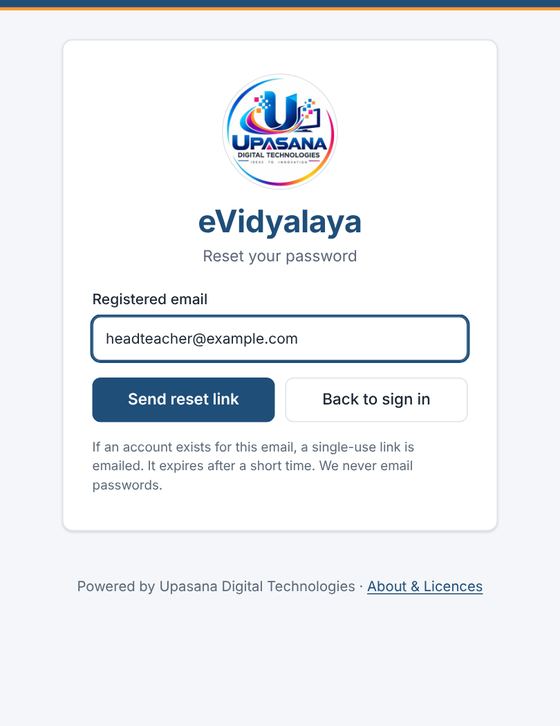
On the sign-in screen press Forgot password?
Type your registered email and press Send reset link.
Open the email from eVidyalaya and press the link. It works only once and expires after a short time.
Type a new password twice and press Save password.
eVidyalaya never sends passwords by email, and no one from Upasana Digital Technologies will ever ask for your password. If the email does not arrive within a few minutes, look in the Spam folder.
লগ-ইন পৃষ্ঠাত Forgot password? টিপক।
পঞ্জীয়ন কৰা ইমেইল লিখি Send reset link টিপক।
eVidyalaya-ৰ পৰা অহা ইমেইলখন খুলি লিংকটো টিপক। ই এবাৰহে কাম কৰে আৰু অলপ সময়ৰ পিছত ইয়াৰ ম্যাদ শেষ হয়।
দুবাৰ নতুন পাছৱৰ্ড লিখি Save password টিপক।
eVidyalaya-এ কেতিয়াও ইমেইলত পাছৱৰ্ড নপঠায়, আৰু উপাসনা ডিজিটেল টেকন'লজিজৰ কোনেও কেতিয়াও আপোনাৰ পাছৱৰ্ড নিবিচাৰে। কেইমিনিটমানৰ ভিতৰত ইমেইল নাহিলে Spam ফ'ল্ডাৰত চাওক।
The screen / পৃষ্ঠাৰ গঠন
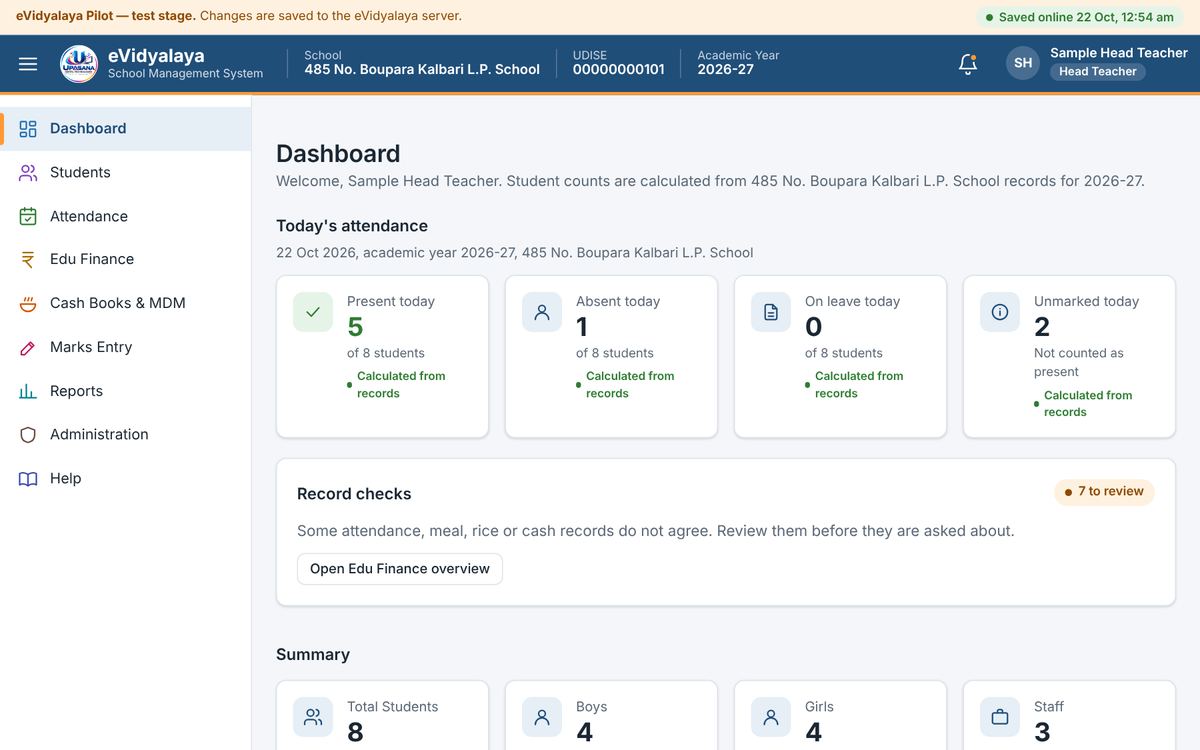
After signing in, the Dashboard opens.
The thin bar at the very top says "eVidyalaya Pilot — test stage" and, on the right, shows whether your work is saved: Saved online (green) with the time, Saving…, or Not saved (red). Chapter 3 explains these.
The blue bar shows the school name, UDISE code, academic year, and your name and role.
The menu on the left opens each area. Profile / Settings and Logout are at the bottom of the menu. On a phone, open the menu with the ☰ button.
The Dashboard shows today's attendance (present, absent, on leave, unmarked), Record checks that warn when attendance, meals, rice or cash books do not agree, and summary cards for students, boys, girls and staff.
লগ-ইনৰ পিছত ডেশ্বব'ৰ্ড খোল খায়।
একেবাৰে ওপৰৰ পাতল পটিত "eVidyalaya Pilot — test stage" লিখা থাকে, আৰু সোঁফালে আপোনাৰ কাম ছেভ হৈছে নে নাই দেখুৱায়: সময়সহ Saved online (সেউজীয়া), Saving…, বা Not saved (ৰঙা)। অধ্যায় ৩-ত এইবোৰ বুজাই দিয়া হৈছে।
নীলা পটিত বিদ্যালয়ৰ নাম, UDISE ক'ড, শিক্ষাবৰ্ষ, আৰু আপোনাৰ নাম আৰু ভূমিকা দেখা যায়।
বাওঁফালৰ মেনুৱে প্ৰতিটো অংশ খোলে। মেনুৰ তলত Profile / Settings আৰু Logout আছে। ফোনত ☰ বুটামেৰে মেনু খোলক।
ডেশ্বব'ৰ্ডত আজিৰ হাজিৰা (উপস্থিত, অনুপস্থিত, ছুটী, চিহ্নিত নোহোৱা), হাজিৰা, আহাৰ, চাউল বা কেছ বুকৰ হিচাপ নিমিলিলে সতৰ্ক কৰা Record checks, আৰু ছাত্ৰ-ছাত্ৰী, ল'ৰা, ছোৱালী আৰু কৰ্মচাৰীৰ সংখ্যাৰ কাৰ্ড থাকে।
Your profile and password / আপোনাৰ প্ৰ'ফাইল আৰু পাছৱৰ্ড
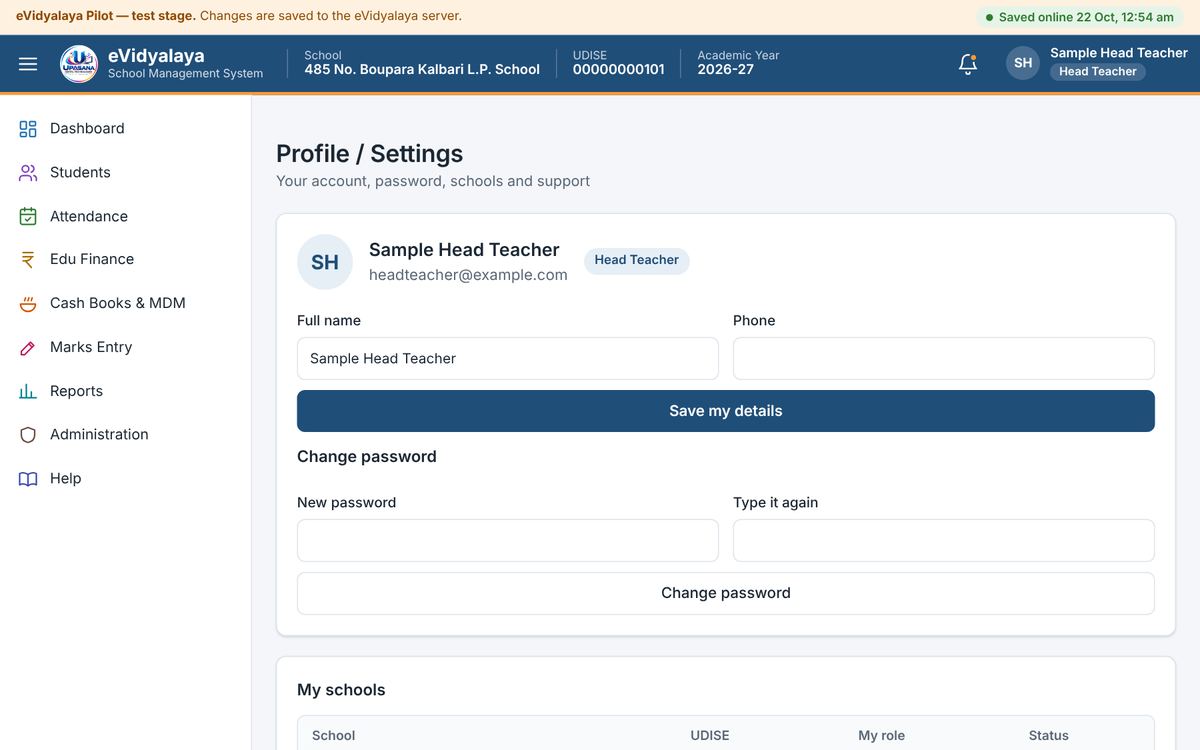
Profile / Settings shows your name, email and role. Here you can correct your full name and phone number (Save my details), change your password (type the new password twice and press Change password), see the schools and roles given to you under My schools, and send a message to Upasana Digital Technologies (see Chapter 14).
Profile / Settings-ত আপোনাৰ নাম, ইমেইল আৰু ভূমিকা দেখা যায়। ইয়াত আপুনি সম্পূৰ্ণ নাম আৰু ফোন নম্বৰ শুধৰাব পাৰে (Save my details), পাছৱৰ্ড সলনি কৰিব পাৰে (নতুন পাছৱৰ্ড দুবাৰ লিখি Change password টিপক), My schools-ত আপোনাক দিয়া বিদ্যালয় আৰু ভূমিকা চাব পাৰে, আৰু উপাসনা ডিজিটেল টেকন'লজিজলৈ বাৰ্তা পঠাব পাৰে (অধ্যায় ১৪ চাওক)।
Signing out / লগ-আউট
Press Logout at the bottom of the menu when you finish, especially on a computer that others use. Signing out ends your session on that browser; your saved records stay safely on the server.
কাম শেষ হ'লে মেনুৰ তলৰ Logout টিপক, বিশেষকৈ আনেও ব্যৱহাৰ কৰা কম্পিউটাৰত। লগ-আউট কৰিলে সেই ব্ৰাউজাৰত আপোনাৰ ছেছন শেষ হয়; ছেভ কৰা তথ্য চাৰ্ভাৰত সুৰক্ষিতভাৱে থাকে।
3. Saving and the internet connection / ছেভ আৰু ইণ্টাৰনেট সংযোগ
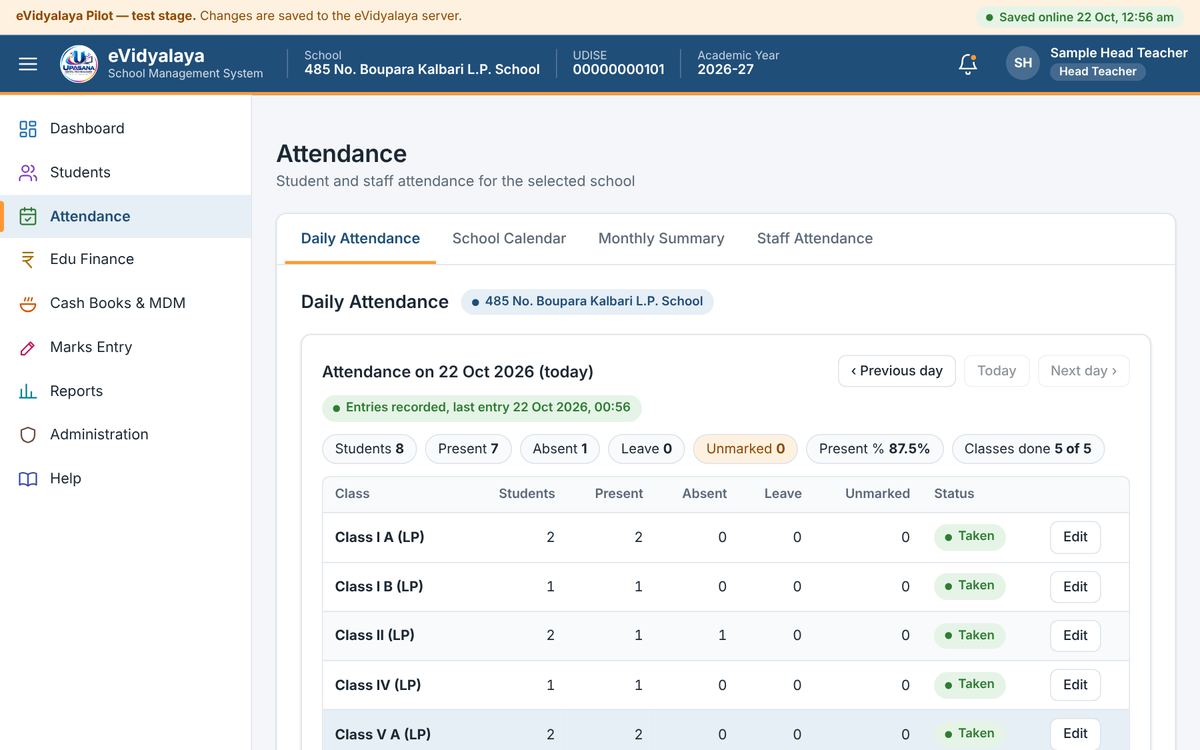
eVidyalaya saves your work to the online server by itself, a moment after each entry. There is no separate "save to server" button. Watch the status at the top right of the screen:
| Status | Meaning |
|---|---|
| Saved online (green, with time) | Everything is saved on the server. |
| Saving… | Your latest entry is being sent. Wait a moment. |
| 1 change(s) waiting | An entry is about to be sent. |
| Not saved: offline (red) | The internet connection is lost. Your entries are kept on this device. |
| Not saved: needs attention (red) | The server could not accept a change. Read the red message below the top bar. |
| Read-only access | Shown to Office Viewers, who cannot change anything. |
প্ৰতিটো তথ্য লিখাৰ অলপ পিছতে eVidyalaya-এ নিজে নিজে অনলাইন চাৰ্ভাৰত ছেভ কৰে। "চাৰ্ভাৰত ছেভ" কৰিবলৈ বেলেগ বুটাম নাই। পৃষ্ঠাৰ ওপৰৰ সোঁফালৰ অৱস্থা চাই থাকক:
Saved online (সেউজীয়া, সময়সহ): সকলো তথ্য চাৰ্ভাৰত ছেভ হৈছে।
Saving…: শেহতীয়া তথ্য পঠোৱা হৈছে। অলপ অপেক্ষা কৰক।
1 change(s) waiting: এটা তথ্য পঠাবলৈ সাজু।
Not saved: offline (ৰঙা): ইণ্টাৰনেট সংযোগ নাই। আপোনাৰ তথ্য এই ডিভাইচত ৰখা আছে।
Not saved: needs attention (ৰঙা): চাৰ্ভাৰে এটা সলনি গ্ৰহণ কৰিব নোৱাৰিলে। ওপৰৰ পটিৰ তলৰ ৰঙা বাৰ্তাটো পঢ়ক।
Read-only access: Office Viewer-ক দেখুওৱা হয়; তেওঁলোকে একো সলনি কৰিব নোৱাৰে।
When the internet connection drops / ইণ্টাৰনেট সংযোগ বিচ্ছিন্ন হ'লে
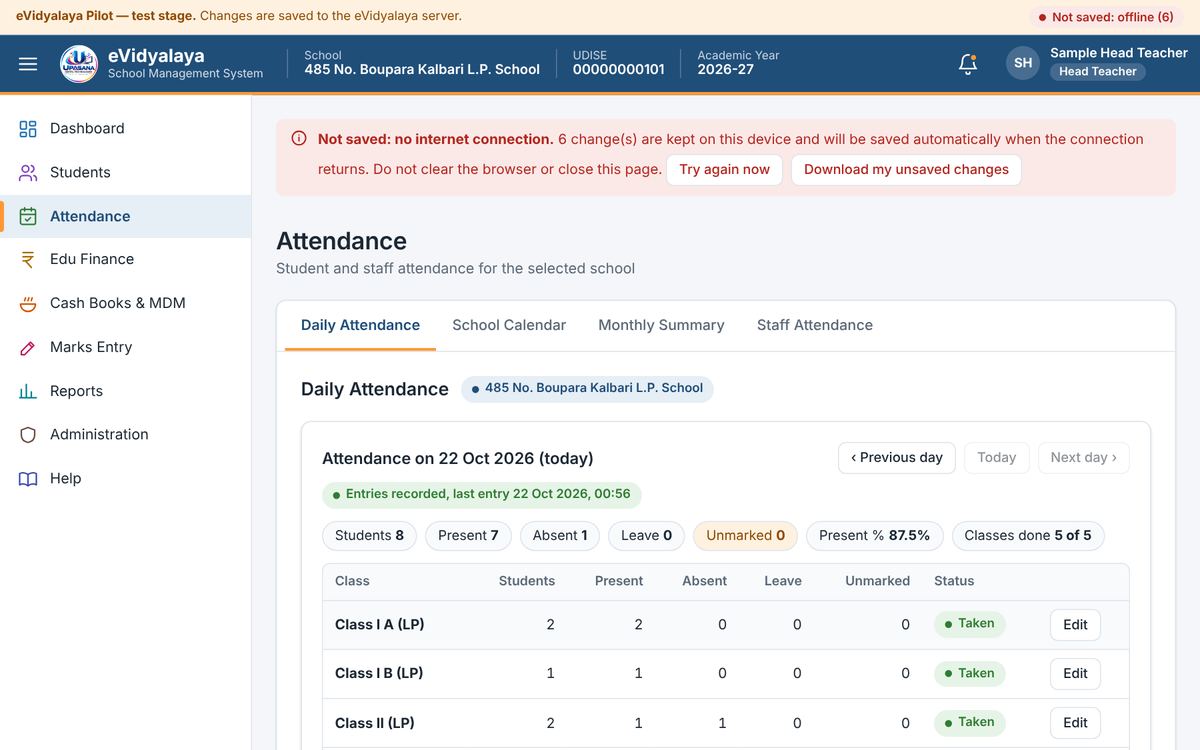
If the connection drops while you are working, a red message appears: "Not saved: no internet connection. … change(s) are kept on this device and will be saved automatically when the connection returns." You can keep typing; the entries stay on the screen and on the device.
Do not close the page, clear the browser or sign out until the status is green again.
When the connection returns, the entries are sent by themselves and the status becomes Saved online. You can also press Try again now.
If the connection will not return soon, press Download my unsaved changes to keep a copy as a file, and inform Upasana Digital Technologies.
eVidyalaya cannot be used fully offline, and entries are not shared between two devices until they are saved online.
কাম কৰি থাকোঁতে সংযোগ বিচ্ছিন্ন হ'লে এটা ৰঙা বাৰ্তা ওলায়: "Not saved: no internet connection. … change(s) are kept on this device and will be saved automatically when the connection returns." আপুনি লিখি থাকিব পাৰে; তথ্যবোৰ পৃষ্ঠাত আৰু ডিভাইচত থাকে।
অৱস্থা আকৌ সেউজীয়া নোহোৱালৈকে পৃষ্ঠা বন্ধ নকৰিব, ব্ৰাউজাৰ মচি নেপেলাব বা লগ-আউট নকৰিব।
সংযোগ ঘূৰি আহিলে তথ্যবোৰ নিজে নিজে পঠোৱা হয় আৰু অৱস্থা Saved online হয়। আপুনি Try again now-ও টিপিব পাৰে।
সংযোগ সোনকালে ঘূৰি নাহিলে Download my unsaved changes টিপি এটা ফাইল হিচাপে কপি ৰাখক, আৰু উপাসনা ডিজিটেল টেকন'লজিজক জনাওক।
eVidyalaya সম্পূৰ্ণ অফলাইনত ব্যৱহাৰ কৰিব নোৱাৰি, আৰু অনলাইনত ছেভ নোহোৱালৈকে তথ্য দুটা ডিভাইচৰ মাজত ভাগ নহয়।
Other saving messages / ছেভ সম্পৰ্কীয় আন বাৰ্তা
"Your sign-in has expired." Your entries are still on the screen. Press Sign in again; the entries are then saved.
"Someone else saved a newer version." Another person changed the same record at the same time. Press Download my unsaved changes, then Reload school, and enter your change again.
"Some changes were refused by the server." Your role does not allow that change, or the school or account is no longer active. Download the refused changes and ask the Head Teacher or Upasana Digital Technologies.
"Unsaved changes from … were found on this device." Entries from an earlier visit were not saved. Press Try to save them now.
"Your sign-in has expired." আপোনাৰ তথ্য এতিয়াও পৃষ্ঠাত আছে। Sign in again টিপক; তাৰ পিছত তথ্যবোৰ ছেভ হ'ব।
"Someone else saved a newer version." একে সময়তে আন এজনে একেটা তথ্য সলনি কৰিছে। Download my unsaved changes টিপক, তাৰ পিছত Reload school টিপি আপোনাৰ সলনিখিনি আকৌ লিখক।
"Some changes were refused by the server." আপোনাৰ ভূমিকাই সেই সলনিৰ অনুমতি নিদিয়ে, বা বিদ্যালয় বা একাউণ্ট আৰু সক্ৰিয় নহয়। নাকচ হোৱা সলনিখিনি ডাউনল'ড কৰি প্ৰধান শিক্ষক বা উপাসনা ডিজিটেল টেকন'লজিজক সোধক।
"Unsaved changes from … were found on this device." আগৰবাৰ লিখা তথ্য ছেভ হোৱা নাছিল। Try to save them now টিপক।
4. Roles and access / ভূমিকা আৰু অনুমতি
Every account has one role in a school. The server decides what each person may see and do; the screens only follow these rules.
| Role | Who | What they do |
|---|---|---|
| Head Teacher | One per school, assigned by Upasana Digital Technologies | Manages the whole school: setup, students, attendance, MDM, cash books, finance, marks, reports, people's classes, inspection access, audit log and backups |
| Assistant Teacher | Teachers of the school | Enters students, attendance and marks for the classes the Head Teacher gives them; sees MDM records and reports. No finance or cash books unless specially permitted |
| Office Viewer | Officers of the Education Department | Read-only. Sees students (without ID or bank details), attendance, MDM records and reports. Sees a cash book only through financial inspection (section 4.3) |
| Platform Owner | Upasana Digital Technologies | Creates schools and accounts, assigns roles, suspends or re-activates. Does not see student or financial records |
প্ৰতিটো একাউণ্টৰ এখন বিদ্যালয়ত এটা ভূমিকা থাকে। কোনে কি চাব আৰু কৰিব পাৰিব, সেয়া চাৰ্ভাৰে ঠিক কৰে; পৃষ্ঠাবোৰে কেৱল এই নিয়ম মানি চলে।
Head Teacher (প্ৰধান শিক্ষক): প্ৰতিখন বিদ্যালয়ত এজন, উপাসনা ডিজিটেল টেকন'লজিজে নিযুক্ত কৰে। গোটেই বিদ্যালয় চলায়: ছেটআপ, ছাত্ৰ-ছাত্ৰী, হাজিৰা, MDM, কেছ বুক, বিত্ত, নম্বৰ, ৰিপৰ্ট, শিক্ষকৰ শ্ৰেণী, পৰিদৰ্শনৰ অনুমতি, অডিট লগ আৰু বেকআপ।
Assistant Teacher (সহকাৰী শিক্ষক): প্ৰধান শিক্ষকে দিয়া শ্ৰেণীৰ ছাত্ৰ-ছাত্ৰী, হাজিৰা আৰু নম্বৰ লিখে; MDM-ৰ তথ্য আৰু ৰিপৰ্ট চায়। বিশেষ অনুমতি নিদিলে বিত্ত বা কেছ বুক নাচায়।
Office Viewer (কাৰ্যালয়ৰ পৰিদৰ্শক): শিক্ষা বিভাগৰ বিষয়া। কেৱল চাব পাৰে। ছাত্ৰ-ছাত্ৰী (আই-ডি আৰু বেংকৰ তথ্যৰ বাহিৰে), হাজিৰা, MDM-ৰ তথ্য আৰু ৰিপৰ্ট চায়। কেছ বুক কেৱল বিত্তীয় পৰিদৰ্শনৰ জৰিয়তে চাব পাৰে (৪.৩ চাওক)।
Platform Owner (প্লেটফৰ্ম ওনাৰ): উপাসনা ডিজিটেল টেকন'লজিজ। বিদ্যালয় আৰু একাউণ্ট সৃষ্টি কৰে, ভূমিকা দিয়ে, স্থগিত বা পুনৰ সক্ৰিয় কৰে। ছাত্ৰ-ছাত্ৰী বা ধনৰ তথ্য নাচায়।
People and classes (Head Teacher) / ব্যক্তি আৰু শ্ৰেণী (প্ৰধান শিক্ষক)
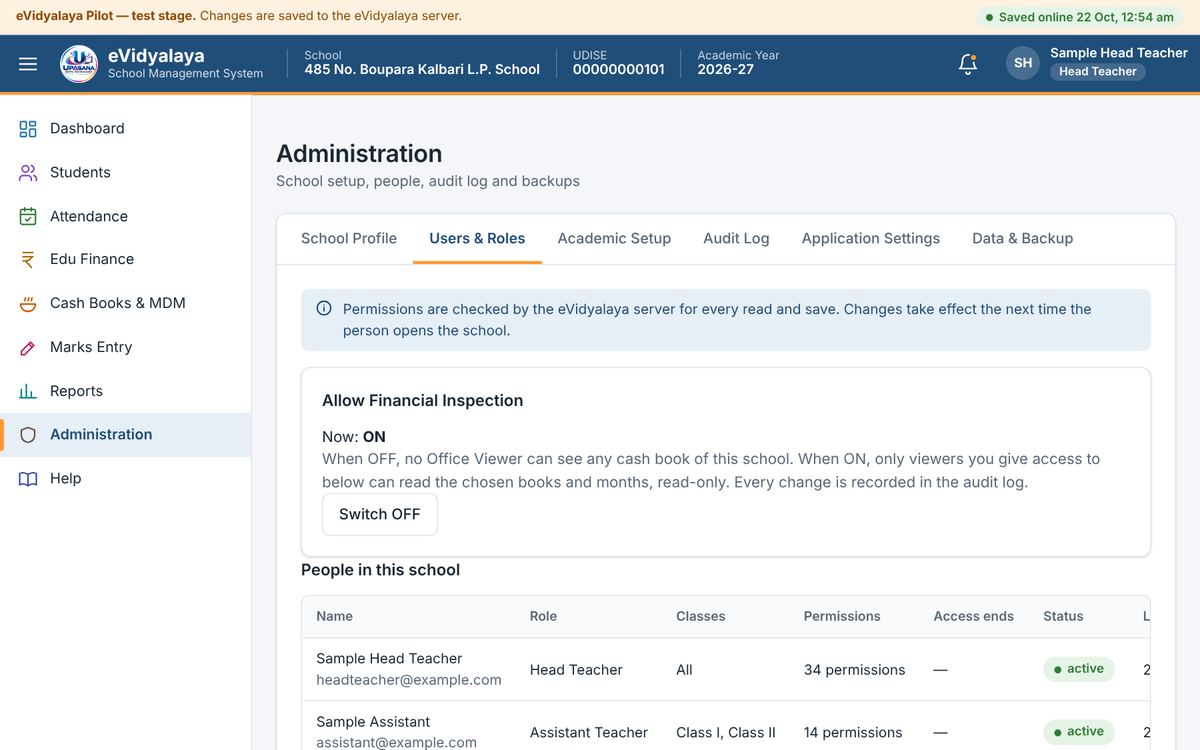
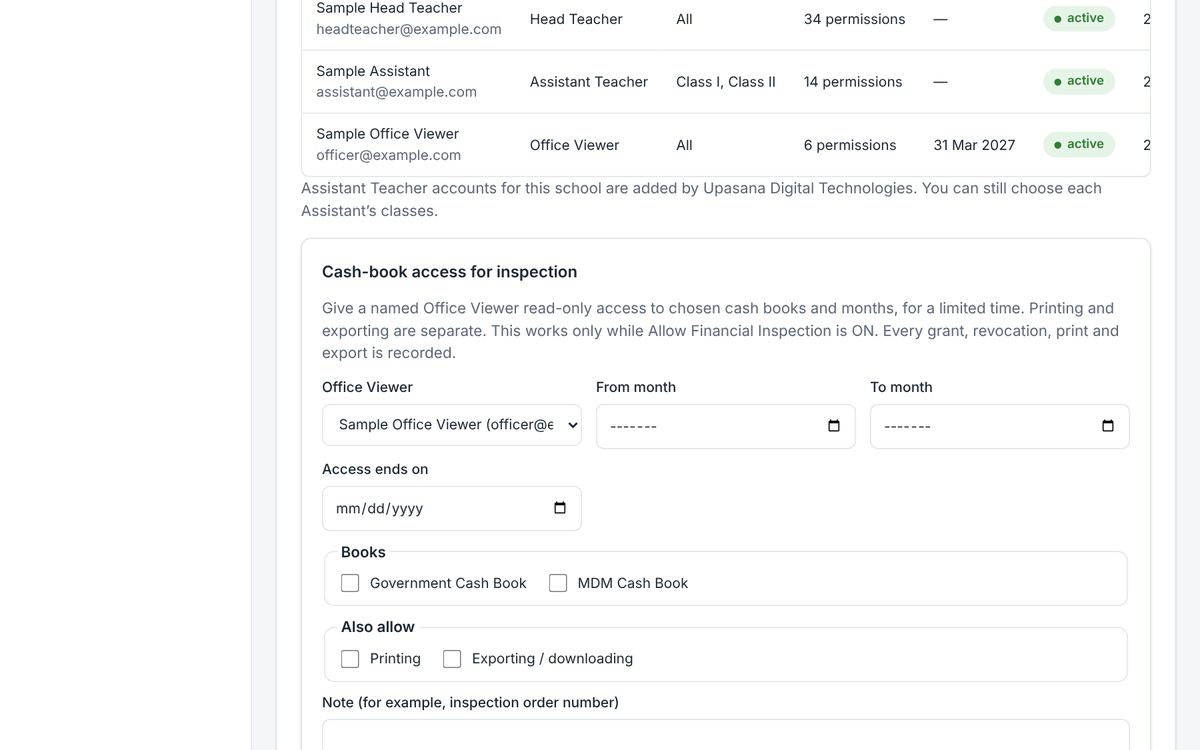
Open Administration → Users & Roles. The table People in this school lists everyone with their role, classes, number of permissions, access end date, status and last sign-in. A new Assistant Teacher starts with no classes and therefore sees no students. Press Classes beside the Assistant, tick their classes and press Save classes. The change takes effect the next time the Assistant opens the school.
Administration → Users & Roles খোলক। People in this school তালিকাত সকলোৰে ভূমিকা, শ্ৰেণী, অনুমতিৰ সংখ্যা, অনুমতিৰ শেষ তাৰিখ, অৱস্থা আৰু শেষ লগ-ইন দেখা যায়। নতুন সহকাৰী শিক্ষকৰ আৰম্ভণিতে কোনো শ্ৰেণী নাথাকে, সেয়ে তেওঁ কোনো ছাত্ৰ-ছাত্ৰী নেদেখে। সহকাৰী শিক্ষকৰ কাষৰ Classes টিপক, তেওঁৰ শ্ৰেণীবোৰত চিহ্ন দিয়ক আৰু Save classes টিপক। সহকাৰী শিক্ষকে পিছত বিদ্যালয় খুলিলে এই সলনি কাৰ্যকৰী হয়।
New accounts, extra permissions and removal of people are done by Upasana Digital Technologies. If Upasana Digital Technologies switches on "Head Teacher manages Assistants" for a school, the Head Teacher can also add Assistants, change their permissions, suspend or remove them on this page.
নতুন একাউণ্ট, অতিৰিক্ত অনুমতি আৰু কাৰোবাক আঁতৰোৱাৰ কাম উপাসনা ডিজিটেল টেকন'লজিজে কৰে। কোনো বিদ্যালয়ৰ বাবে উপাসনা ডিজিটেল টেকন'লজিজে "Head Teacher manages Assistants" অন কৰিলে প্ৰধান শিক্ষকেও এই পৃষ্ঠাত সহকাৰী শিক্ষক যোগ কৰিব, অনুমতি সলনি কৰিব, স্থগিত বা আঁতৰাব পাৰে।
Office Viewer: what an officer sees / Office Viewer: বিষয়াই কি দেখে
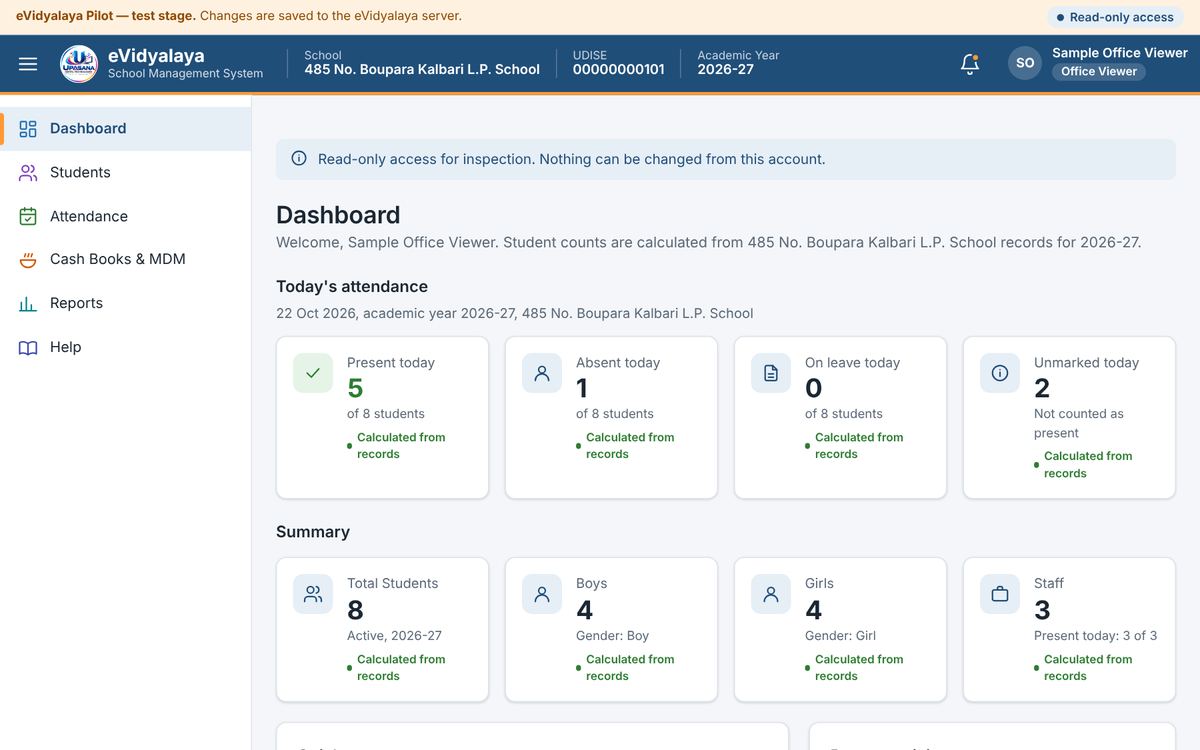
An Office Viewer sees a blue note "Read-only access for inspection. Nothing can be changed from this account." and the status Read-only access. No buttons for adding or changing records are shown. Aadhaar, PAN and bank details are removed by the server and appear as Hidden for your role. Printing or downloading reports needs the permission "Print and export reports", which Upasana Digital Technologies can give to an officer.
Office Viewer-এ এটা নীলা টোকা দেখে: "Read-only access for inspection. Nothing can be changed from this account.", আৰু অৱস্থা Read-only access। তথ্য যোগ বা সলনি কৰা কোনো বুটাম দেখুওৱা নহয়। আধাৰ, PAN আৰু বেংকৰ তথ্য চাৰ্ভাৰে আঁতৰাই দিয়ে আৰু Hidden for your role হিচাপে দেখা যায়। ৰিপৰ্ট প্ৰিণ্ট বা ডাউনল'ড কৰিবলৈ "Print and export reports" অনুমতি লাগে, যিটো উপাসনা ডিজিটেল টেকন'লজিজে বিষয়াক দিব পাৰে।
Financial inspection of cash books / কেছ বুকৰ বিত্তীয় পৰিদৰ্শন
Cash books are private to the school. An Office Viewer can read a cash book only when all four conditions are true:
The Head Teacher has switched Allow Financial Inspection to ON (Administration → Users & Roles). It is OFF by default.
Upasana Digital Technologies has authorised that officer for financial inspection.
The Head Teacher has given that officer access under Cash-book access for inspection: choose the Office Viewer, the months (From month, To month), Access ends on, the books (Government and/or MDM), whether Printing and Exporting / downloading are allowed, and a note such as the inspection order number. Press Give access.
The access has not ended and has not been revoked.
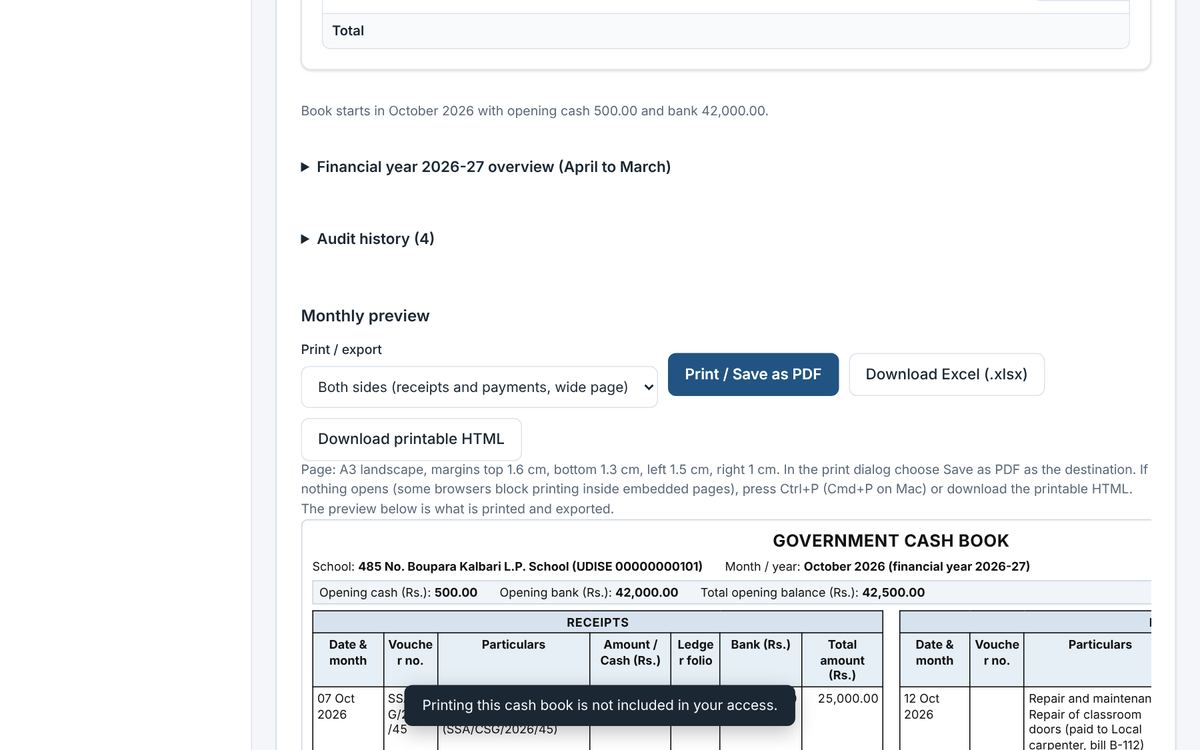
The officer then sees only the chosen books and months, read-only, starting with the correct opening balance. Printing and downloading are refused with a message unless they were allowed. To stop access early, press Revoke in the list of access given, and type the reason. Every grant, revocation, print and download attempt is recorded in the audit log.
কেছ বুক বিদ্যালয়ৰ নিজা। তলৰ চাৰিওটা চৰ্ত পূৰণ হ'লেহে Office Viewer-এ কেছ বুক পঢ়িব পাৰে:
প্ৰধান শিক্ষকে Allow Financial Inspection ON কৰিছে (Administration → Users & Roles)। আৰম্ভণিতে ই OFF থাকে।
উপাসনা ডিজিটেল টেকন'লজিজে সেই বিষয়াক বিত্তীয় পৰিদৰ্শনৰ অনুমতি দিছে।
প্ৰধান শিক্ষকে Cash-book access for inspection-ত সেই বিষয়াক অনুমতি দিছে: Office Viewer, মাহ (From month, To month), Access ends on, বহী (চৰকাৰী আৰু/বা MDM), Printing আৰু Exporting / downloading-ৰ অনুমতি দিব নে নাই, আৰু পৰিদৰ্শন আদেশ নম্বৰৰ দৰে এটা টোকা বাছি Give access টিপক।
অনুমতিৰ ম্যাদ শেষ হোৱা নাই আৰু প্ৰত্যাহাৰ কৰা হোৱা নাই।
তাৰ পিছত বিষয়াই কেৱল বাছি লোৱা বহী আৰু মাহবোৰহে, শুদ্ধ আৰম্ভণি জেৰসহ, কেৱল চাব পৰাকৈ দেখে। অনুমতি নিদিলে প্ৰিণ্ট আৰু ডাউনল'ড এটা বাৰ্তাসহ নাকচ হয়। আগতেই অনুমতি বন্ধ কৰিবলৈ দিয়া অনুমতিৰ তালিকাত Revoke টিপি কাৰণ লিখক। প্ৰতিটো অনুমতি, প্ৰত্যাহাৰ, প্ৰিণ্ট আৰু ডাউনল'ডৰ চেষ্টা অডিট লগত লিপিবদ্ধ হয়।
Suspended or disabled schools and accounts / স্থগিত বা নিষ্ক্ৰিয় বিদ্যালয় আৰু একাউণ্ট
Upasana Digital Technologies can suspend or disable a school or an account, always with a reason. A person whose school is suspended sees a message to that effect and no school modules; their records are kept and come back when the school is re-activated. An account that is not yet linked to a school sees "Your account is not linked to a school yet." In all these cases, contact Upasana Digital Technologies.
উপাসনা ডিজিটেল টেকন'লজিজে সদায় কাৰণ দৰ্শাই কোনো বিদ্যালয় বা একাউণ্ট স্থগিত বা নিষ্ক্ৰিয় কৰিব পাৰে। বিদ্যালয় স্থগিত হ'লে তাৰ ব্যৱহাৰকাৰীয়ে সেই বিষয়ে এটা বাৰ্তা দেখে আৰু বিদ্যালয়ৰ কোনো অংশ নেদেখে; তথ্যবোৰ থাকি যায় আৰু বিদ্যালয় পুনৰ সক্ৰিয় হ'লে ঘূৰি আহে। বিদ্যালয়ৰ সৈতে এতিয়াও সংযোগ নোহোৱা একাউণ্টে "Your account is not linked to a school yet." দেখে। এই সকলো ক্ষেত্ৰত উপাসনা ডিজিটেল টেকন'লজিজৰ সৈতে যোগাযোগ কৰক।
5. School setup / বিদ্যালয়ৰ ছেটআপ
Upasana Digital Technologies creates the school and assigns its Head Teacher. The Head Teacher then completes the setup once, before daily work begins, under Administration.
উপাসনা ডিজিটেল টেকন'লজিজে বিদ্যালয় সৃষ্টি কৰে আৰু প্ৰধান শিক্ষক নিযুক্ত কৰে। তাৰ পিছত দৈনিক কাম আৰম্ভ কৰাৰ আগতে প্ৰধান শিক্ষকে Administration-ত এবাৰ ছেটআপ সম্পূৰ্ণ কৰে।
School Profile / বিদ্যালয়ৰ প্ৰ'ফাইল
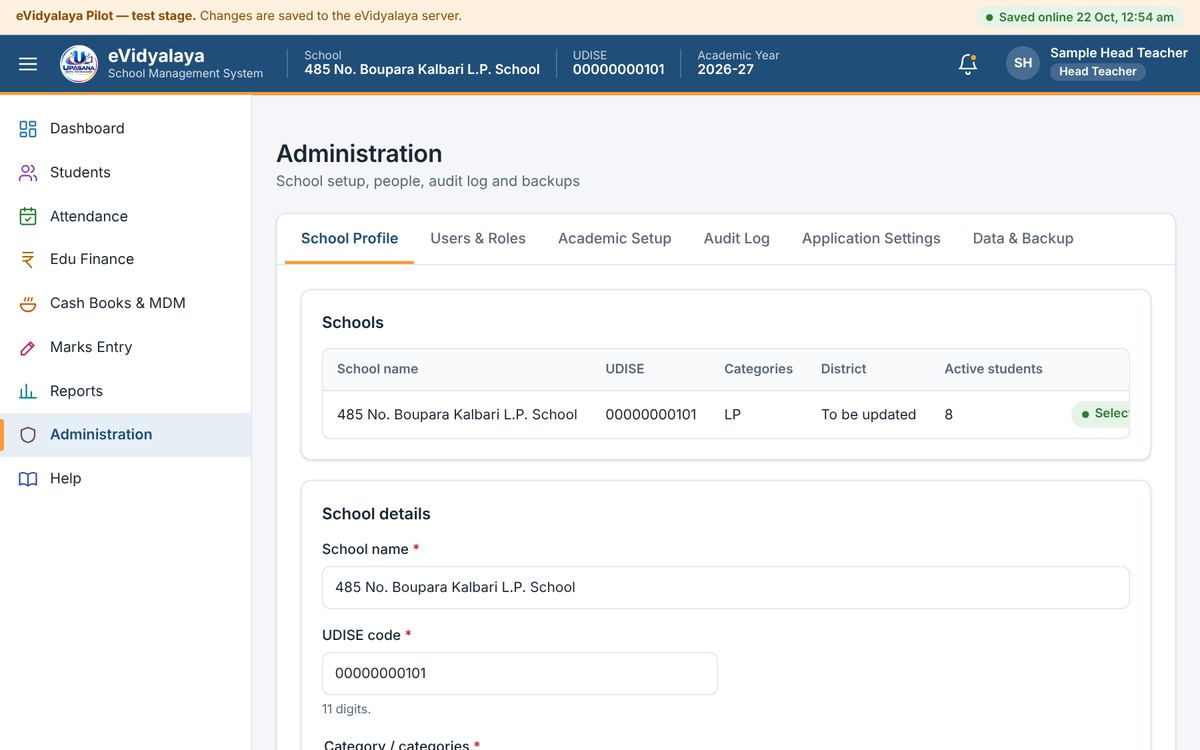
The School Profile holds the school name, 11-digit UDISE code, categories (LP, ME, High School, Higher Secondary; more than one for a combined school), address, district, state, PIN, head teacher, contact number and email. Check every field, correct it and press Save school details. Fill in the contact number and email: a backup of a school without them cannot be imported later.
বিদ্যালয়ৰ প্ৰ'ফাইলত বিদ্যালয়ৰ নাম, ১১ অংকৰ UDISE ক'ড, শ্ৰেণী-বিভাগ (LP, ME, হাইস্কুল, উচ্চতৰ মাধ্যমিক; সংযুক্ত বিদ্যালয়ৰ বাবে একাধিক), ঠিকনা, জিলা, ৰাজ্য, পিন, প্ৰধান শিক্ষক, যোগাযোগ নম্বৰ আৰু ইমেইল থাকে। প্ৰতিটো ঘৰ পৰীক্ষা কৰি শুধৰাওক আৰু Save school details টিপক। যোগাযোগ নম্বৰ আৰু ইমেইল অৱশ্যেই দিয়ক: এইবোৰ নথকা বিদ্যালয়ৰ বেকআপ পিছত আমদানি কৰিব নোৱাৰি।
Academic years, classes and sections / শিক্ষাবৰ্ষ, শ্ৰেণী আৰু শাখা
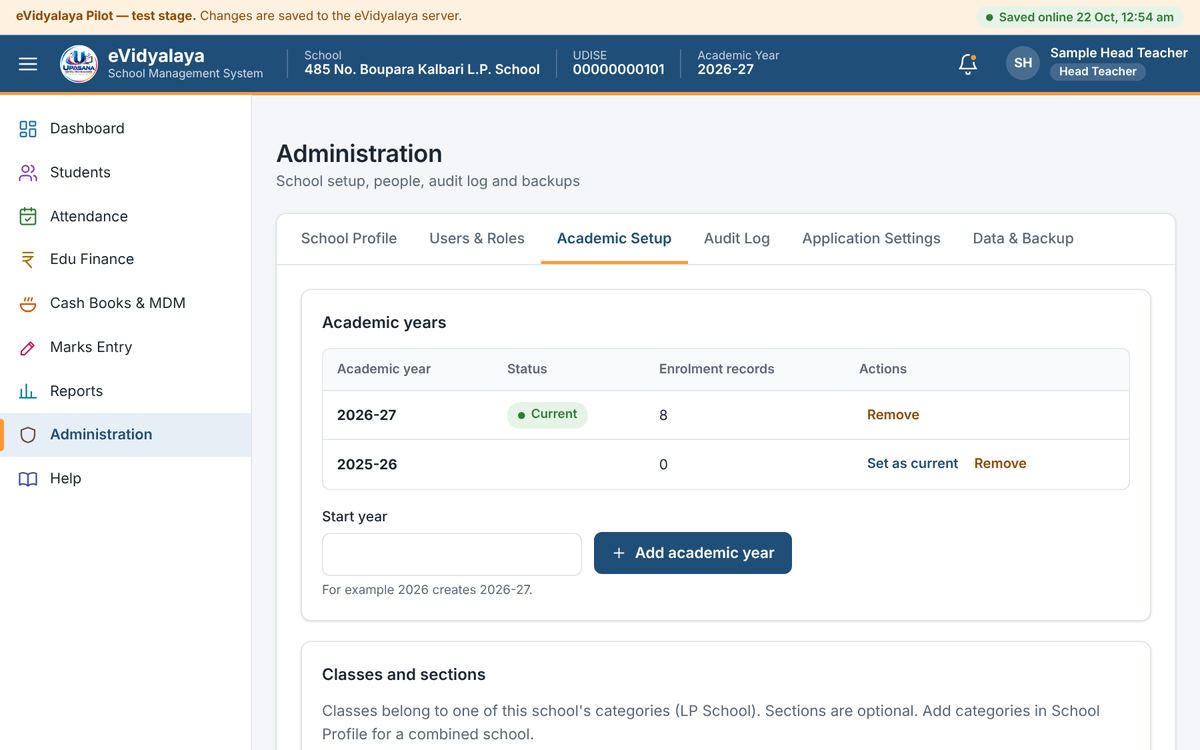
In Academic Setup, add the academic year (for example 2026 creates 2026-27) and mark the current year. Then add classes for each category with Add class or Add several. Sections such as A, B are optional and are typed with commas. A class that already has students cannot be removed.
Academic Setup-ত শিক্ষাবৰ্ষ যোগ কৰক (যেনে 2026 লিখিলে 2026-27 হয়) আৰু চলিত বৰ্ষ চিহ্নিত কৰক। তাৰ পিছত প্ৰতিটো বিভাগৰ বাবে Add class বা Add several-ৰে শ্ৰেণী যোগ কৰক। A, B-ৰ দৰে শাখা ঐচ্ছিক, কমা দি লিখিব লাগে। ছাত্ৰ-ছাত্ৰী থকা শ্ৰেণী আঁতৰাব নোৱাৰি।
6. Students / ছাত্ৰ-ছাত্ৰী
The Head Teacher sees every student of the school. An Assistant Teacher sees and adds students only in the classes given to them.
প্ৰধান শিক্ষকে বিদ্যালয়ৰ সকলো ছাত্ৰ-ছাত্ৰী দেখে। সহকাৰী শিক্ষকে কেৱল তেওঁক দিয়া শ্ৰেণীৰ ছাত্ৰ-ছাত্ৰীহে দেখে আৰু যোগ কৰে।
Student List / ছাত্ৰ-ছাত্ৰীৰ তালিকা
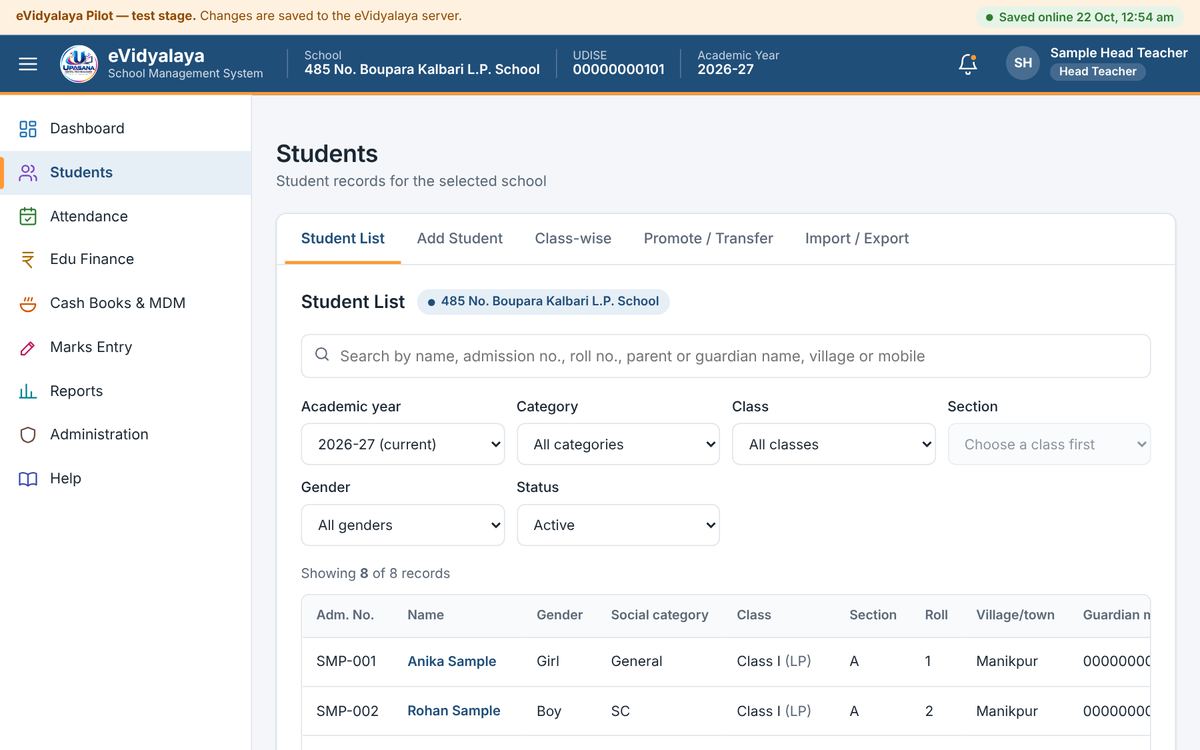
The Student List shows every student with admission number, name, gender, social category, class, section, roll number, village and guardian's mobile. Filters at the top narrow the list by year, category, class, section, gender and status (active, passed out, transferred out, archived). The search box finds a student by name, admission number, roll number, parent's name or village. View shows all details; Edit corrects them; Archive removes a student from active lists without deleting the record.
ছাত্ৰ-ছাত্ৰীৰ তালিকাত প্ৰতিজনৰ ভৰ্তি নম্বৰ, নাম, লিংগ, সামাজিক শ্ৰেণী, শ্ৰেণী, শাখা, ৰোল নম্বৰ, গাঁও আৰু অভিভাৱকৰ ম'বাইল নম্বৰ দেখা যায়। ওপৰৰ ফিল্টাৰেৰে বৰ্ষ, বিভাগ, শ্ৰেণী, শাখা, লিংগ আৰু অৱস্থা (সক্ৰিয়, উত্তীৰ্ণ হৈ ওলাই যোৱা, স্থানান্তৰিত, আৰ্কাইভ) অনুসৰি তালিকা চাব পাৰি। সন্ধান বাকচত নাম, ভৰ্তি নম্বৰ, ৰোল নম্বৰ, পিতৃ-মাতৃৰ নাম বা গাঁৱৰ নাম লিখি ছাত্ৰ বিচাৰিব পাৰি। View-এ সকলো তথ্য দেখুৱায়; Edit-এ শুধৰায়; Archive-এ তথ্য মচি নেপেলোৱাকৈ সক্ৰিয় তালিকাৰ পৰা আঁতৰায়।
Adding a student / নতুন ছাত্ৰ-ছাত্ৰী ভৰ্তি
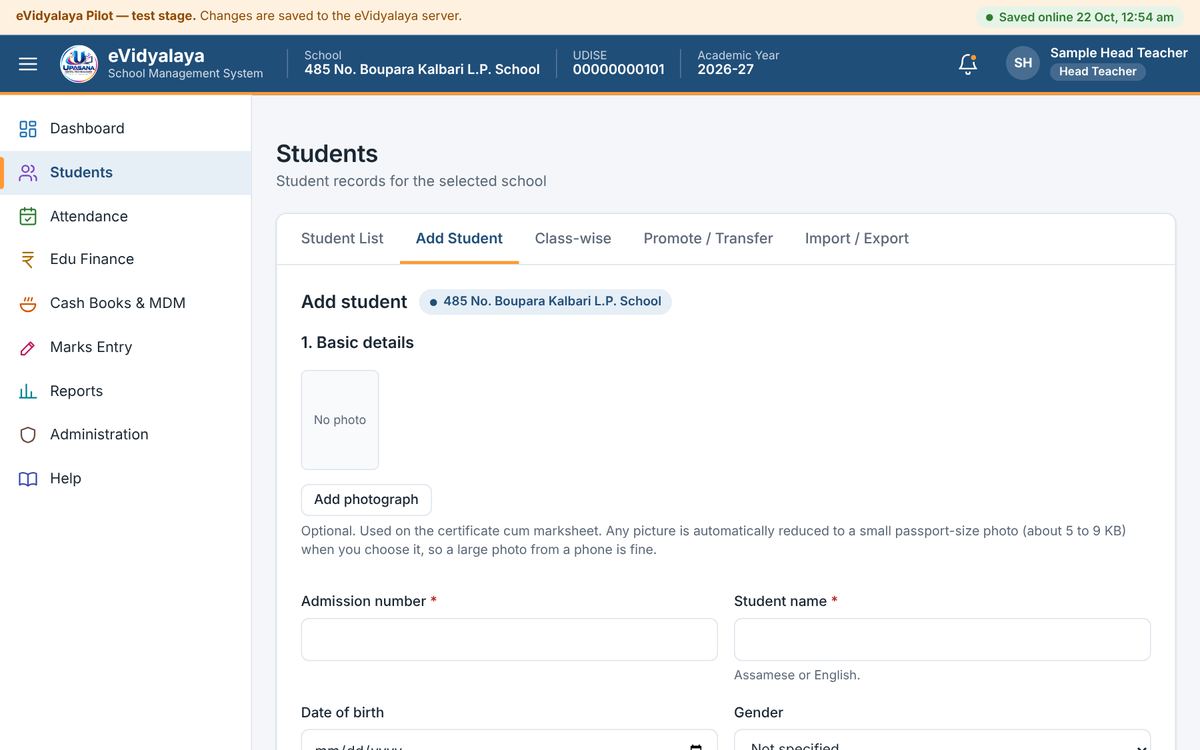
Open Students → Add Student.
Optionally add a photograph; it is reduced to passport size automatically and used on the marksheet.
Fill basic details: admission number, name (Assamese or English), date of birth, gender, social category and admission date.
Fill parents or guardian (at least one name), address and guardian's mobile number.
Aadhaar, PAN and bank details are optional. They are seen only by the Head Teacher; for everyone else they show as Hidden for your role.
Choose the academic year, category, class, section and roll number, then press Save student.
Students → Add Student খোলক।
ইচ্ছা কৰিলে ফটো দিয়ক; ই নিজে নিজে পাছপ'ৰ্ট আকাৰৰ হয় আৰু মাৰ্কছিটত ব্যৱহাৰ হয়।
মূল তথ্য লিখক: ভৰ্তি নম্বৰ, নাম (অসমীয়া বা ইংৰাজী), জন্ম তাৰিখ, লিংগ, সামাজিক শ্ৰেণী আৰু ভৰ্তিৰ তাৰিখ।
পিতৃ-মাতৃ বা অভিভাৱকৰ নাম (অন্ততঃ এজনৰ), ঠিকনা আৰু অভিভাৱকৰ ম'বাইল নম্বৰ লিখক।
আধাৰ, PAN আৰু বেংকৰ তথ্য ঐচ্ছিক। এইবোৰ কেৱল প্ৰধান শিক্ষকে দেখে; আন সকলোৰে বাবে Hidden for your role দেখুৱায়।
শিক্ষাবৰ্ষ, বিভাগ, শ্ৰেণী, শাখা আৰু ৰোল নম্বৰ বাছি Save student টিপক।
Class-wise list / শ্ৰেণী অনুসৰি তালিকা
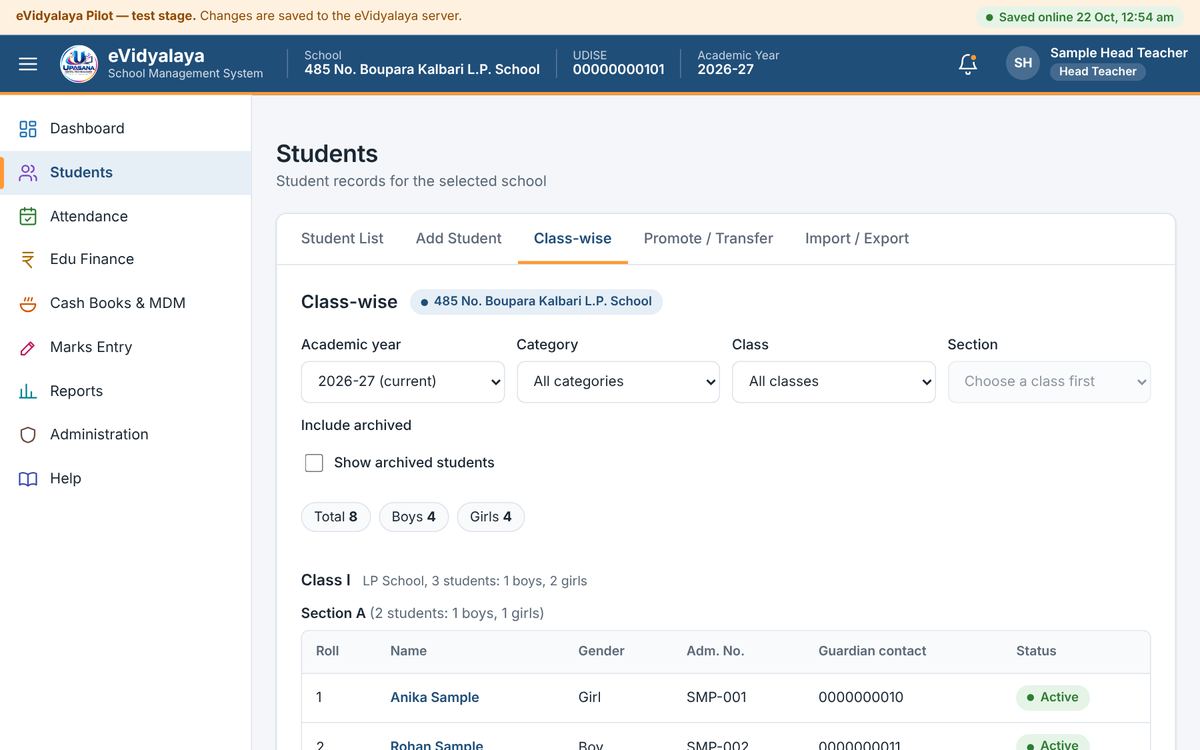
Class-wise shows each class and section with the number of boys and girls and the students in roll-number order.
Class-wise-ত প্ৰতিটো শ্ৰেণী আৰু শাখাৰ ল'ৰা-ছোৱালীৰ সংখ্যা আৰু ৰোল নম্বৰ অনুসৰি নামৰ তালিকা দেখা যায়।
Promotion and transfer / উত্তীৰ্ণ কৰা আৰু স্থানান্তৰ
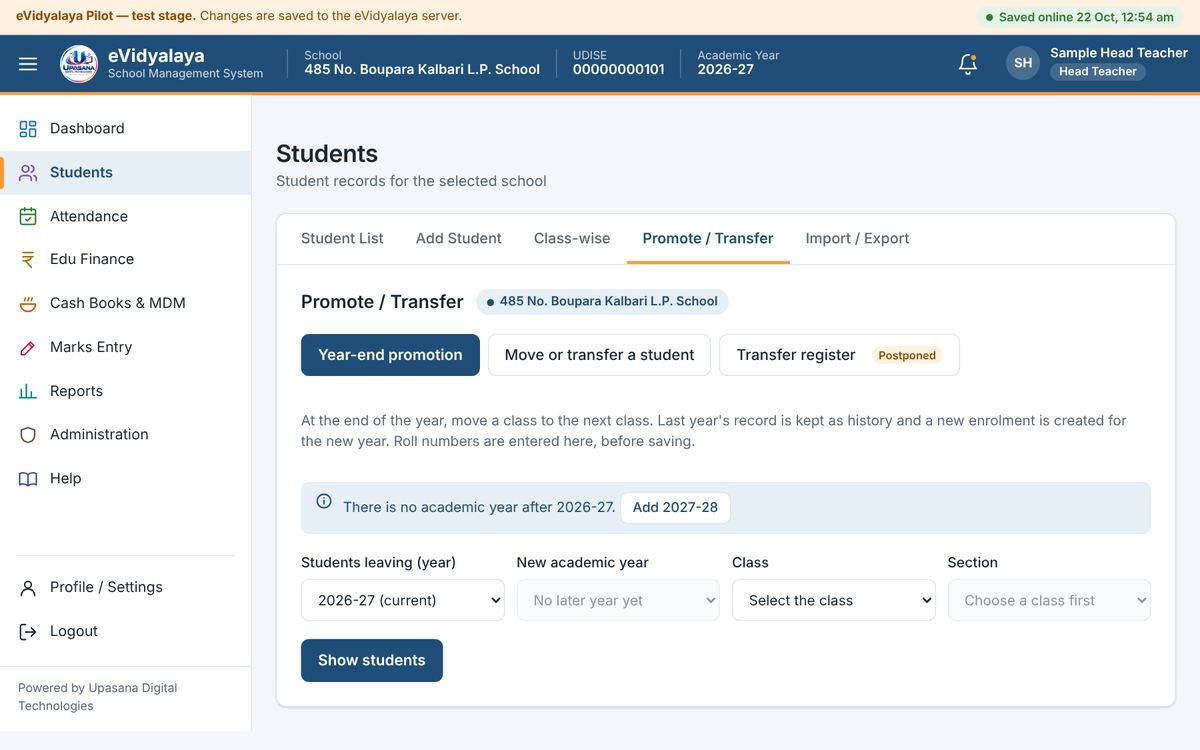
At the end of the year, Year-end promotion moves a whole class to the next class in the new academic year. Last year's record is kept as history, and new roll numbers are entered before saving. Move or transfer a student changes one student's class or section, or records a transfer out to another school. Transfer between two eVidyalaya schools with approval of both is planned for a later version.
বছৰৰ শেষত Year-end promotion-এ গোটেই শ্ৰেণীটোক নতুন শিক্ষাবৰ্ষত পৰৱৰ্তী শ্ৰেণীলৈ নিয়ে। আগৰ বছৰৰ তথ্য ইতিহাস হিচাপে থাকে, আৰু ছেভ কৰাৰ আগতে নতুন ৰোল নম্বৰ দিয়া হয়। Move or transfer a student-এ এজন ছাত্ৰৰ শ্ৰেণী বা শাখা সলনি কৰে, বা আন বিদ্যালয়লৈ স্থানান্তৰ লিপিবদ্ধ কৰে। দুখন eVidyalaya বিদ্যালয়ৰ মাজত দুয়োখনৰ অনুমোদনেৰে স্থানান্তৰ পিছৰ সংস্কৰণত আহিব।
Import and export / আমদানি আৰু ৰপ্তানি
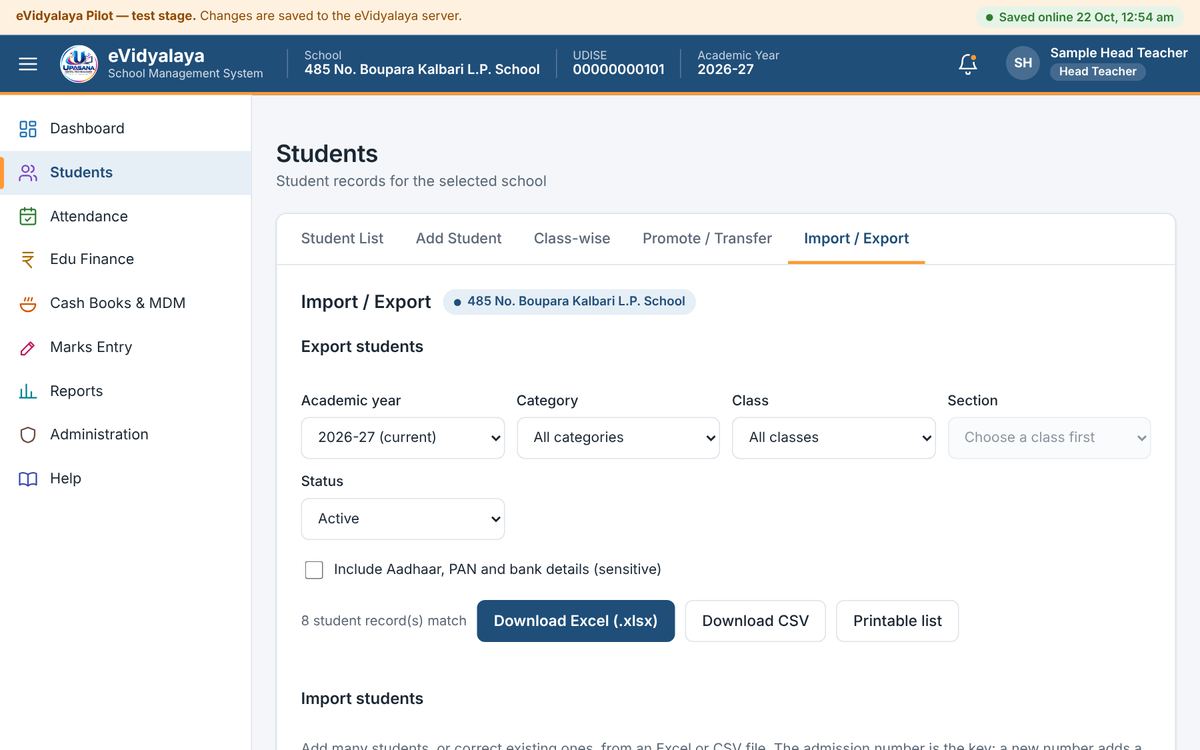
Import / Export downloads the student list as Excel, CSV or a printable list. Many students can be added at once from an Excel or CSV file: download the template, fill it in, and upload it. The file is checked first and nothing is saved until you confirm. Aadhaar, PAN and bank details are left out of an export unless the sensitive-fields box is ticked.
Import / Export-এ ছাত্ৰ-ছাত্ৰীৰ তালিকা Excel, CSV বা প্ৰিণ্ট কৰিব পৰা তালিকা হিচাপে ডাউনল'ড কৰে। Excel বা CSV ফাইলৰ পৰা একেলগে বহুতো ছাত্ৰ যোগ কৰিব পাৰি: টেমপ্লেট ডাউনল'ড কৰক, পূৰণ কৰক আৰু আপল'ড কৰক। ফাইলটো প্ৰথমে পৰীক্ষা কৰা হয়, আৰু আপুনি নিশ্চিত নকৰালৈকে একো ছেভ নহয়। সংবেদনশীল তথ্যৰ বাকচত চিহ্ন নিদিলে আধাৰ, PAN আৰু বেংকৰ তথ্য ৰপ্তানিত নাথাকে।
7. Attendance / উপস্থিতি
School Calendar / বিদ্যালয়ৰ কেলেণ্ডাৰ
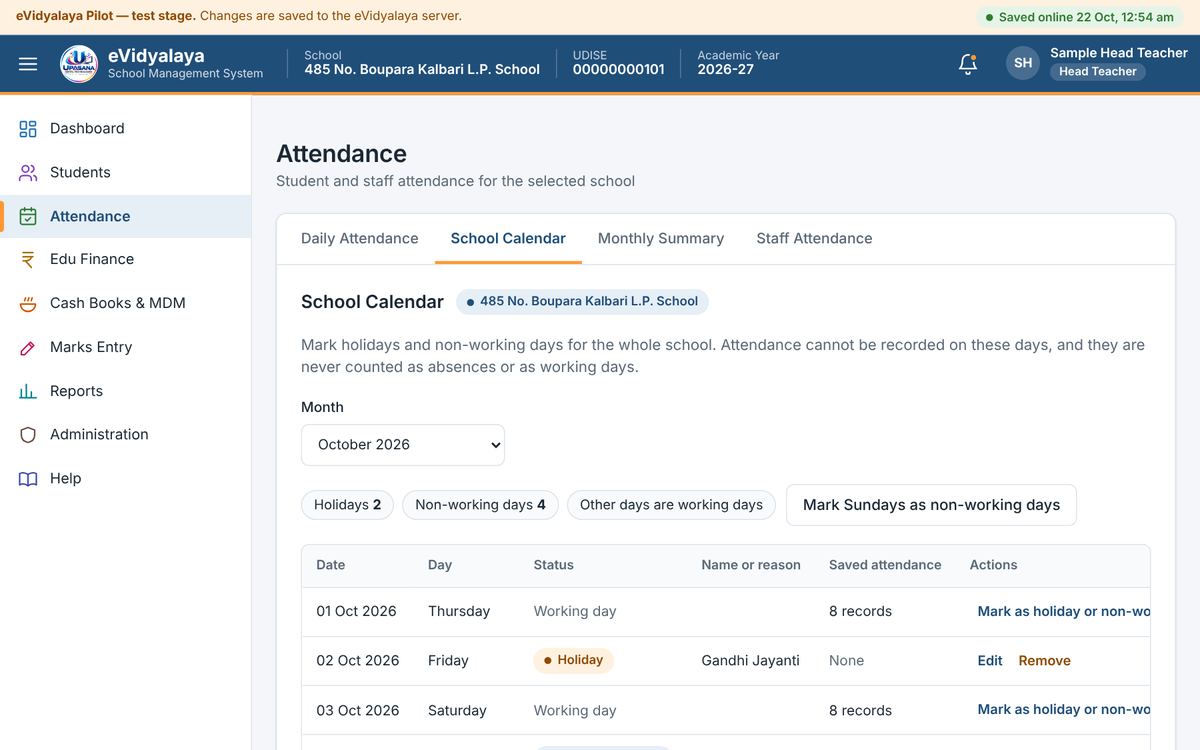
Mark holidays and non-working days first. Mark Sundays as non-working days marks every Sunday of the month at once. For any other date, press Mark as holiday or non-working day, type the name (for example Gandhi Jayanti) and save. Attendance cannot be taken on these days, and they are never counted as absences.
প্ৰথমে বন্ধৰ দিন আৰু কাম নথকা দিন চিহ্নিত কৰক। Mark Sundays as non-working days-এ মাহটোৰ সকলো দেওবাৰ একেলগে চিহ্নিত কৰে। আন তাৰিখৰ বাবে Mark as holiday or non-working day টিপি বন্ধৰ নাম (যেনে গান্ধী জয়ন্তী) লিখি ছেভ কৰক। এই দিনবোৰত হাজিৰা ল'ব নোৱাৰি আৰু অনুপস্থিত বুলি গণ্য নহয়।
Daily attendance / দৈনিক হাজিৰা
The Daily Attendance page first shows the whole day: every class with present, absent, leave and unmarked counts, and whether its attendance is taken. Use Previous day and Next day to move between dates. An Assistant Teacher sees only the classes given to them.
দৈনিক হাজিৰাৰ পৃষ্ঠাত প্ৰথমে গোটেই দিনটোৰ ছবি দেখা যায়: প্ৰতিটো শ্ৰেণীৰ উপস্থিত, অনুপস্থিত, ছুটী আৰু চিহ্নিত নোহোৱাৰ সংখ্যা, আৰু হাজিৰা লোৱা হৈছে নে নাই। Previous day আৰু Next day-ৰে তাৰিখ সলনি কৰিব পাৰি। সহকাৰী শিক্ষকে কেৱল তেওঁক দিয়া শ্ৰেণীবোৰহে দেখে।
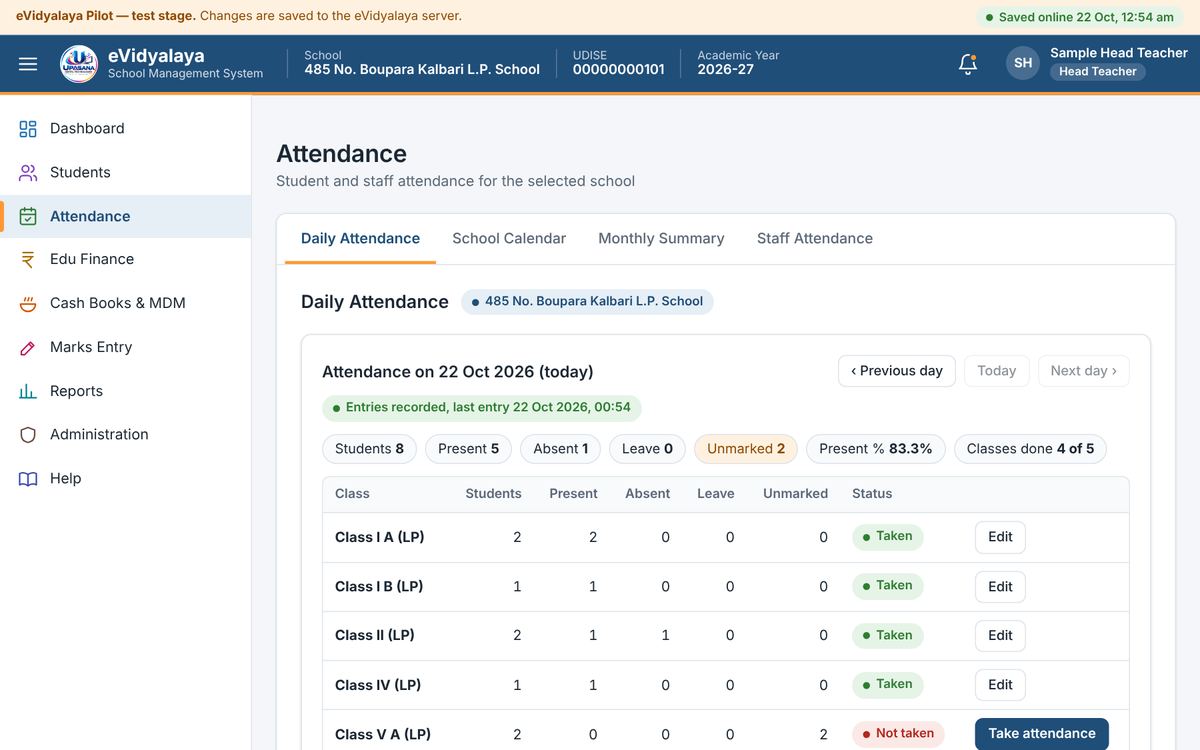
Press Take attendance beside a class (or choose the category, class and section below).
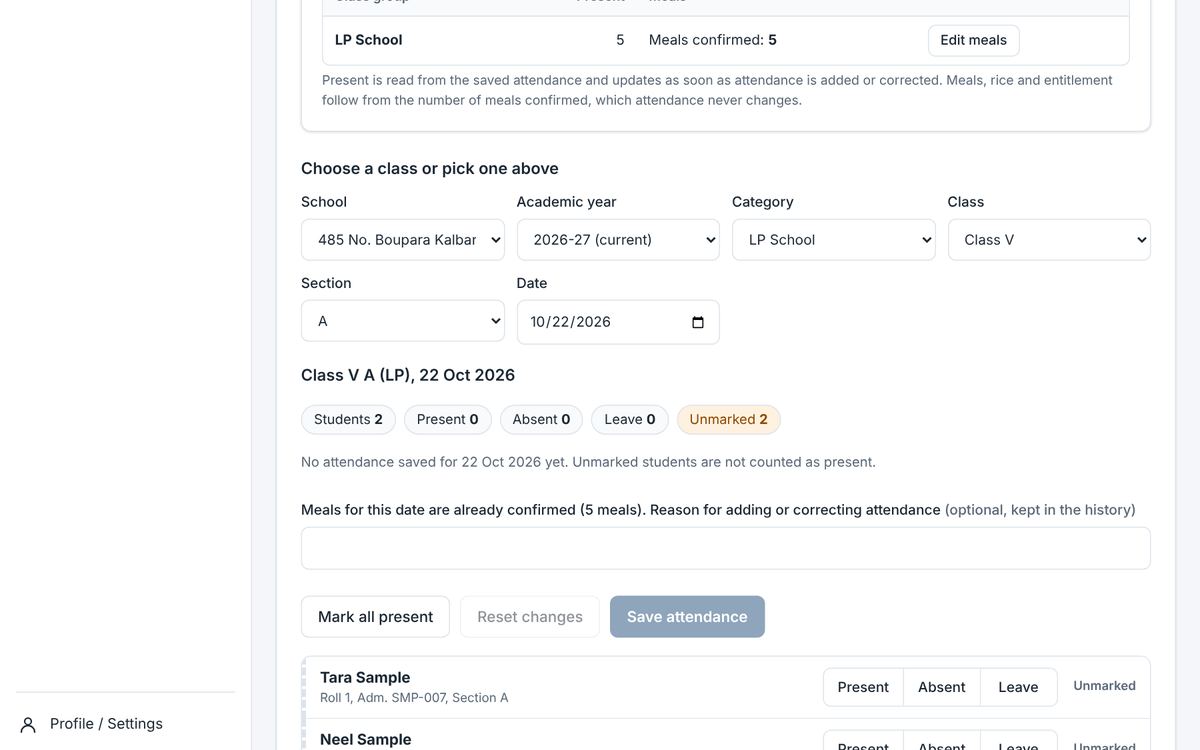
Press Mark all present, then change any absent student to Absent or Leave.
Press Save attendance. Unmarked students are never counted as present.
To correct a class already taken, press Edit. If meals for that day are already confirmed, you can type a reason, which is kept in the history.
শ্ৰেণীৰ কাষৰ Take attendance টিপক (বা তলত বিভাগ, শ্ৰেণী আৰু শাখা বাছক)।
Mark all present টিপক, তাৰ পিছত অনুপস্থিত ছাত্ৰৰ বাবে Absent বা Leave বাছক।
Save attendance টিপক। চিহ্নিত নকৰা ছাত্ৰক কেতিয়াও উপস্থিত বুলি ধৰা নহয়।
লোৱা হাজিৰা শুধৰাবলৈ Edit টিপক। সেইদিনাৰ আহাৰ আগতেই নিশ্চিত কৰা থাকিলে কাৰণ লিখিব পাৰি, যিটো ইতিহাসত থাকে।
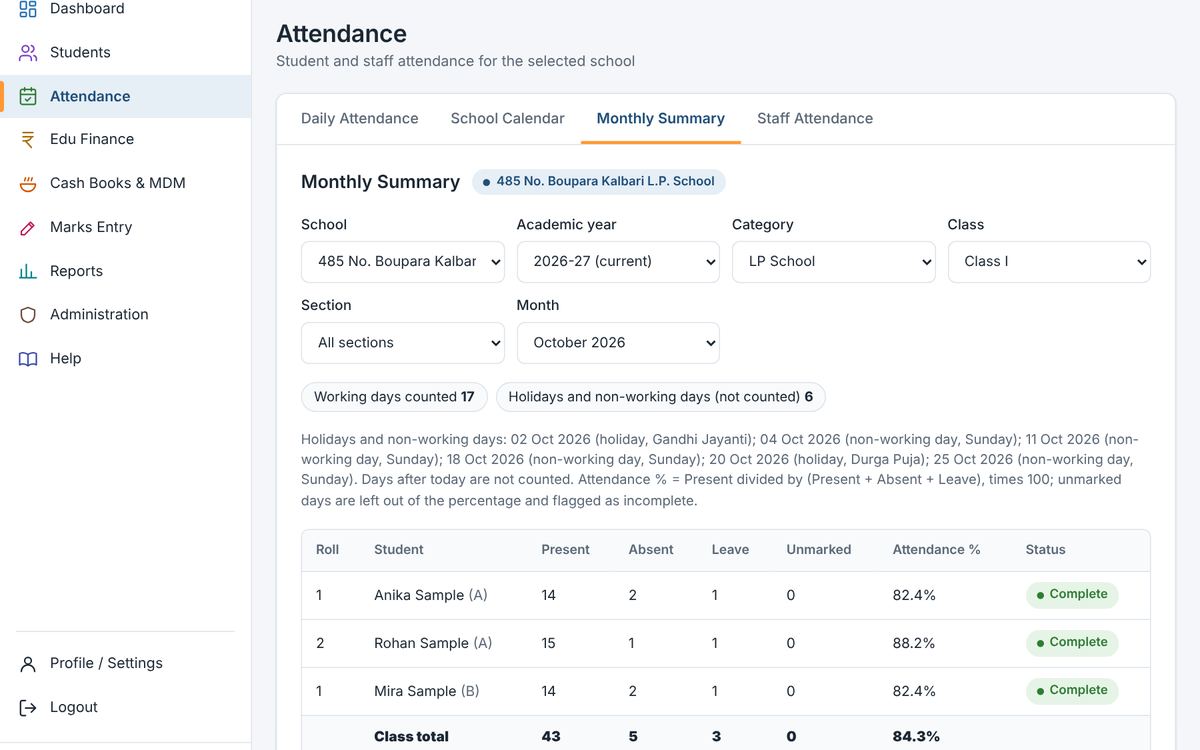
Monthly summary / মাহেকীয়া সাৰাংশ
Choose a class and month to see each student's days present, absent, on leave and unmarked, with the attendance percentage. Working days and holidays for the month are listed at the top.
শ্ৰেণী আৰু মাহ বাছনি কৰিলে প্ৰতিজন ছাত্ৰ-ছাত্ৰীৰ উপস্থিত, অনুপস্থিত, ছুটী আৰু চিহ্নিত নোহোৱা দিনৰ সংখ্যা আৰু উপস্থিতিৰ শতাংশ দেখা যায়। মাহটোৰ কামৰ দিন আৰু বন্ধৰ দিন ওপৰত দিয়া থাকে।
Staff attendance / কৰ্মচাৰীৰ হাজিৰা
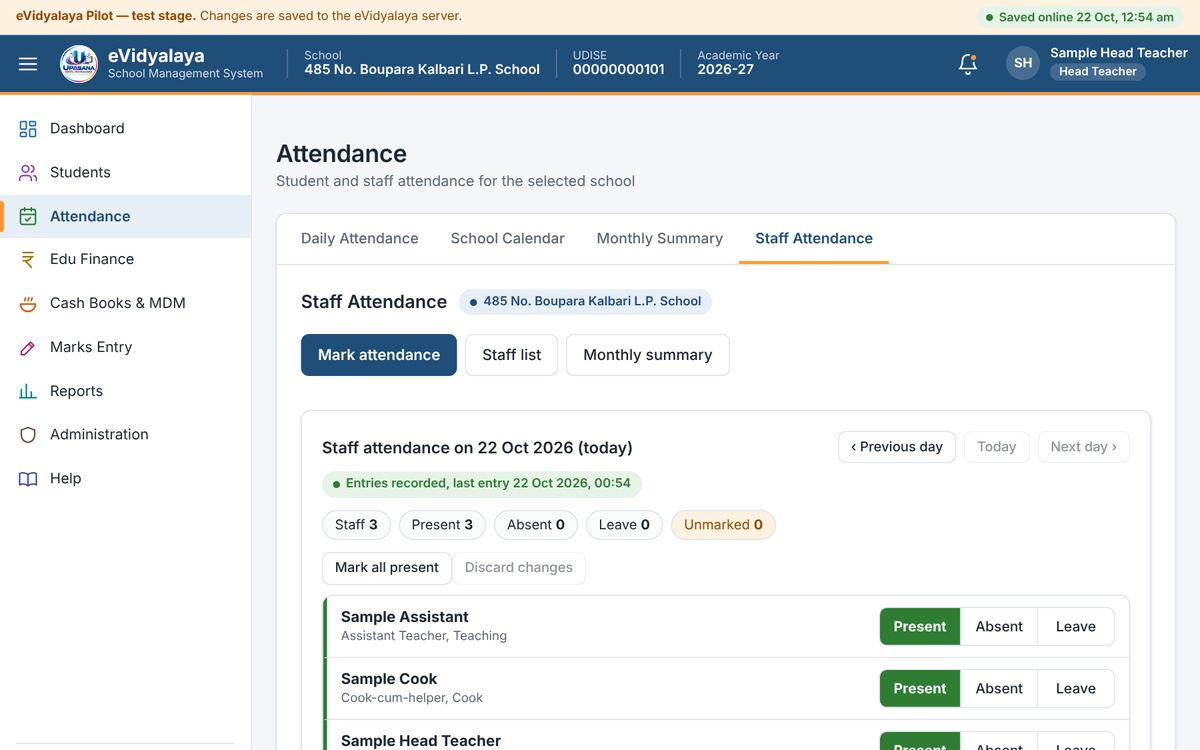
First the Head Teacher adds teachers and other staff in Staff list (name, designation, type, joining date). Then their attendance is marked each day under Mark attendance. Monthly summary gives each staff member's month.
প্ৰথমে প্ৰধান শিক্ষকে Staff list-ত শিক্ষক আৰু আন কৰ্মচাৰী (নাম, পদবী, প্ৰকাৰ, যোগদানৰ তাৰিখ) যোগ কৰে। তাৰ পিছত প্ৰতিদিনে Mark attendance-ত তেওঁলোকৰ হাজিৰা লোৱা হয়। Monthly summary-ত প্ৰতিজনৰ মাহেকীয়া হিচাপ পোৱা যায়।
8. Mid-day meal and cash books / মধ্যাহ্ন ভোজন আৰু কেছ বুক
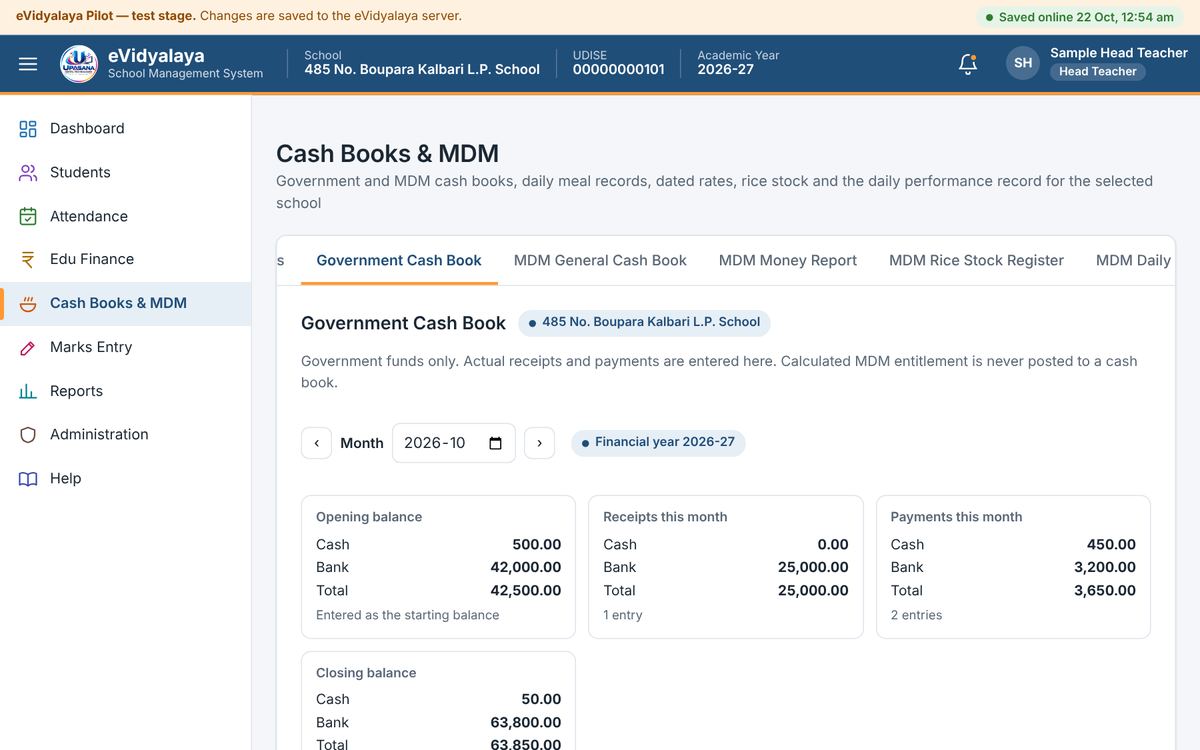
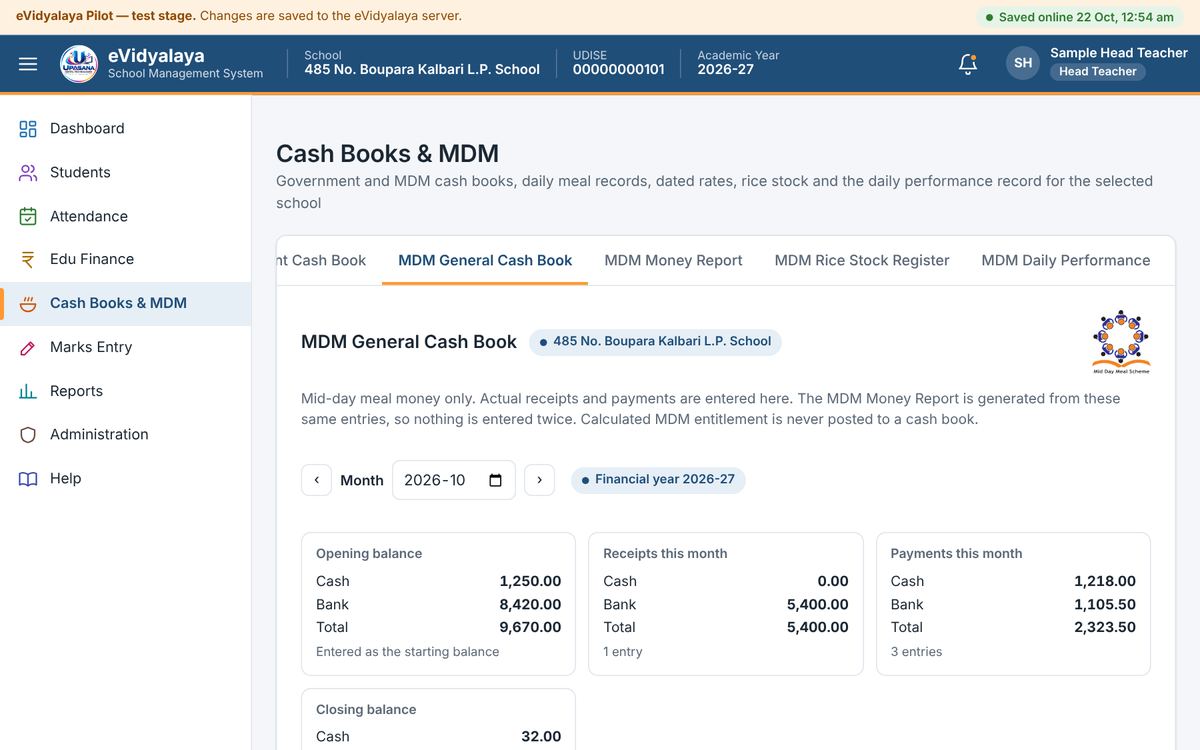
All of this is under Cash Books & MDM. The rates and amounts shown in the pictures are examples only.
এই সকলো Cash Books & MDM মেনুত আছে। ছবিত দেখুওৱা হাৰ আৰু পৰিমাণ কেৱল উদাহৰণ।
MDM rates / MDM হাৰ
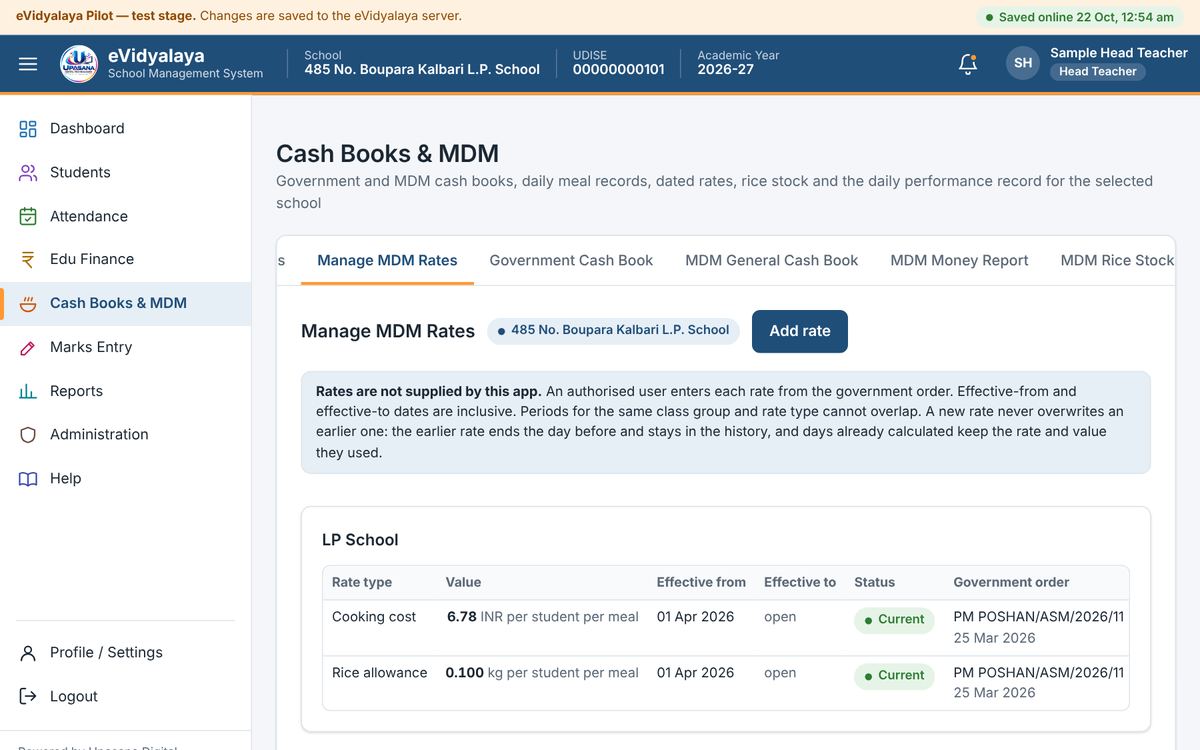
The app does not supply rates. An authorised user enters each rate from the government order with Add rate: the class group, the type (cooking cost in rupees, or rice allowance in kg per student per meal), the date it takes effect, and the order number and date. A new rate never overwrites an old one; the old one ends the day before and stays in the history.
এপে নিজে হাৰ নিৰ্ধাৰণ নকৰে। অনুমোদিত ব্যৱহাৰকাৰীয়ে চৰকাৰী আদেশ অনুসৰি Add rate-ৰে প্ৰতিটো হাৰ লিখে: শ্ৰেণী-গোট, প্ৰকাৰ (প্ৰতিজনৰ প্ৰতি আহাৰৰ ৰন্ধন খৰচ টকাত, বা চাউল কিলোগ্ৰামত), কাৰ্যকৰী হোৱাৰ তাৰিখ, আৰু আদেশ নম্বৰ আৰু তাৰিখ। নতুন হাৰে পুৰণি হাৰ মচি নেপেলায়; পুৰণিটো আগৰ দিনা শেষ হয় আৰু ইতিহাসত থাকে।
Daily records / দৈনিক হিচাপ
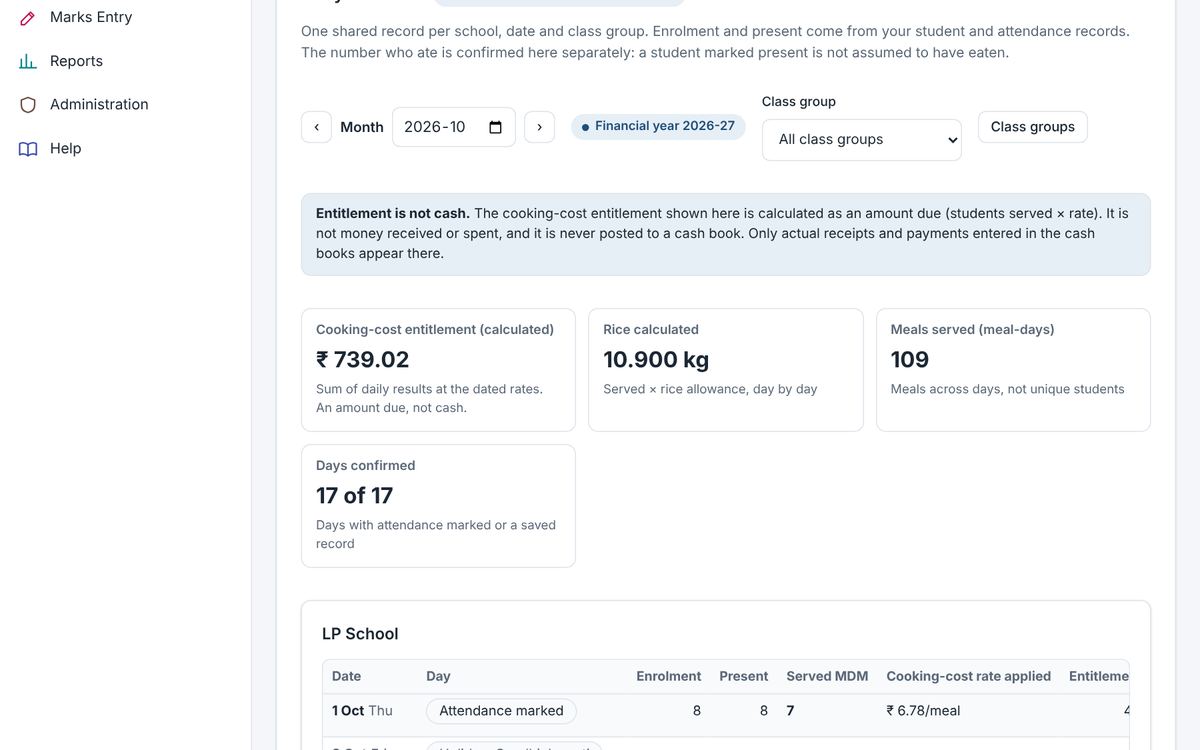
Each school day has one meal record per class group. Enrolment and present come automatically from student and attendance records. Press Enter beside the date, type how many students were served, the menu and the teacher in charge, and save. A student marked present is not assumed to have eaten. The page then shows the cooking-cost entitlement (students served × rate) and rice used. The entitlement is a calculation only; it is never posted to a cash book.
প্ৰতিটো বিদ্যালয় দিনৰ বাবে প্ৰতিটো শ্ৰেণী-গোটৰ এটা আহাৰৰ হিচাপ থাকে। নামভৰ্তি আৰু উপস্থিতৰ সংখ্যা ছাত্ৰ আৰু হাজিৰাৰ তথ্যৰ পৰা নিজে আহে। তাৰিখৰ কাষত Enter টিপি কিমানজনে আহাৰ খালে, মেনু আৰু দায়িত্বত থকা শিক্ষকৰ নাম লিখি ছেভ কৰক। উপস্থিত বুলিয়েই আহাৰ খাইছে বুলি ধৰা নহয়। তাৰ পিছত ৰন্ধন খৰচৰ প্ৰাপ্য ধন (খোৱা ছাত্ৰ × হাৰ) আৰু ব্যৱহৃত চাউল দেখা যায়। এই প্ৰাপ্য ধন কেৱল এটা হিচাপ; ই কেছ বুকত কেতিয়াও নুঠে।
Cash books / কেছ বুক
There are two cash books: the Government Cash Book for government funds and the MDM General Cash Book for mid-day meal money. Start each book once with Set opening balances (cash and bank). Then enter every real receipt with Add receipt and every payment with Add payment: date, voucher number, particulars and the amount in cash or bank. The month's totals and closing balance are calculated automatically, and the next month opens with this month's closing balance.
A wrong entry is never deleted. It is corrected or cancelled with a reason, and the earlier value stays in the audit history of the book. Both books print as PDF or download as Excel.
দুখন কেছ বুক আছে: চৰকাৰী ধনৰ বাবে Government Cash Book আৰু মধ্যাহ্ন ভোজনৰ ধনৰ বাবে MDM General Cash Book। প্ৰতিখন বহী এবাৰ Set opening balances-ৰে (নগদ আৰু বেংক) আৰম্ভ কৰক। তাৰ পিছত প্ৰতিটো প্ৰকৃত জমা Add receipt-ৰে আৰু প্ৰতিটো খৰচ Add payment-ৰে লিখক: তাৰিখ, ভাউচাৰ নম্বৰ, বিৱৰণ আৰু নগদ বা বেংকৰ পৰিমাণ। মাহটোৰ মুঠ আৰু সমাপ্তি জেৰ নিজে হিচাপ হয়, আৰু পিছৰ মাহ এই জেৰেৰে আৰম্ভ হয়।
ভুল প্ৰবিষ্টি কেতিয়াও মচা নহয়। ইয়াক কাৰণ দৰ্শাই শুধৰোৱা বা বাতিল কৰা হয়, আৰু আগৰ মান বহীখনৰ অডিট ইতিহাসত থাকে। দুয়োখন বহী PDF হিচাপে প্ৰিণ্ট বা Excel হিচাপে ডাউনল'ড কৰিব পাৰি।
MDM Money Report / MDM ধনৰ ৰিপৰ্ট
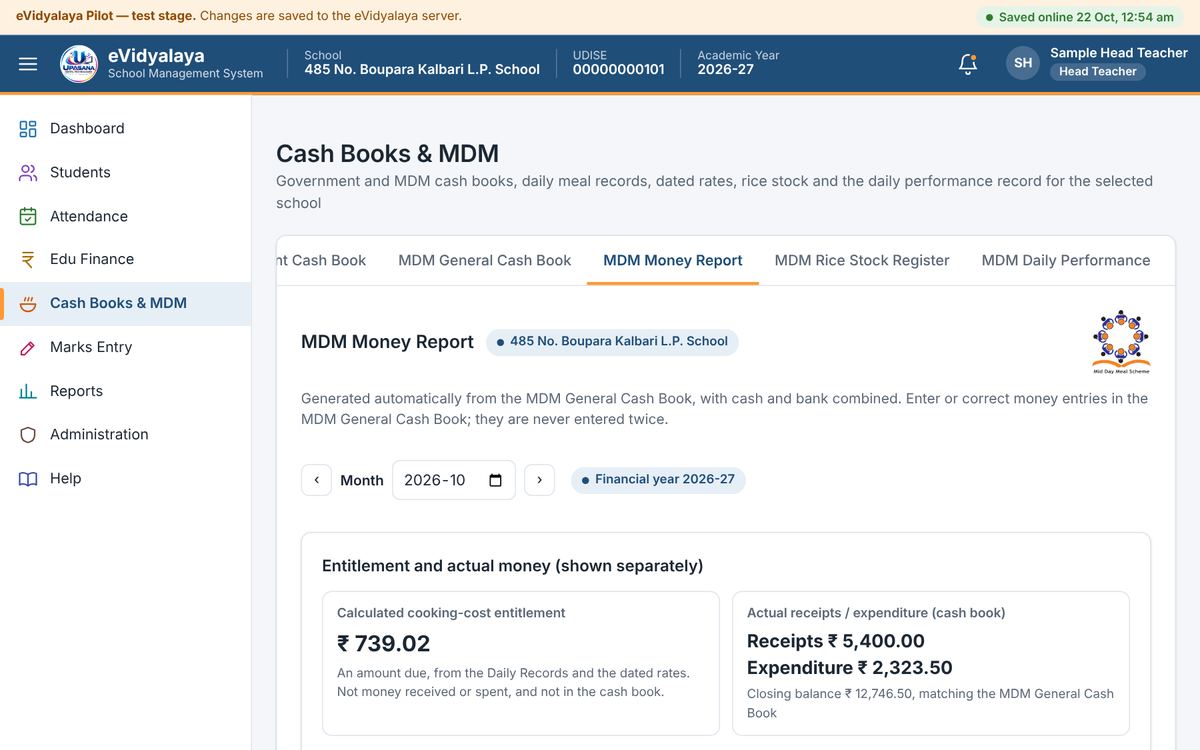
This report is made automatically from the MDM General Cash Book, with cash and bank combined, and shows the calculated entitlement separately from the actual money. Nothing is entered here.
এই ৰিপৰ্ট MDM General Cash Book-ৰ পৰা নিজে নিজে তৈয়াৰ হয়, নগদ আৰু বেংক একেলগে, আৰু হিচাপ কৰা প্ৰাপ্য ধন প্ৰকৃত ধনৰ পৰা বেলেগকৈ দেখুৱায়। ইয়াত একো লিখিব নালাগে।
Rice stock register / চাউলৰ মজুত পঞ্জী
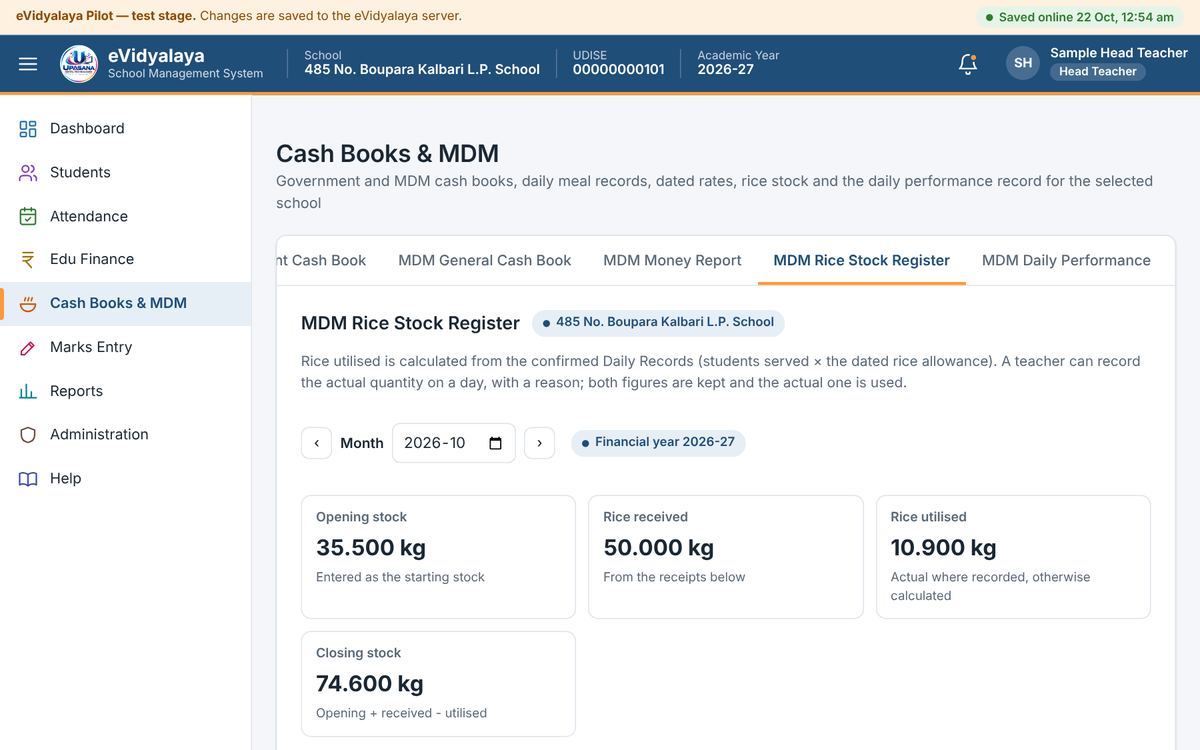
Set the opening rice stock once. Enter each delivery with Add rice received (date, kg, allotment order). Rice used is calculated from the confirmed daily records; if the actual quantity on a day was different, a teacher can record it with a reason. The closing stock is opening plus received minus used.
আৰম্ভণি চাউলৰ মজুত এবাৰ লিখক। প্ৰতিবাৰ চাউল পালে Add rice received-ৰে (তাৰিখ, কিলোগ্ৰাম, আবণ্টন আদেশ) লিখক। ব্যৱহৃত চাউল নিশ্চিত দৈনিক হিচাপৰ পৰা নিজে হিচাপ হয়; কোনো দিনা প্ৰকৃত পৰিমাণ বেলেগ হ'লে শিক্ষকে কাৰণসহ লিখিব পাৰে। সমাপ্তি মজুত = আৰম্ভণি + পোৱা − ব্যৱহৃত।
MDM Daily Performance / MDM দৈনিক কাৰ্যদক্ষতা
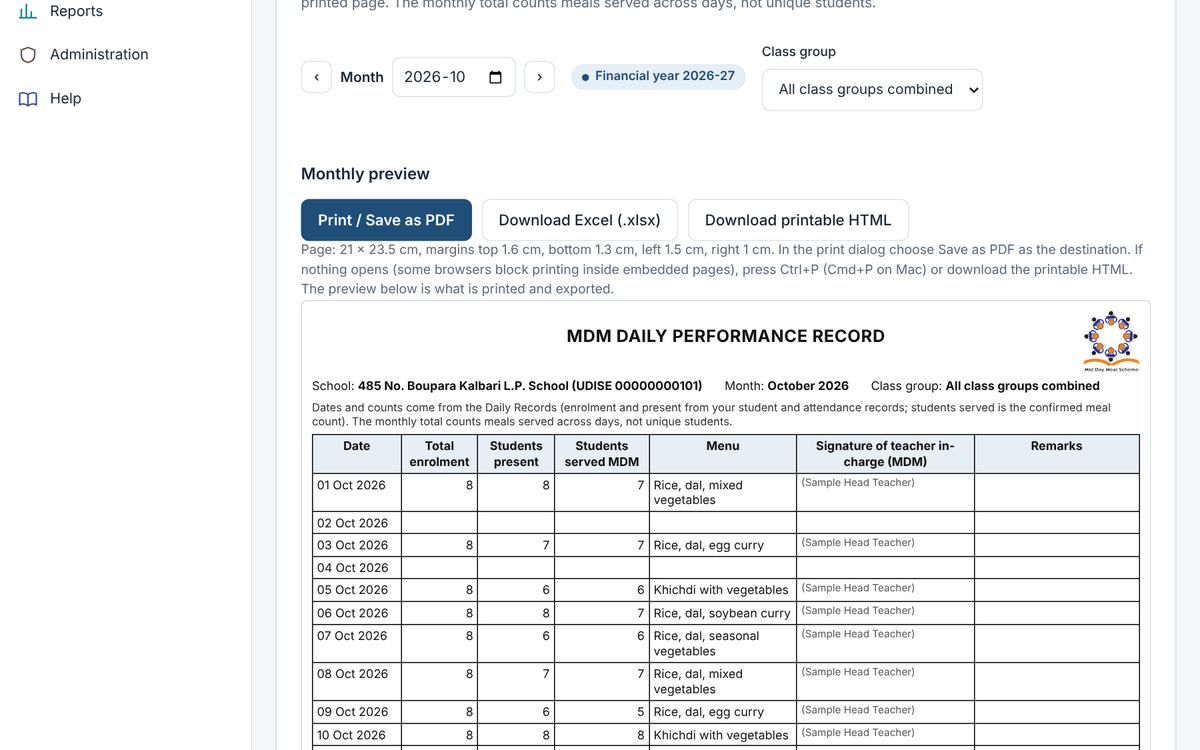
The month's daily performance record (enrolment, present, served, menu and the teacher's signature column) is generated from the daily records, ready to print or download as Excel.
মাহটোৰ দৈনিক কাৰ্যদক্ষতাৰ প্ৰপত্ৰ (নামভৰ্তি, উপস্থিত, খোৱা, মেনু আৰু শিক্ষকৰ চহীৰ ঘৰ) দৈনিক হিচাপৰ পৰা তৈয়াৰ হয়, প্ৰিণ্ট বা Excel ডাউনল'ডৰ বাবে সাজু।
9. Edu Finance / এডু ফাইনান্স
Edu Finance is opened by the Head Teacher, and by an Assistant Teacher only if Upasana Digital Technologies has specially permitted it.
এডু ফাইনান্স প্ৰধান শিক্ষকে খোলে; সহকাৰী শিক্ষকে কেৱল উপাসনা ডিজিটেল টেকন'লজিজে বিশেষ অনুমতি দিলেহে খুলিব পাৰে।
Overview / সাৰাংশ
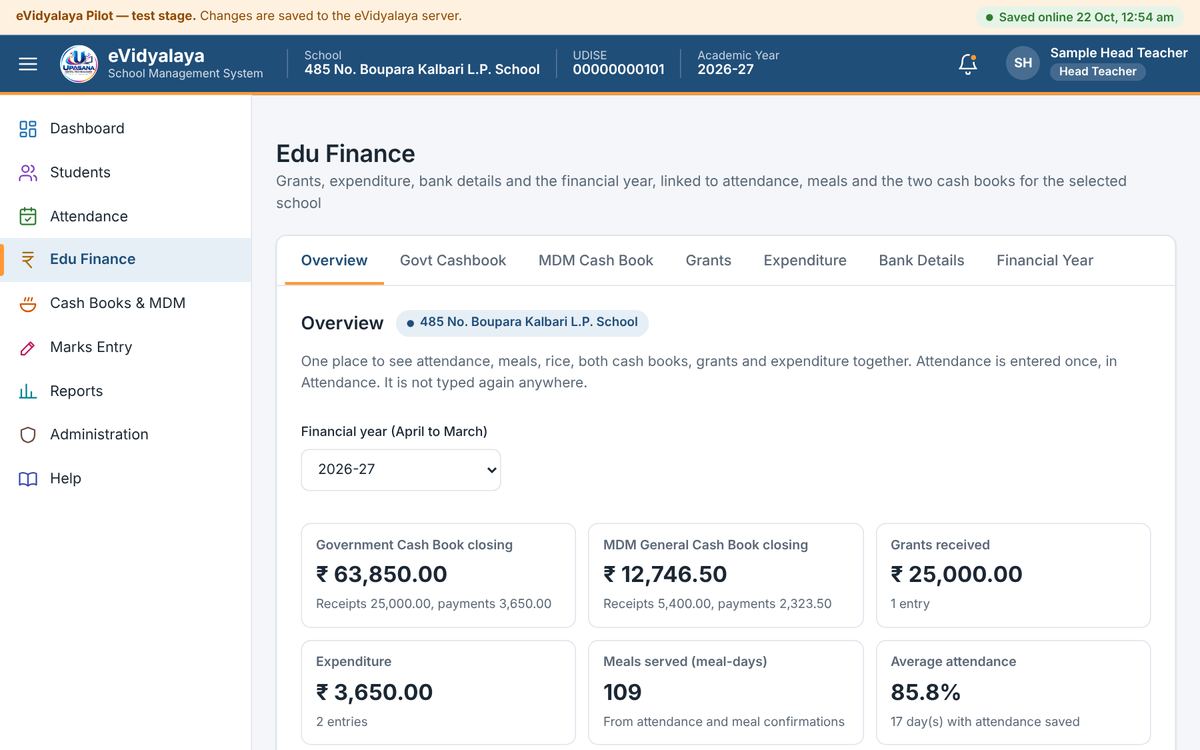
Edu Finance brings the school's money together for the financial year (April to March): closing balances of both cash books, grants received, expenditure, meals served and average attendance. Attendance is entered once in Attendance and is never typed again here.
এডু ফাইনান্সত বিত্তীয় বৰ্ষ (এপ্ৰিলৰ পৰা মাৰ্চ) অনুসৰি বিদ্যালয়ৰ ধনৰ হিচাপ একেলগে দেখা যায়: দুয়োখন কেছ বুকৰ সমাপ্তি জেৰ, পোৱা অনুদান, খৰচ, খোৱা আহাৰ আৰু গড় উপস্থিতি। হাজিৰা কেৱল এবাৰহে Attendance-ত লিখা হয়; ইয়াত আকৌ লিখিব নালাগে।
Grants / অনুদান
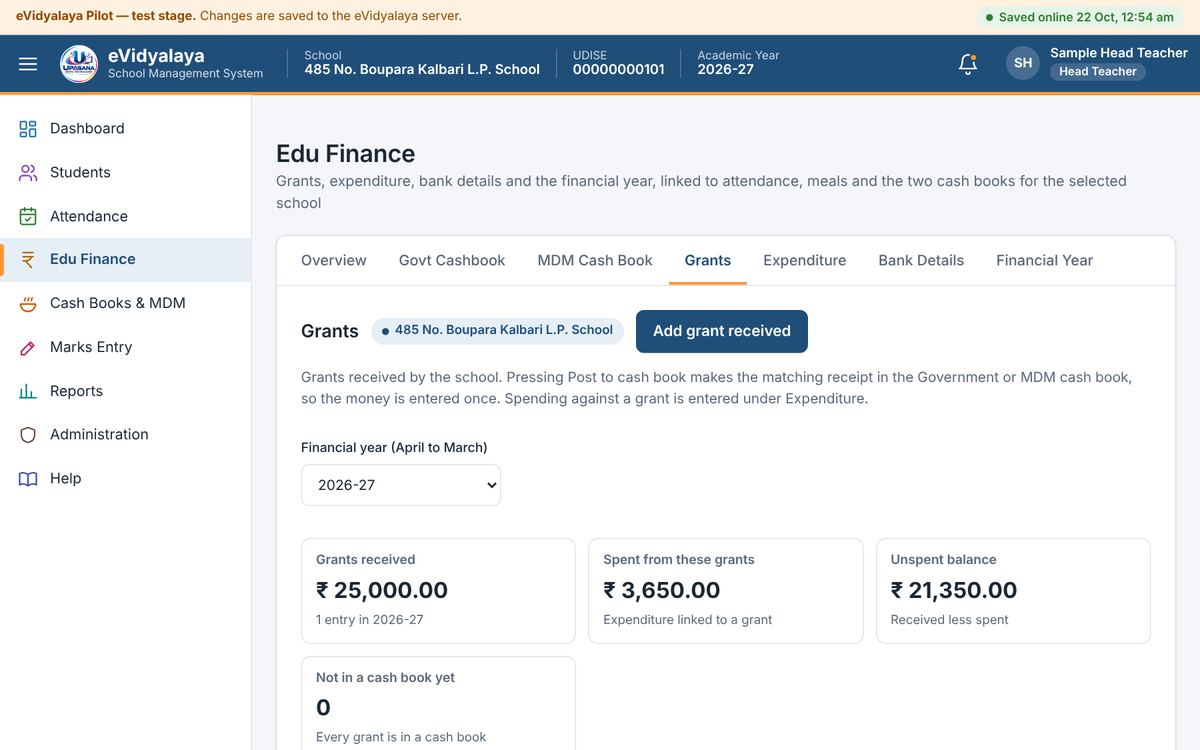
Add grant received records a grant: date, scheme (for example Composite School Grant), which cash book, amount, cash or bank, and the sanction reference. Post to cash book makes the matching receipt in the chosen cash book, so the money is entered only once. The page shows how much of each grant has been spent and what is left.
Add grant received-এ অনুদান লিপিবদ্ধ কৰে: তাৰিখ, আঁচনি (যেনে Composite School Grant), কোনখন কেছ বুক, পৰিমাণ, নগদ বা বেংক, আৰু মঞ্জুৰীৰ বিৱৰণ। Post to cash book-এ বাছি লোৱা কেছ বুকত সেই জমা নিজে লিখি দিয়ে, সেয়ে ধন এবাৰহে লিখিব লাগে। প্ৰতিটো অনুদানৰ কিমান খৰচ হ'ল আৰু কিমান বাকী আছে, সেয়া দেখা যায়।
Expenditure / খৰচ
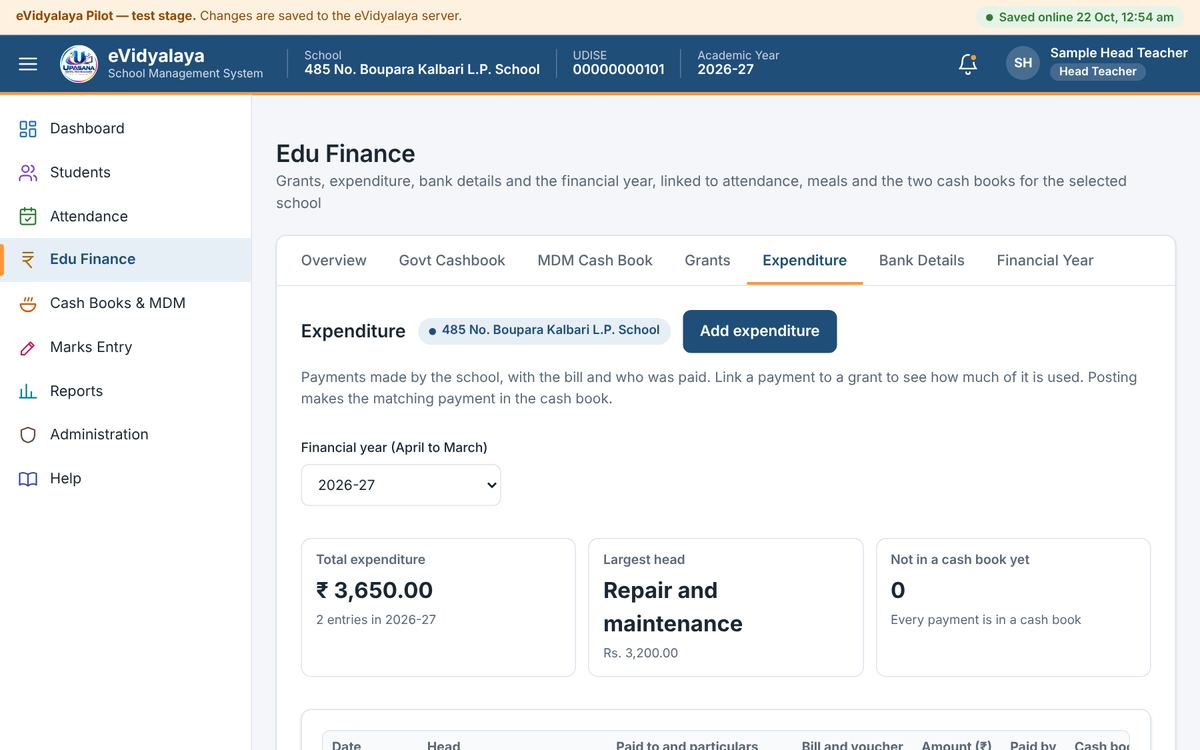
Add expenditure records each payment: head of expenditure, who was paid, bill number, particulars, amount, cash or bank, and optionally the grant it was paid from. Posting makes the matching payment in the cash book.
Add expenditure-এ প্ৰতিটো খৰচ লিপিবদ্ধ কৰে: খৰচৰ খাত, কাক দিয়া হ'ল, বিল নম্বৰ, বিৱৰণ, পৰিমাণ, নগদ বা বেংক, আৰু ইচ্ছা কৰিলে কোন অনুদানৰ পৰা খৰচ কৰা হ'ল। Post কৰিলে কেছ বুকত সেই খৰচ নিজে লিখা হয়।
Bank details / বেংকৰ তথ্য
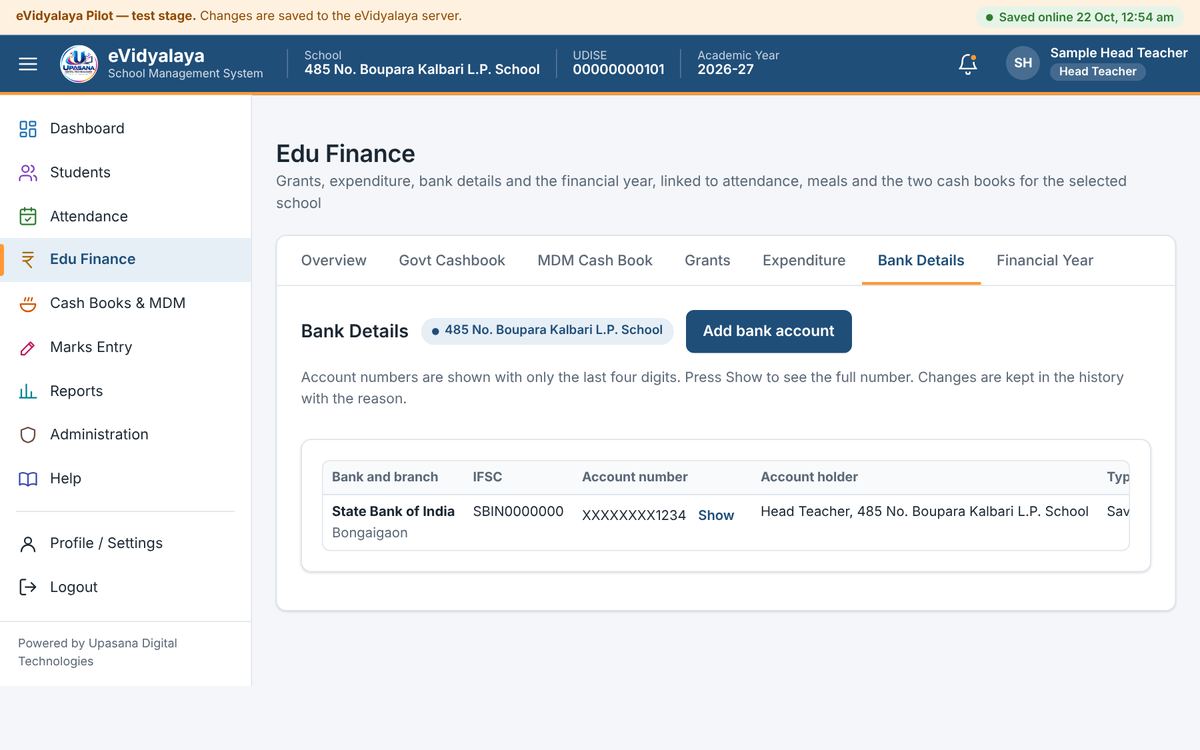
Record the school's bank accounts with Add bank account. Account numbers are shown with only the last four digits unless Show is pressed. Any change is kept in the history with its reason.
Add bank account-ৰে বিদ্যালয়ৰ বেংক একাউণ্ট লিখক। Show নিটিপিলে একাউণ্ট নম্বৰৰ কেৱল শেষৰ চাৰিটা অংক দেখা যায়। যিকোনো সলনি কাৰণসহ ইতিহাসত থাকে।
10. Exams and marks / পৰীক্ষা আৰু নম্বৰ
Marks Entry has a tab for each school category (LP, ME, High School, Higher Secondary).
Marks Entry-ত প্ৰতিটো বিভাগৰ (LP, ME, হাইস্কুল, উচ্চতৰ মাধ্যমিক) বাবে বেলেগ টেব আছে।
Exam setup / পৰীক্ষাৰ ছেটআপ
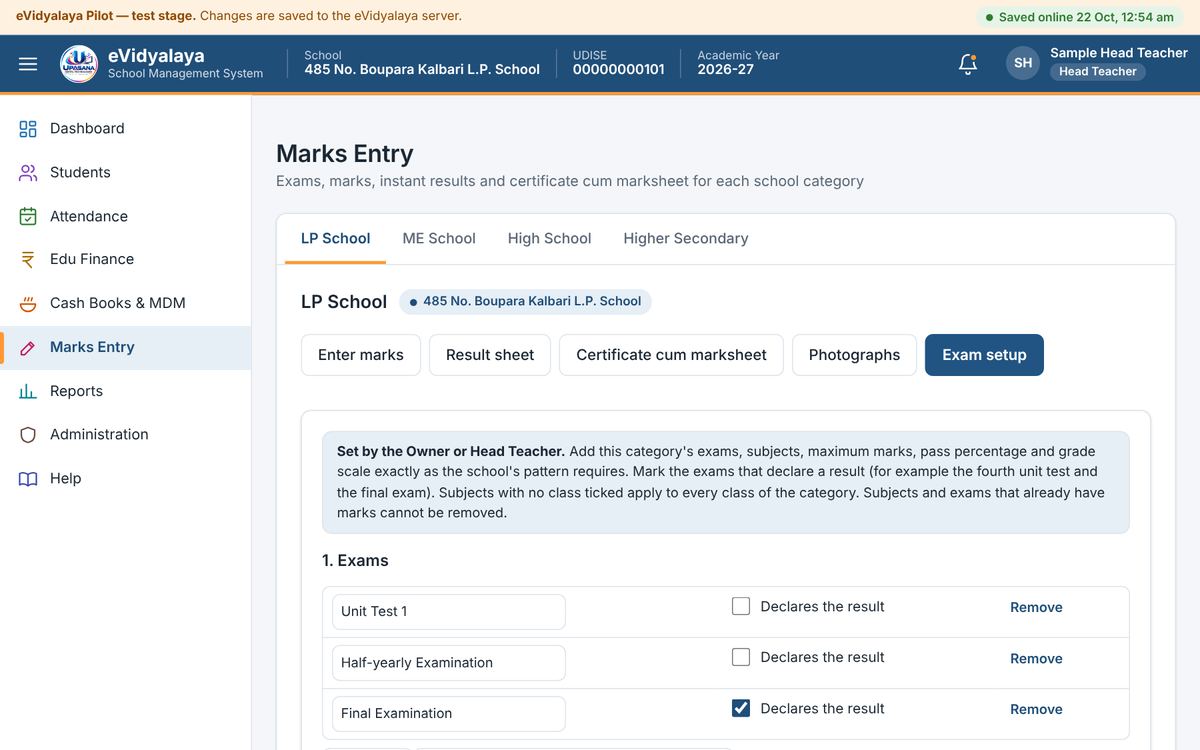
The Head Teacher sets the pattern once for each category under Exam setup:
Exams: add each exam, or press Add four unit tests and a final. Tick Declares the result for exams that give the final result.
Subjects: add each subject with its maximum marks for every exam. A subject can apply to all classes or only to chosen classes.
Pass percentage and grades: set the pass mark and the grade scale, or use the example grade scale.
Press Save marks pattern.
An exam or subject that already has marks cannot be removed.
প্ৰধান শিক্ষকে Exam setup-ত প্ৰতিটো বিভাগৰ বাবে এবাৰ আৰ্হি নিৰ্ধাৰণ কৰে:
পৰীক্ষা: প্ৰতিটো পৰীক্ষা যোগ কৰক, বা Add four unit tests and a final টিপক। চূড়ান্ত ফলাফল দিয়া পৰীক্ষাত Declares the result চিহ্ন দিয়ক।
বিষয়: প্ৰতিটো বিষয় আৰু প্ৰতিটো পৰীক্ষাৰ সৰ্বোচ্চ নম্বৰ যোগ কৰক। এটা বিষয় সকলো শ্ৰেণীৰ বাবে বা কেৱল বাছি লোৱা শ্ৰেণীৰ বাবে হ'ব পাৰে।
উত্তীৰ্ণ শতাংশ আৰু গ্ৰেড: উত্তীৰ্ণ নম্বৰ আৰু গ্ৰেডৰ তালিকা দিয়ক, বা উদাহৰণৰ গ্ৰেড তালিকা ব্যৱহাৰ কৰক।
Save marks pattern টিপক।
নম্বৰ লিখা হোৱা পৰীক্ষা বা বিষয় আঁতৰাব নোৱাৰি।
Entering marks / নম্বৰ লিখা
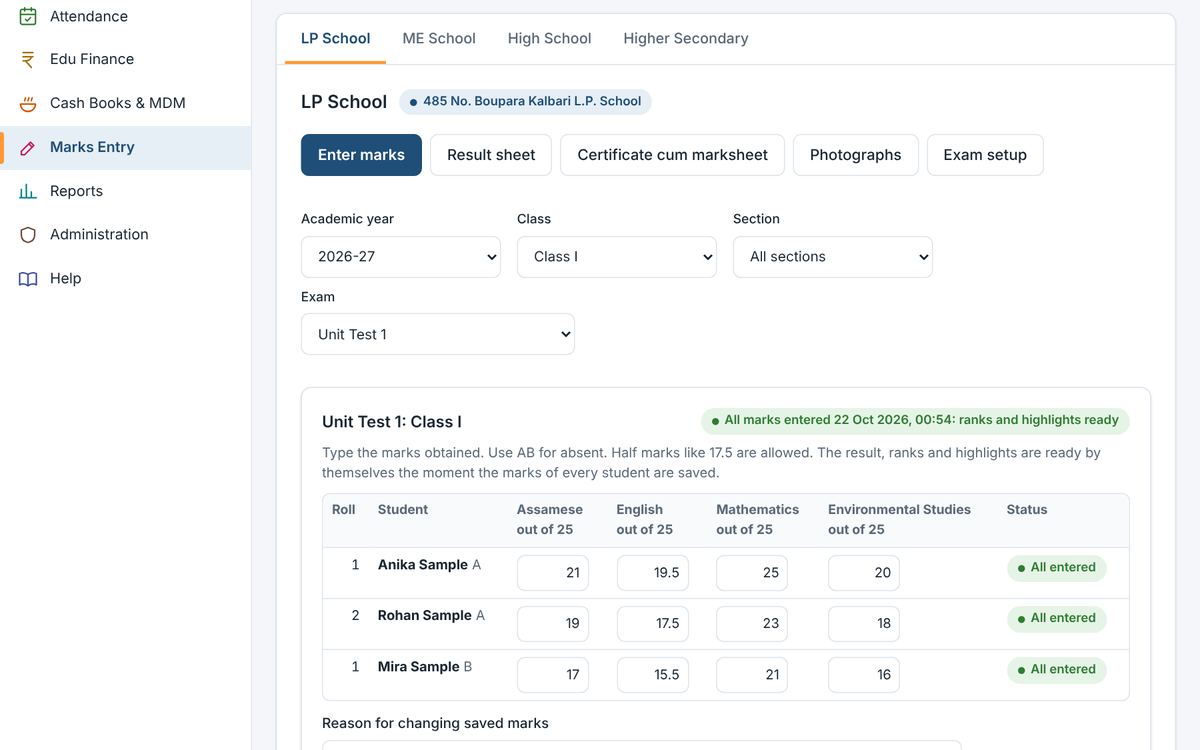
In Enter marks, choose the academic year, class, section and exam. Each student appears with a box for each subject. Type the marks obtained (half marks such as 17.5 are allowed) or AB for absent. Press Save marks; the result, ranks and highlights are ready as soon as the marks of every student are saved. Changing a saved mark asks for a reason. An Assistant Teacher enters marks only for the classes given to them.
Enter marks-ত শিক্ষাবৰ্ষ, শ্ৰেণী, শাখা আৰু পৰীক্ষা বাছক। প্ৰতিজন ছাত্ৰৰ বাবে প্ৰতিটো বিষয়ৰ ঘৰ ওলায়। পোৱা নম্বৰ লিখক (১৭.৫-ৰ দৰে আধা নম্বৰ চলিব), বা অনুপস্থিতৰ বাবে AB। Save marks টিপক; সকলো ছাত্ৰৰ নম্বৰ ছেভ হোৱাৰ লগে লগে ফলাফল, স্থান আৰু মুখ্য তথ্য সাজু হয়। ছেভ কৰা নম্বৰ সলনি কৰিলে কাৰণ সোধে। সহকাৰী শিক্ষকে কেৱল তেওঁক দিয়া শ্ৰেণীৰহে নম্বৰ লিখে।
Result sheet / ফলাফলৰ তালিকা
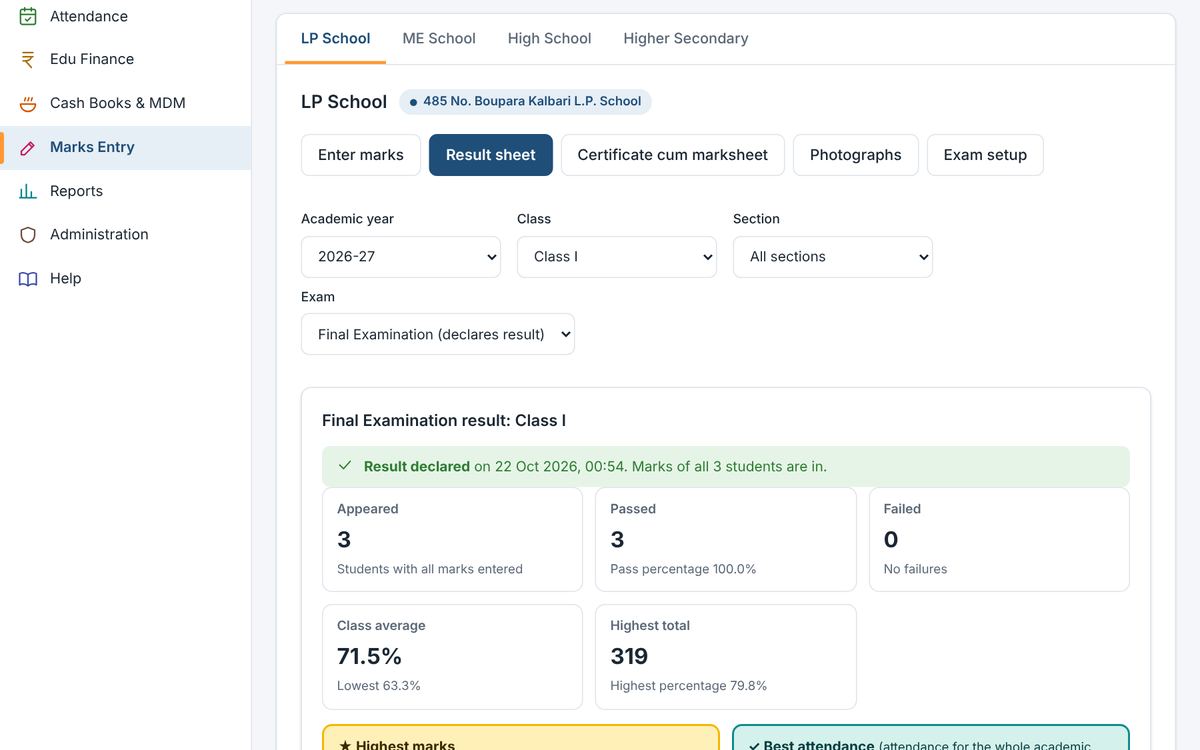
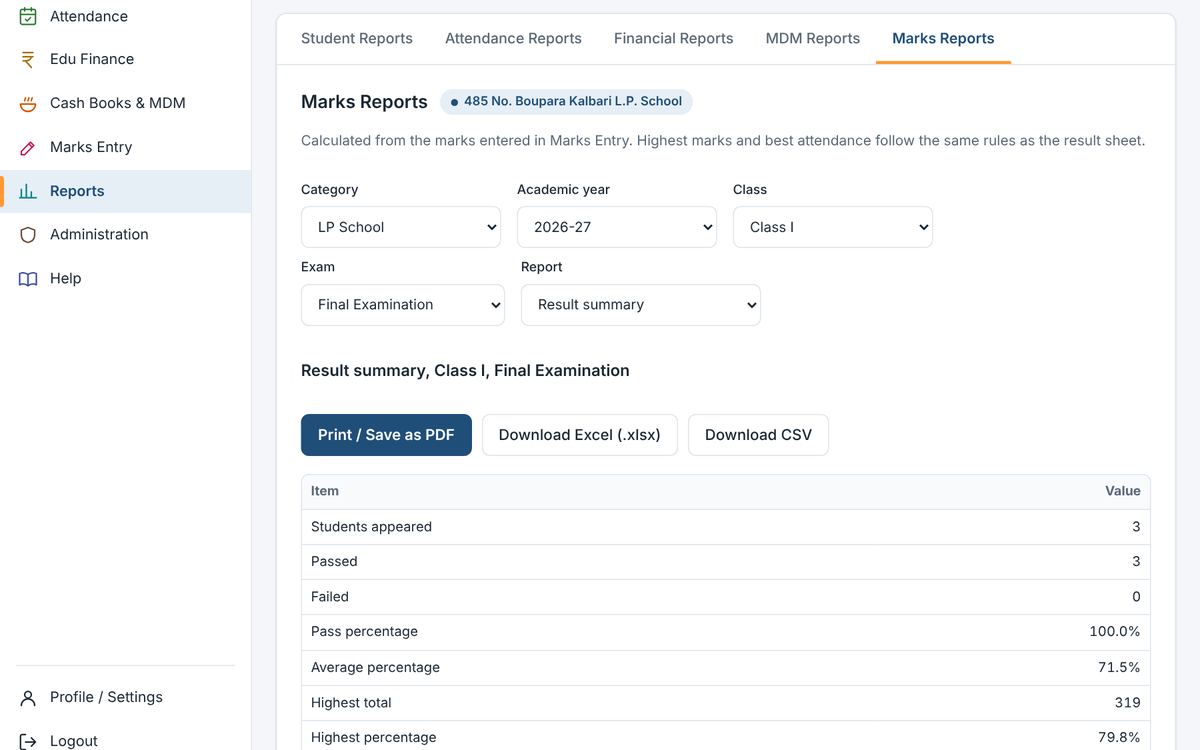
The Result sheet gives the class result for an exam: students appeared, passed and failed, class average, highest total, and each student's total, percentage, grade and rank. It prints or downloads as Excel.
Result sheet-এ এটা পৰীক্ষাৰ শ্ৰেণীৰ ফলাফল দিয়ে: অবতীৰ্ণ, উত্তীৰ্ণ আৰু অনুত্তীৰ্ণৰ সংখ্যা, শ্ৰেণীৰ গড়, সৰ্বোচ্চ মুঠ, আৰু প্ৰতিজনৰ মুঠ, শতাংশ, গ্ৰেড আৰু স্থান। ইয়াক প্ৰিণ্ট বা Excel ডাউনল'ড কৰিব পাৰি।
Certificate cum marksheet and photographs / প্ৰমাণপত্ৰ-সহ মাৰ্কছিট আৰু ফটো
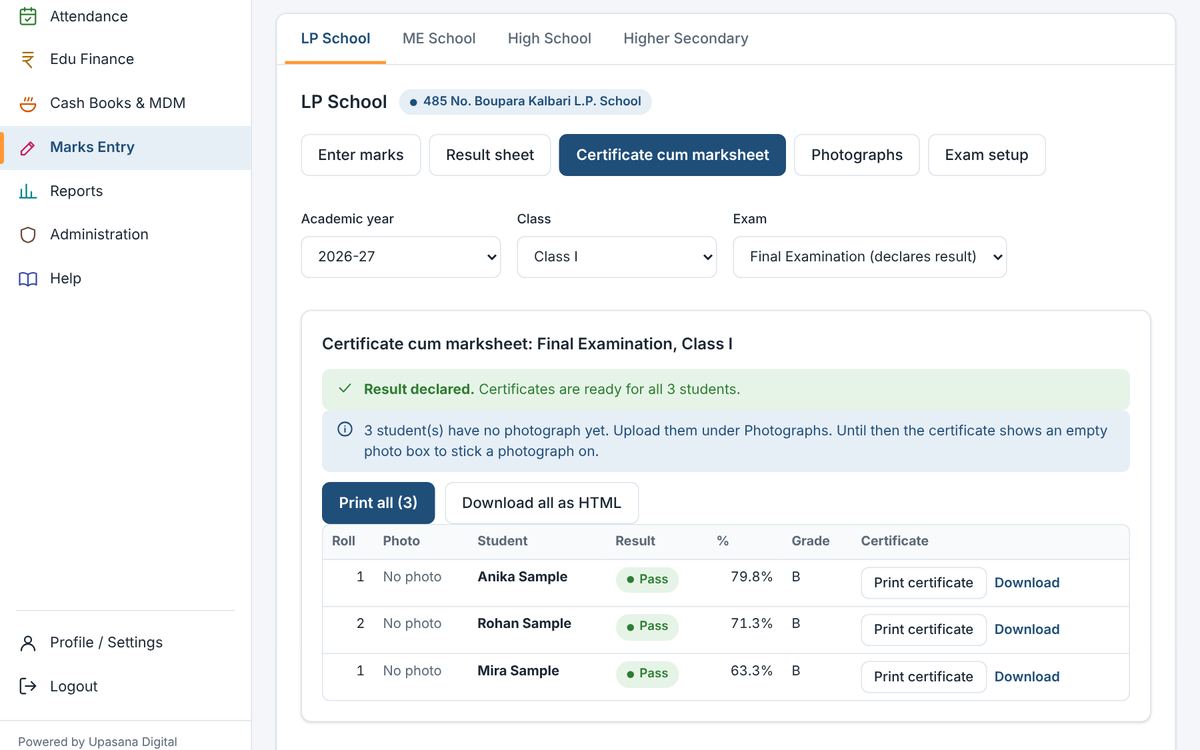
For an exam that declares the result, Certificate cum marksheet prepares a certificate for every student, with the student's photograph, ready to print one by one or all together. Photographs are added under Photographs or on the student's form; any picture is reduced to passport size automatically.
ফলাফল ঘোষণা কৰা পৰীক্ষাৰ বাবে Certificate cum marksheet-এ প্ৰতিজন ছাত্ৰৰ ফটোসহ প্ৰমাণপত্ৰ তৈয়াৰ কৰে, এজন এজনকৈ বা একেলগে প্ৰিণ্ট কৰিব পাৰি। ফটো Photographs-ত বা ছাত্ৰৰ ফৰ্মত দিব পাৰি; যিকোনো ছবি নিজে নিজে পাছপ'ৰ্ট আকাৰৰ হয়।
11. Reports / ৰিপৰ্ট
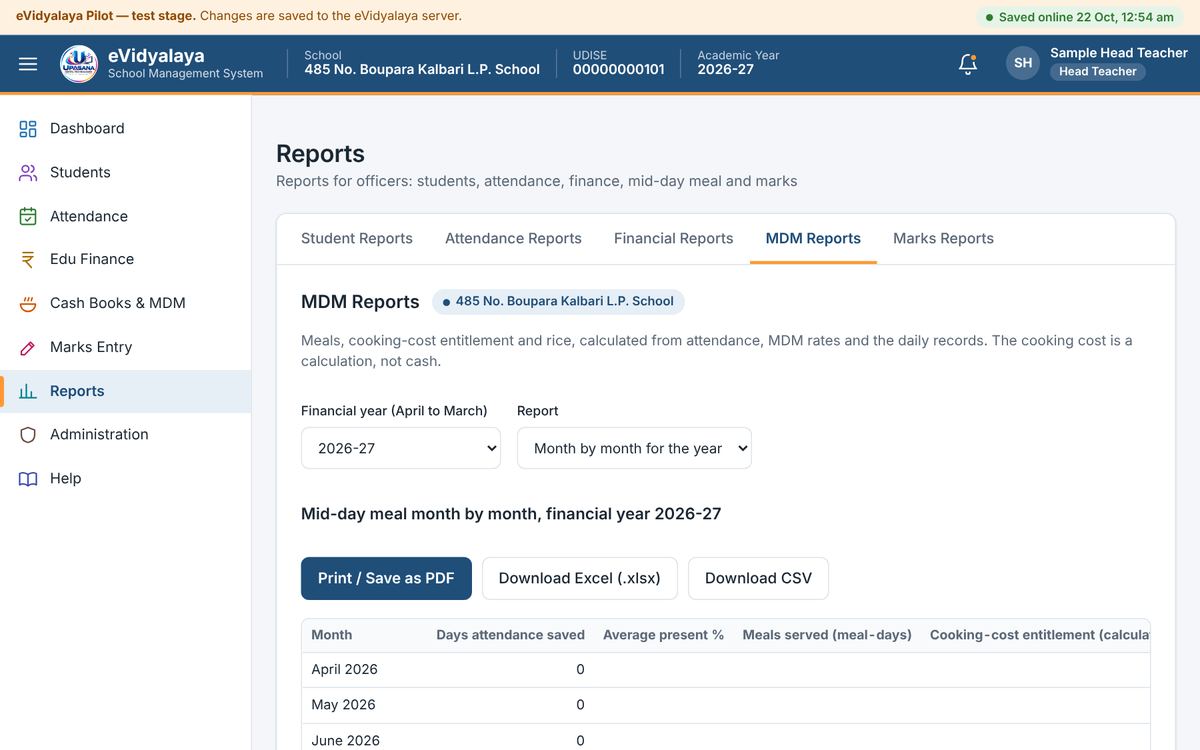
Every report is calculated from records already entered; nothing is typed in Reports. Each one can be printed or saved as PDF, and most download as Excel or CSV.
প্ৰতিটো ৰিপৰ্ট আগতে লিখা তথ্যৰ পৰা হিচাপ হয়; Reports-ত একো লিখিব নালাগে। প্ৰতিটো ৰিপৰ্ট প্ৰিণ্ট বা PDF কৰিব পাৰি, আৰু বেছিভাগ Excel বা CSV হিচাপে ডাউনল'ড কৰিব পাৰি।
| Report | What it shows |
|---|---|
| Student Reports | All students; caste-wise; boys, girls and gender-wise; age and date-of-birth-wise; village-wise; students with missing details |
| Attendance Reports | Monthly class attendance register (P, A, L, holiday and non-working day for every date) |
| Financial Reports | Financial-year summary, cash books month by month, grants register, expenditure register, cross-check findings |
| MDM Reports | Mid-day meal month by month for the year, and the daily record of one month |
| Marks Reports | Class result summary, subject analysis, grades and toppers |
Student Reports: সকলো ছাত্ৰ-ছাত্ৰী; জাতি অনুসৰি; ল'ৰা-ছোৱালী আৰু লিংগ অনুসৰি; বয়স আৰু জন্ম তাৰিখ অনুসৰি; গাঁও অনুসৰি; অসম্পূৰ্ণ তথ্য থকা ছাত্ৰ।
Attendance Reports: শ্ৰেণীৰ মাহেকীয়া হাজিৰা বহী (প্ৰতিটো তাৰিখৰ P, A, L, বন্ধ আৰু কাম নথকা দিন)।
Financial Reports: বিত্তীয় বৰ্ষৰ সাৰাংশ, মাহ অনুসৰি কেছ বুক, অনুদান পঞ্জী, খৰচ পঞ্জী, মিলাই চোৱাৰ ফলাফল।
MDM Reports: বছৰটোৰ মাহ অনুসৰি মধ্যাহ্ন ভোজন, আৰু এটা মাহৰ দৈনিক হিচাপ।
Marks Reports: শ্ৰেণীৰ ফলাফলৰ সাৰাংশ, বিষয় বিশ্লেষণ, গ্ৰেড আৰু শীৰ্ষ স্থান লোৱাসকল।
Student reports / ছাত্ৰ-ছাত্ৰীৰ ৰিপৰ্ট
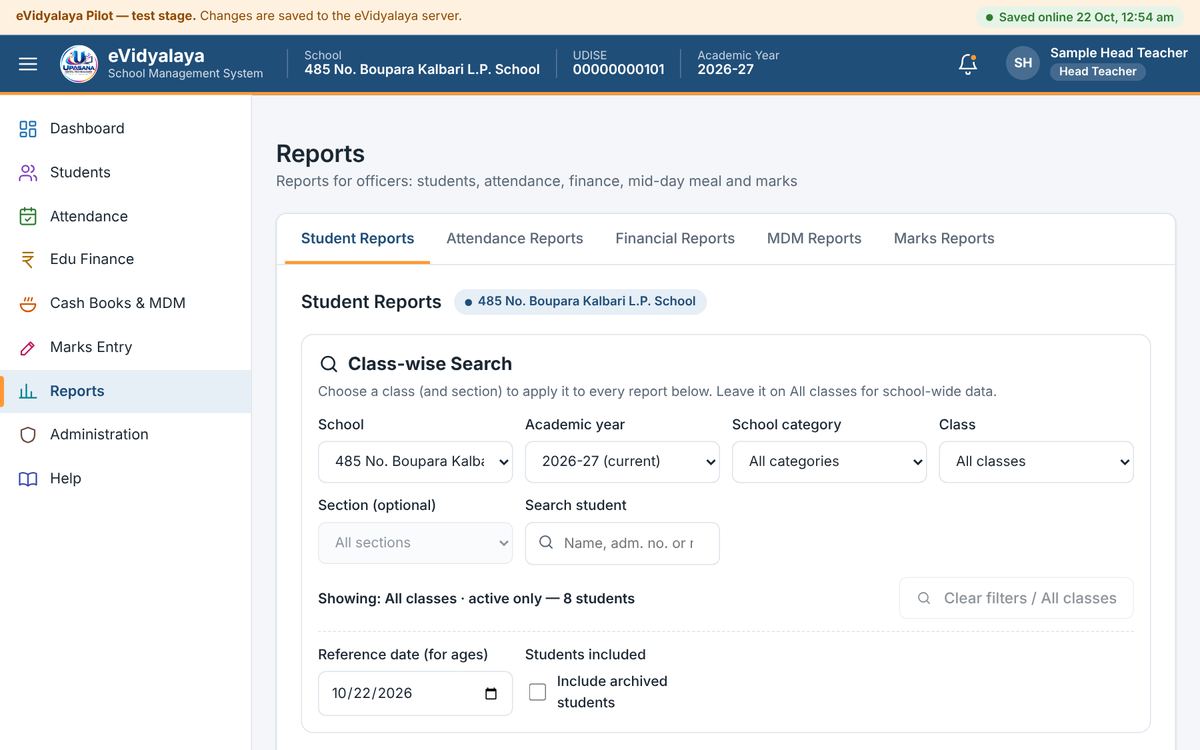
Choose a class (or all classes) with Class-wise Search, then press the report you need. Aadhaar, PAN and bank details are left out unless the sensitive-fields box is ticked, which only the Head Teacher can do.
Class-wise Search-ৰে শ্ৰেণী (বা সকলো শ্ৰেণী) বাছক, তাৰ পিছত লগা ৰিপৰ্টটোত টিপক। সংবেদনশীল তথ্যৰ বাকচত চিহ্ন নিদিলে আধাৰ, PAN আৰু বেংকৰ তথ্য ৰিপৰ্টত নাথাকে; এই চিহ্ন কেৱল প্ৰধান শিক্ষকেহে দিব পাৰে।
Attendance register / হাজিৰা বহী
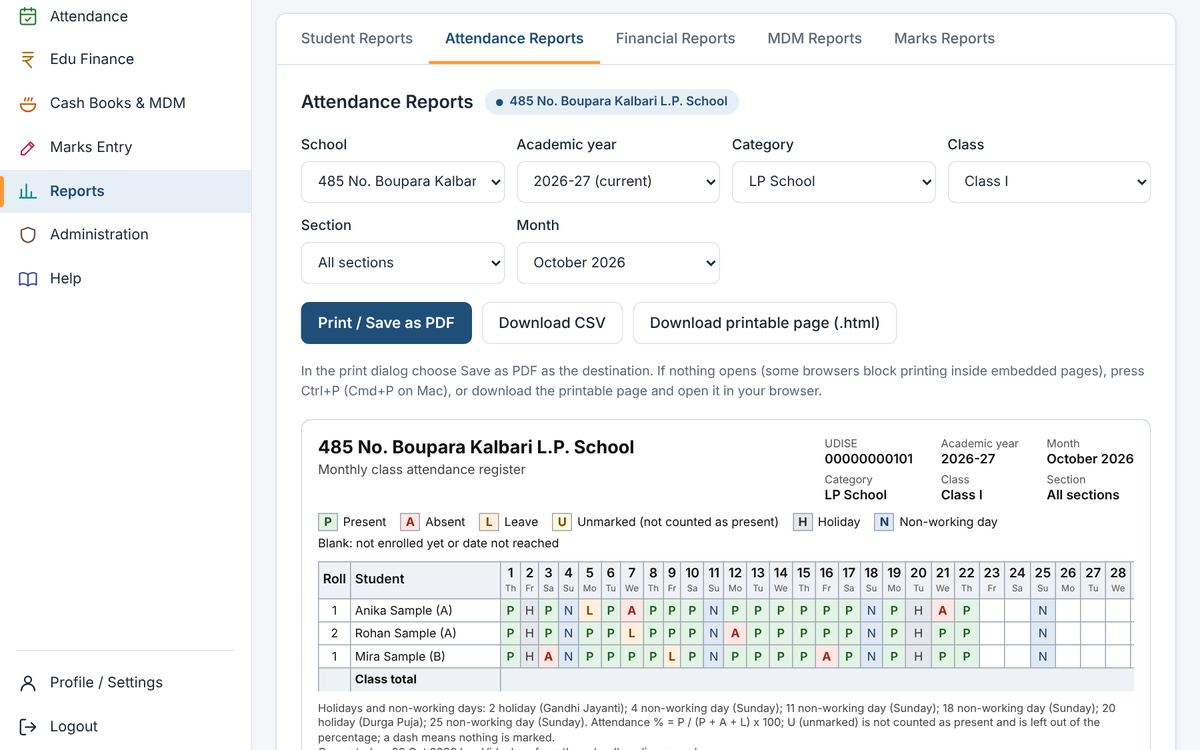
Choose the class and month to get the full monthly attendance register, ready to print.
শ্ৰেণী আৰু মাহ বাছিলে প্ৰিণ্টৰ বাবে সাজু সম্পূৰ্ণ মাহেকীয়া হাজিৰা বহী পোৱা যায়।
Financial, MDM and marks reports / বিত্ত, MDM আৰু নম্বৰৰ ৰিপৰ্ট
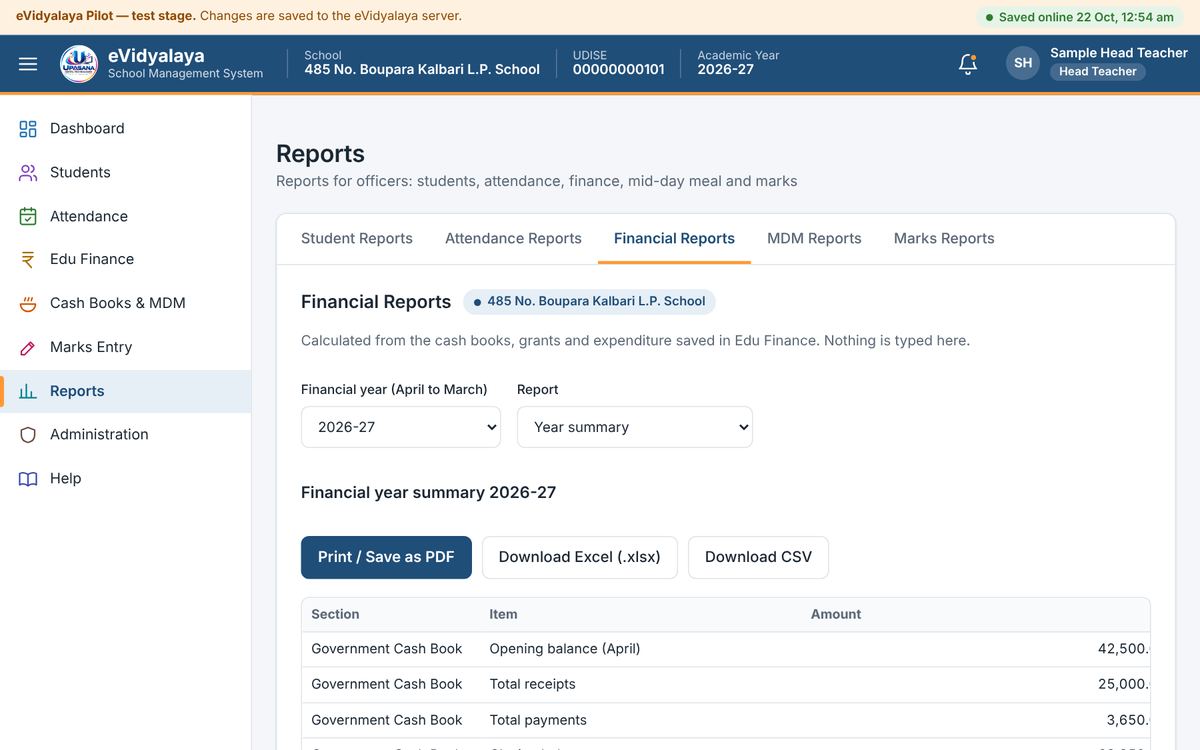
Choose the financial year and the report type; for marks, choose the class and exam.
বিত্তীয় বৰ্ষ আৰু ৰিপৰ্টৰ প্ৰকাৰ বাছক; নম্বৰৰ বাবে শ্ৰেণী আৰু পৰীক্ষা বাছক।
Printing and saving as PDF / প্ৰিণ্ট আৰু PDF হিচাপে ছেভ
Press Print / Save as PDF. In the print window choose your printer, or choose Save as PDF as the destination to keep a file. If nothing opens (some browsers block printing inside pages), press Ctrl+P, or use Download printable HTML and open the downloaded page. An Office Viewer can print only when their access allows it; otherwise the message "Printing is not included in your access" appears.
Print / Save as PDF টিপক। প্ৰিণ্ট উইণ্ড'ত আপোনাৰ প্ৰিণ্টাৰ বাছক, বা ফাইল ৰাখিবলৈ গন্তব্য হিচাপে Save as PDF বাছক। একো খোল নাখালে (কিছুমান ব্ৰাউজাৰে পৃষ্ঠাৰ ভিতৰৰ প্ৰিণ্ট বন্ধ কৰে) Ctrl+P টিপক, বা Download printable HTML ব্যৱহাৰ কৰি ডাউনল'ড হোৱা পৃষ্ঠাটো খোলক। Office Viewer-এ কেৱল অনুমতি থাকিলেহে প্ৰিণ্ট কৰিব পাৰে; নহ'লে "Printing is not included in your access" বাৰ্তা ওলায়।
12. Administration / প্ৰশাসন
School Profile and Academic Setup are described in Chapter 5, and Users & Roles in Chapter 4. This chapter covers the audit log, settings and backups.
বিদ্যালয়ৰ প্ৰ'ফাইল আৰু Academic Setup অধ্যায় ৫-ত, আৰু Users & Roles অধ্যায় ৪-ত বৰ্ণনা কৰা হৈছে। এই অধ্যায়ত অডিট লগ, ছেটিংছ আৰু বেকআপৰ কথা আছে।
Audit log / অডিট লগ
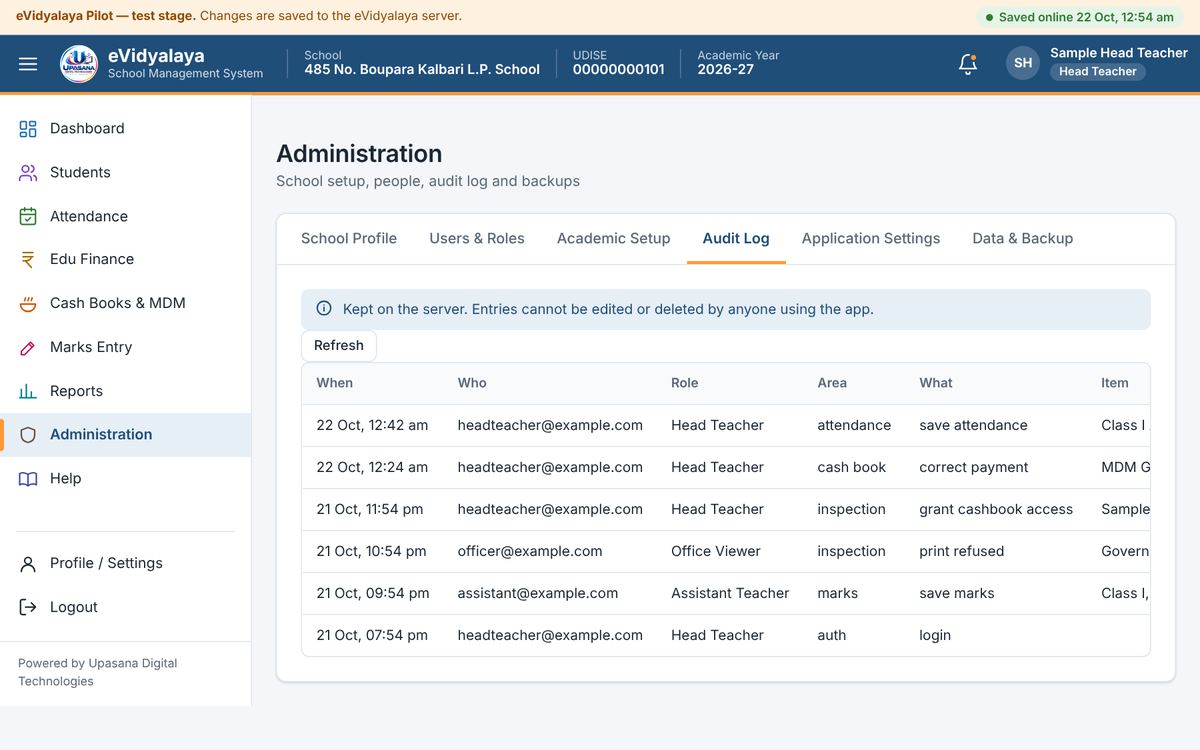
The audit log is kept on the server and lists who did what and when: saves and corrections, sign-ins, grants of inspection access, and print or download attempts by officers. Entries cannot be edited or deleted by anyone using the app. The Head Teacher reads the school's log here; press Refresh to see the newest entries.
অডিট লগ চাৰ্ভাৰত থাকে আৰু কোনে কেতিয়া কি কৰিলে তাৰ তালিকা দিয়ে: ছেভ আৰু শুধৰণি, লগ-ইন, পৰিদৰ্শনৰ অনুমতি প্ৰদান, আৰু বিষয়াসকলৰ প্ৰিণ্ট বা ডাউনল'ডৰ চেষ্টা। এপ ব্যৱহাৰ কৰা কোনেও এইবোৰ সলনি বা মচিব নোৱাৰে। প্ৰধান শিক্ষকে ইয়াত বিদ্যালয়ৰ লগ পঢ়ে; শেহতীয়া তথ্য চাবলৈ Refresh টিপক।
Application settings / এপৰ ছেটিংছ
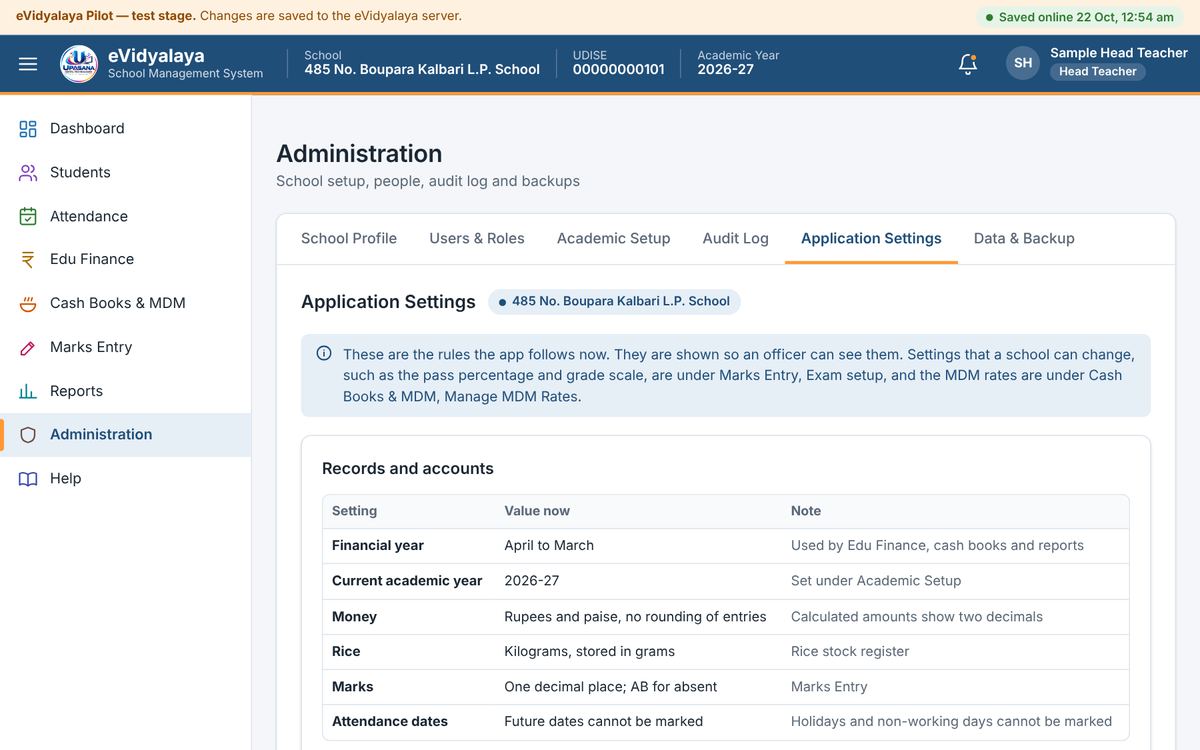
Application Settings shows the rules the app follows, such as the financial year (April to March), the current academic year, how money, rice and marks are stored, and that future dates cannot be marked, so that an officer can see them. Settings a school can change, such as the pass percentage, grade scale and MDM rates, are in Marks Entry and Cash Books & MDM.
Application Settings-এ এপে মানি চলা নিয়মবোৰ দেখুৱায়, যেনে বিত্তীয় বৰ্ষ (এপ্ৰিলৰ পৰা মাৰ্চ), চলিত শিক্ষাবৰ্ষ, ধন, চাউল আৰু নম্বৰ কেনেকৈ ৰখা হয়, আৰু ভৱিষ্যতৰ তাৰিখ চিহ্নিত কৰিব নোৱাৰি, যাতে বিষয়াই চাব পাৰে। উত্তীৰ্ণ শতাংশ, গ্ৰেড আৰু MDM হাৰৰ দৰে বিদ্যালয়ে সলনি কৰিব পৰা ছেটিংছ Marks Entry আৰু Cash Books & MDM-ত আছে।
Data and backup / তথ্য আৰু বেকআপ
All records are kept on the eVidyalaya server. In addition, the Head Teacher should keep a copy:
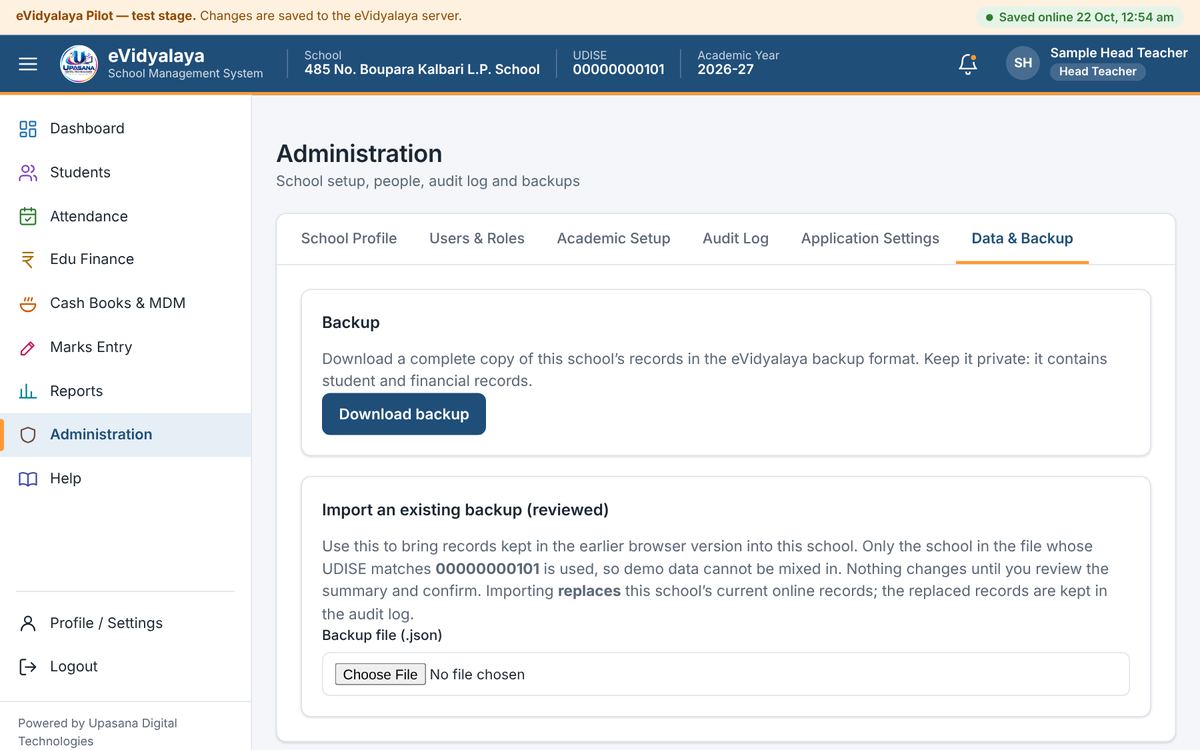
Download backup saves a complete copy of the school's records as one file (.json). Do this regularly, for example at the end of every month, and keep the file private and safe: it contains student and financial records.
Import an existing backup (reviewed) brings records from a backup file back into the same school. Only a file whose UDISE matches the school is accepted, so data of another school cannot be mixed in. Choose the file; a summary shows the school in the file, the records in the file and the records online now, which will be replaced. Type the school's UDISE to confirm and press Import and replace, or Cancel. The replaced records are kept in the audit log.
সকলো তথ্য eVidyalaya চাৰ্ভাৰত থাকে। তাৰ উপৰিও প্ৰধান শিক্ষকে এটা কপি ৰাখিব লাগে:
Download backup-এ বিদ্যালয়ৰ সকলো তথ্যৰ সম্পূৰ্ণ কপি এটা ফাইলত (.json) ছেভ কৰে। ইয়াক নিয়মিতভাৱে, যেনে প্ৰতি মাহৰ শেষত, কৰক আৰু ফাইলটো গোপনে আৰু সুৰক্ষিতকৈ ৰাখক: ইয়াত ছাত্ৰ-ছাত্ৰী আৰু ধনৰ তথ্য থাকে।
Import an existing backup (reviewed)-এ বেকআপ ফাইলৰ পৰা তথ্য একেখন বিদ্যালয়লৈ ঘূৰাই আনে। কেৱল বিদ্যালয়ৰ UDISE মিলা ফাইলহে গ্ৰহণ কৰা হয়, সেয়ে আন বিদ্যালয়ৰ তথ্য সোমাব নোৱাৰে। ফাইল বাছক; এটা সাৰাংশত ফাইলৰ বিদ্যালয়, ফাইলৰ তথ্য আৰু এতিয়া অনলাইনত থকা তথ্য (যিবোৰ সলনি হ'ব) দেখুৱায়। নিশ্চিত কৰিবলৈ বিদ্যালয়ৰ UDISE লিখি Import and replace টিপক, বা Cancel টিপক। সলনি হোৱা তথ্য অডিট লগত থাকে।
13. Owner Console (Upasana Digital Technologies) / ওনাৰ কনছোল
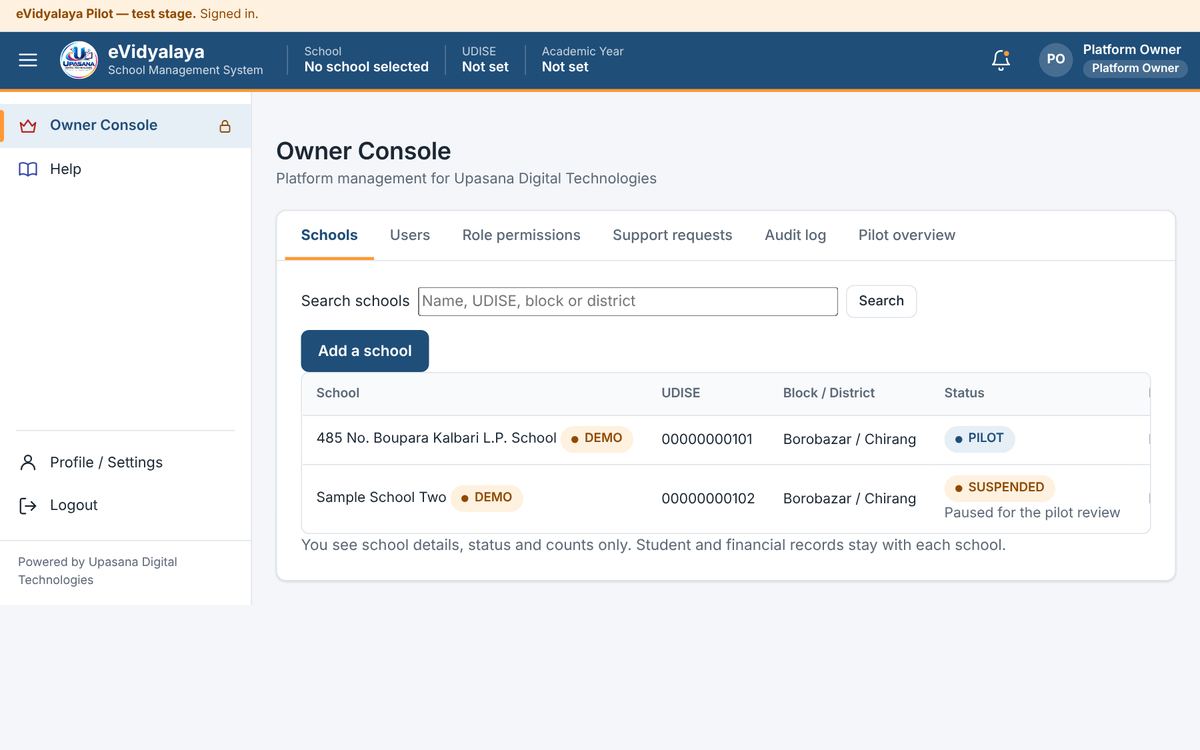
Only the Platform Owner sees the Owner Console. It is used to run the platform; it shows school details, status and counts only, never student or financial records.
কেৱল Platform Owner-এ ওনাৰ কনছোল দেখে। ইয়াক প্লেটফৰ্ম চলাবলৈ ব্যৱহাৰ কৰা হয়; ইয়াত কেৱল বিদ্যালয়ৰ বিৱৰণ, অৱস্থা আৰু সংখ্যা দেখা যায়, ছাত্ৰ-ছাত্ৰী বা ধনৰ তথ্য কেতিয়াও নহয়।
Schools: search schools; Add a school with its name (English and Assamese), UDISE, address, block, district, head teacher, mobile, email, academic year and categories; Edit; set the status to PILOT, ACTIVE, SUSPENDED or DISABLED with a reason; and choose whether the Head Teacher may manage Assistants.
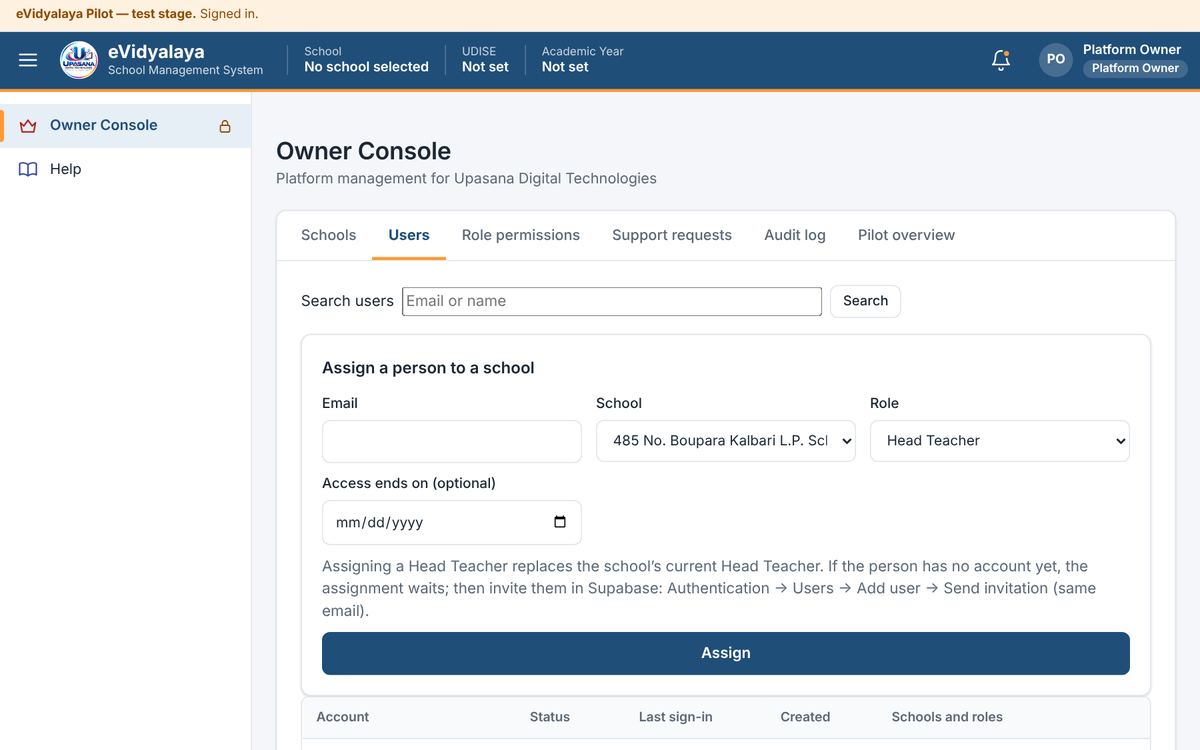
Users: Assign a person to a school by email, school, role and optional end date, with extra permissions if needed; suspend, re-activate, remove, or change a person's role.
Role permissions: the default permissions of each role, for all schools. Office Viewers can never be given editing permissions.
Support requests: messages sent by users, with status and reply.
Audit log and Pilot overview: platform-wide record of actions, and counts of schools and accounts.
Schools: বিদ্যালয় বিচৰা; বিদ্যালয়ৰ নাম (ইংৰাজী আৰু অসমীয়া), UDISE, ঠিকনা, খণ্ড, জিলা, প্ৰধান শিক্ষক, ম'বাইল, ইমেইল, শিক্ষাবৰ্ষ আৰু বিভাগসহ Add a school; Edit; কাৰণসহ অৱস্থা PILOT, ACTIVE, SUSPENDED বা DISABLED কৰা; আৰু প্ৰধান শিক্ষকে সহকাৰী শিক্ষক পৰিচালনা কৰিব পাৰিব নে নাই ঠিক কৰা।
Users: ইমেইল, বিদ্যালয়, ভূমিকা আৰু ইচ্ছা কৰিলে শেষ তাৰিখ দি, প্ৰয়োজন হ'লে অতিৰিক্ত অনুমতিসহ Assign a person to a school; কোনো ব্যক্তিক স্থগিত, পুনৰ সক্ৰিয়, আঁতৰোৱা বা ভূমিকা সলনি কৰা।
Role permissions: সকলো বিদ্যালয়ৰ বাবে প্ৰতিটো ভূমিকাৰ মূল অনুমতি। Office Viewer-ক কেতিয়াও সলনি কৰাৰ অনুমতি দিব নোৱাৰি।
Support requests: ব্যৱহাৰকাৰীয়ে পঠোৱা বাৰ্তা, অৱস্থা আৰু উত্তৰসহ।
Audit log আৰু Pilot overview: গোটেই প্লেটফৰ্মৰ কাৰ্যৰ লেখ, আৰু বিদ্যালয় আৰু একাউণ্টৰ সংখ্যা।
14. Help and support / সহায় আৰু সহযোগ
This guide inside the app / এপৰ ভিতৰত এই নিৰ্দেশিকা
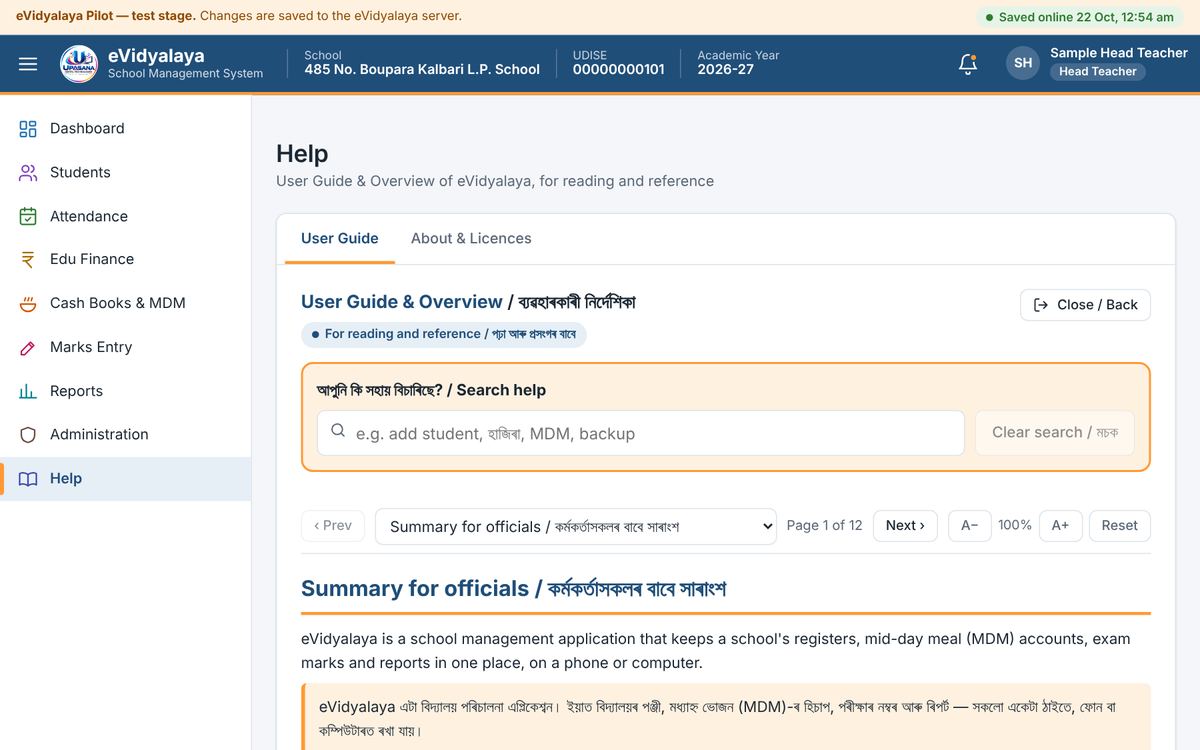
Open Help in the menu. Type a word in English or Assamese in the search box (for example attendance, হাজিৰা, MDM, backup, ভৰ্তি) to find the right section, or move page by page with Prev and Next. A− and A+ make the text smaller or larger.
মেনুৰ Help খোলক। সঠিক অংশটো বিচাৰিবলৈ সন্ধান বাকচত ইংৰাজী বা অসমীয়াত এটা শব্দ লিখক (যেনে attendance, হাজিৰা, MDM, backup, ভৰ্তি), বা Prev আৰু Next-ৰে পৃষ্ঠাৰ পিছত পৃষ্ঠা চাওক। A− আৰু A+-এ আখৰ সৰু বা ডাঙৰ কৰে।
Asking Upasana Digital Technologies / উপাসনা ডিজিটেল টেকন'লজিজক সোধা
In Profile / Settings → Help from Upasana Digital Technologies, type a subject and a message and press Send. Your messages appear below with their status and the reply. When reporting a problem, write what you were doing, copy the exact message shown (including any "Technical detail"), and if possible send a screenshot. Never send your password.
Upasana Digital Technologies, Manikpur, Bongaigaon, Assam, PIN 783392 · Email: upasanadigitaltechnologies@gmail.com · WhatsApp: 9954458145
Profile / Settings → Help from Upasana Digital Technologies-ত বিষয় আৰু বাৰ্তা লিখি Send টিপক। আপোনাৰ বাৰ্তাবোৰ তলত অৱস্থা আৰু উত্তৰসহ দেখা যায়। সমস্যা জনাওঁতে আপুনি কি কৰি আছিল লিখক, পৃষ্ঠাত দেখুওৱা বাৰ্তাটো হুবহু কপি কৰক ("Technical detail"-সহ), আৰু সম্ভৱ হ'লে স্ক্ৰীণশ্বট পঠাওক। কেতিয়াও পাছৱৰ্ড নপঠাব।
উপাসনা ডিজিটেল টেকন'লজিজ, মাণিকপুৰ, বঙাইগাঁও, অসম, পিন ৭৮৩৩৯২ · ইমেইল: upasanadigitaltechnologies@gmail.com · হোৱাটছএপ: 9954458145
Appendix / পৰিশিষ্ট
A. What each role can do / কোন ভূমিকাই কি কৰিব পাৰে
✓ = allowed / অনুমোদিত · – = not allowed / অনুমোদিত নহয় · "own classes" = only the classes given by the Head Teacher / কেৱল নিজৰ শ্ৰেণী · "if given" = only if Upasana Digital Technologies gives the extra permission / অতিৰিক্ত অনুমতি দিলেহে
| Task | Head Teacher | Assistant Teacher | Office Viewer | Platform Owner |
|---|---|---|---|---|
| Create schools, assign people, suspend or re-activate | – | – | – | ✓ |
| Edit school profile, years, classes, calendar | ✓ | – | – | School details only |
| Give classes to Assistant Teachers | ✓ | – | – | – |
| View students | ✓ | Own classes | ✓ (no ID or bank) | – |
| Add and edit students | ✓ | Own classes | – | – |
| Delete students; see Aadhaar, PAN and bank | ✓ | – (ID: if given) | – | – |
| Enter and correct student attendance | ✓ | Own classes | – | – |
| Manage staff; enter staff attendance | ✓ | View only (enter: if given) | View: if given | – |
| View MDM daily records and rice stock | ✓ | ✓ | ✓ | – |
| Enter MDM records, rates and rice | ✓ | If given | – | – |
| View and enter cash books, grants, expenditure, bank | ✓ | If given | Cash books: by inspection only | – |
| Set exams, subjects and grades | ✓ | If given | – | – |
| Enter and correct marks | ✓ | Own classes | View: if given | – |
| View reports | ✓ | ✓ | ✓ | – |
| Print and export reports | ✓ | If given | If given | – |
| Allow Financial Inspection; give and revoke access | ✓ | – | – | Authorises officers |
| Read the school audit log | ✓ | – | – | Platform log |
| Download backup; import a backup | ✓ | – | – | – |
প্ৰধান শিক্ষকে বিদ্যালয়ৰ সকলো কাম কৰিব পাৰে। সহকাৰী শিক্ষকে নিজৰ শ্ৰেণীৰ ছাত্ৰ-ছাত্ৰী, হাজিৰা আৰু নম্বৰ লিখে, আৰু MDM-ৰ তথ্য আৰু ৰিপৰ্ট চায়; আন কাম অতিৰিক্ত অনুমতি দিলেহে কৰিব পাৰে। Office Viewer-এ কেৱল চাব পাৰে, আৰু কেছ বুক কেৱল বিত্তীয় পৰিদৰ্শনৰ জৰিয়তে। Platform Owner-এ বিদ্যালয় আৰু একাউণ্ট পৰিচালনা কৰে, কিন্তু ছাত্ৰ-ছাত্ৰী বা ধনৰ তথ্য নাচায়।
B. Good practice / ভাল অভ্যাস
Keep your password secret. Do not share one account between two people; each teacher gets their own account.
Wait for Saved online before closing the page or switching off the device.
Use Remember me only on your own device, and press Logout on shared computers.
Take attendance every working day; holidays and Sundays must be marked in the School Calendar first.
The calculated MDM entitlement is not cash; only real receipts and payments go into the cash books.
Corrections to saved records ask for a reason and are kept in the audit log. Never enter false figures to make totals agree; use Record checks on the Dashboard to find the difference.
Download a backup at the end of every month and keep it safely.
Give an officer cash-book access only for the months and the time needed, and revoke it when the inspection ends.
পাছৱৰ্ড গোপনে ৰাখক। দুজনৰ মাজত এটা একাউণ্ট ভাগ নকৰিব; প্ৰতিজন শিক্ষকে নিজৰ একাউণ্ট পায়।
পৃষ্ঠা বন্ধ কৰা বা ডিভাইচ অফ কৰাৰ আগতে Saved online হোৱালৈ অপেক্ষা কৰক।
Remember me কেৱল নিজৰ ডিভাইচতহে ব্যৱহাৰ কৰক, আৰু সকলোৱে ব্যৱহাৰ কৰা কম্পিউটাৰত Logout টিপক।
প্ৰতিটো কামৰ দিনত হাজিৰা লওক; বন্ধৰ দিন আৰু দেওবাৰ প্ৰথমে বিদ্যালয়ৰ কেলেণ্ডাৰত চিহ্নিত কৰিব লাগে।
হিচাপ কৰা MDM-ৰ প্ৰাপ্য ধন নগদ নহয়; কেৱল প্ৰকৃত জমা আৰু খৰচহে কেছ বুকত যায়।
ছেভ কৰা তথ্য শুধৰালে কাৰণ সোধে আৰু অডিট লগত থাকে। মুঠ মিলাবলৈ কেতিয়াও ভুল সংখ্যা নিদিব; পাৰ্থক্য বিচাৰিবলৈ ডেশ্বব'ৰ্ডৰ Record checks ব্যৱহাৰ কৰক।
প্ৰতি মাহৰ শেষত বেকআপ ডাউনল'ড কৰি সুৰক্ষিতকৈ ৰাখক।
বিষয়াক কেৱল প্ৰয়োজনীয় মাহ আৰু সময়ৰ বাবেহে কেছ বুকৰ অনুমতি দিয়ক, আৰু পৰিদৰ্শন শেষ হ'লে প্ৰত্যাহাৰ কৰক।
C. Messages you may see / আপুনি দেখিব পৰা বাৰ্তা
| Message | What it means and what to do / অৰ্থ আৰু কি কৰিব |
|---|---|
| The email or password is not correct. | Check the spelling, or use Forgot password? / বানান পৰীক্ষা কৰক, বা Forgot password? ব্যৱহাৰ কৰক। |
| Too many attempts. Please wait a few minutes and try again. | Wait a few minutes before signing in again. / কেইমিনিটমান অপেক্ষা কৰি আকৌ লগ-ইন কৰক। |
| Your saved sign-in (Remember me) could not be used, so please sign in again. | Sign in again with your email and password. / ইমেইল আৰু পাছৱৰ্ডেৰে আকৌ লগ-ইন কৰক। |
| Your sign-in has expired. | Press Sign in again; your entries are kept. / Sign in again টিপক; আপোনাৰ তথ্য থাকি যায়। |
| Not saved: no internet connection. | Keep the page open; entries are saved when the connection returns (Chapter 3). / পৃষ্ঠা খুলি ৰাখক; সংযোগ ঘূৰি আহিলে তথ্য ছেভ হ'ব (অধ্যায় ৩)। |
| Someone else saved a newer version. | Download your unsaved changes, reload the school and enter them again. / ছেভ নোহোৱা তথ্য ডাউনল'ড কৰক, বিদ্যালয় পুনৰ খুলি আকৌ লিখক। |
| Some changes were refused by the server. | Your role does not allow it, or access has ended. Ask the Head Teacher. / আপোনাৰ ভূমিকাই অনুমতি নিদিয়ে বা অনুমতি শেষ হৈছে। প্ৰধান শিক্ষকক সোধক। |
| Your account is not linked to a school yet. | Upasana Digital Technologies has not yet added you to a school. / উপাসনা ডিজিটেল টেকন'লজিজে আপোনাক এতিয়াও বিদ্যালয়ত যোগ কৰা নাই। |
| School suspended / account suspended or disabled | Access is paused; records are kept. Contact Upasana Digital Technologies. / অনুমতি সাময়িকভাৱে বন্ধ; তথ্য থাকি যায়। উপাসনা ডিজিটেল টেকন'লজিজৰ সৈতে যোগাযোগ কৰক। |
| Printing this cash book is not included in your access. | Ask the Head Teacher to allow printing in your access. / আপোনাৰ অনুমতিত প্ৰিণ্ট যোগ কৰিবলৈ প্ৰধান শিক্ষকক কওক। |
| Hidden for your role | ID and bank details are shown only to the Head Teacher. / আই-ডি আৰু বেংকৰ তথ্য কেৱল প্ৰধান শিক্ষকক দেখুওৱা হয়। |
| Setup needed: this copy of eVidyalaya is not connected to its server. | The website is not set up correctly. Contact Upasana Digital Technologies. / ৱেবছাইটটো শুদ্ধকৈ ছেট কৰা হোৱা নাই। উপাসনা ডিজিটেল টেকন'লজিজৰ সৈতে যোগাযোগ কৰক। |
| Something went wrong … (Technical detail: …) | Take a screenshot and send it to Upasana Digital Technologies. / স্ক্ৰীণশ্বট লৈ উপাসনা ডিজিটেল টেকন'লজিজলৈ পঠাওক। |
D. Glossary / শব্দকোষ
| Term | Meaning | অসমীয়া |
|---|---|---|
| UDISE code | 11-digit national school code | বিদ্যালয়ৰ ১১ অংকৰ ৰাষ্ট্ৰীয় ক'ড |
| LP / ME | Lower Primary / Middle English school | নিম্ন প্ৰাথমিক / মধ্য ইংৰাজী বিদ্যালয় |
| MDM | Mid-day meal (PM POSHAN) | মধ্যাহ্ন ভোজন |
| Entitlement | Cooking cost due, calculated as students served × rate | প্ৰাপ্য ধন (খোৱা ছাত্ৰ × হাৰ) |
| Opening / closing balance | Money at the start / end of a month | আৰম্ভণি / সমাপ্তি জেৰ |
| Receipt / payment | Money received / money spent | জমা / খৰচ |
| Archive | Hide a student from active lists without deleting | তথ্য নমচাকৈ সক্ৰিয় তালিকাৰ পৰা আঁতৰোৱা |
| Audit log | Permanent list of every change and access | প্ৰতিটো সলনি আৰু প্ৰৱেশৰ স্থায়ী তালিকা |
| Backup | One file holding all records of a school, for safe keeping | বিদ্যালয়ৰ সকলো তথ্যৰ সুৰক্ষিত কপি |
| Server | The online computer where eVidyalaya keeps all records | চাৰ্ভাৰ: য'ত eVidyalaya-ৰ সকলো তথ্য থাকে |
| Financial inspection | Read-only access to cash books given to an officer for chosen months | বিত্তীয় পৰিদৰ্শন: বিষয়াক নিৰ্দিষ্ট মাহৰ কেছ বুক চাবলৈ দিয়া অনুমতি |
| Pilot | The first trial of eVidyalaya in Borobazar Block | পাইলট: বৰবজাৰ খণ্ডত eVidyalaya-ৰ প্ৰথম পৰীক্ষামূলক ব্যৱহাৰ |
The pictures in this guide were taken from the pilot version using a sample school with fictional students, staff and example amounts.
এই নিৰ্দেশিকাৰ ছবিবোৰ পাইলট সংস্কৰণৰ পৰা কাল্পনিক ছাত্ৰ-ছাত্ৰী, কৰ্মচাৰী আৰু উদাহৰণৰ পৰিমাণসহ এখন নমুনা বিদ্যালয় ব্যৱহাৰ কৰি লোৱা হৈছে।